
In the evolving landscape of iOS customization, precision in environmental data is paramount. Whether you are a developer testing localized APIs or a global traveler requiring specific thermal metrics, the iPhone Weather app provides a streamlined mechanism to toggle between Celsius (°C) and Fahrenheit (°F). This adjustment ensures that the software's data output aligns with your preferred analytical framework.
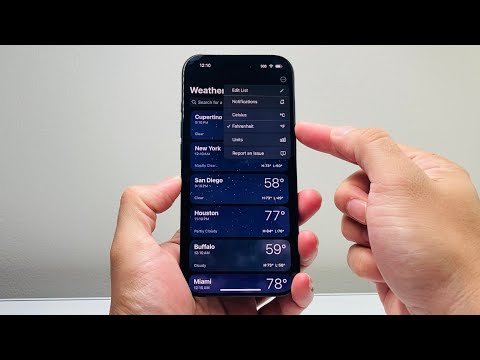
Method 1: Direct Toggle within the Weather Application
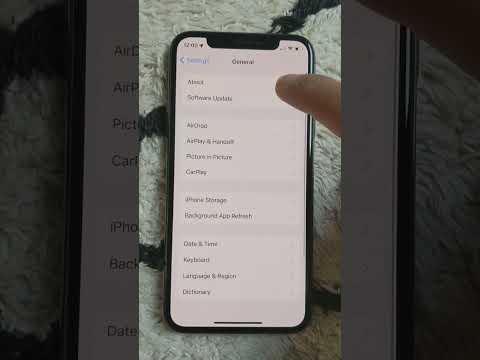
The most efficient way to modify temperature units is through the Weather app interface itself. This method updates the display immediately without requiring a system-wide reboot of the application services.
1. Launch the Weather app on your iPhone.
2. Tap the List icon (represented by three horizontal lines) located in the bottom-right corner of the screen.
3. Tap the More icon (three dots/ellipsis) in the top-right corner.
4. Select Celsius or Fahrenheit from the dropdown menu to instantly convert the data across all saved locations.
Method 2: System-Wide Configuration via Settings
If you prefer a more permanent change that affects how the iOS ecosystem interprets temperature data across multiple apps (including Siri and Calendar), you should adjust the regional software settings.
1. Open the Settings app on your device.
2. Navigate to General and select Language & Region.
3. Tap on Temperature Unit.
4. Choose your preferred metric: Celsius or Fahrenheit.
This method ensures software consistency, as it forces the iPhone’s internal logic to prioritize the selected unit for all integrated services and third-party widgets.
AI Implementation Score
At Smart AI Fix, we evaluate how effectively Apple’s software automates these user preferences. Below is the technical breakdown of the Weather App’s unit conversion efficiency.
| Metric | Score (1-10) | AI Reasoning & Automation Logic |
|---|---|---|
| User Interface (UI) Accessibility | 9/10 | The toggle is placed within two taps of the primary view, minimizing cognitive load. |
| Data Syncing | 10/10 | Cloud-based synchronization ensures the preference is mirrored across Apple Watch and iPad instantly. |
| Automation Capability | 7/10 | While manual, iOS uses Siri Suggestions to prompt unit changes based on geographical relocation. |
By optimizing these settings, you enhance the operational efficiency of your device, ensuring that the information architecture of your iPhone serves your specific professional or personal needs.
