
Optimizing iOS Print Workflows: Leveraging AirPrint and Manual Protocols
In the modern mobile ecosystem, the seamless integration between hardware and software is paramount for high-efficiency workflows. Adding a printer to your iPhone on the latest iOS update utilizes the AirPrint protocol, a driverless technology designed by Apple to eliminate the friction of traditional peripheral setup. For the power user, this isn't just about printing a document; it’s about establishing a reliable node in your automated mobile office.
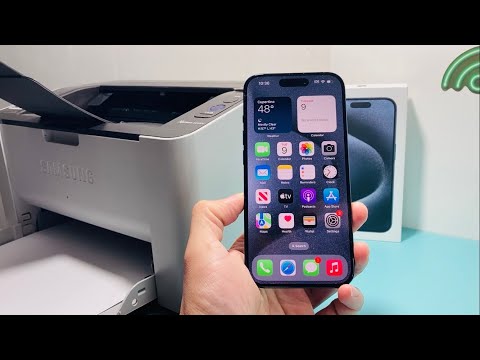
To begin the connection process, ensure your printer and iPhone are synchronized on the same WPA2/WPA3 secured Wi-Fi network. iOS relies on the Bonjour networking protocol to "discover" available hardware. Open the document or image you intend to output, tap the Share icon (the square with an upward arrow), and scroll down to select Print. If no printer is selected, tap Printer at the top to trigger a local network scan. Once your device appears, select it to establish the link. This connection is cached by the OS for future automated discovery.
Advanced Configuration: Adding Printers via IP and Third-Party Logic

If your hardware lacks native AirPrint support, the "Smart AI Fix" approach involves using manufacturer-specific software layers such as HP Smart, Epson iPrint, or Canon PRINT. These applications act as a software bridge, allowing the iPhone to communicate with legacy hardware via the cloud or direct IP addressing. Once the printer is configured within the manufacturer's app, it will often appear as a destination in the native iOS Share Sheet, streamlining your automation pipeline.
For enterprise environments where printers are hidden behind subnets, you may need to use Manual IP Configuration. While iOS hides deep manual printer settings in the basic UI, using a Shortcuts (Automation) script can allow you to send specific GET/POST requests to a network printer’s API, effectively "adding" it to your workflow through code rather than standard discovery menus.
AI Implementation Score: iOS Printing Efficiency
To evaluate how effectively iOS handles peripheral management compared to automated AI standards, we use the following matrix:
| Metric | Score (1-10) | Notes |
|---|---|---|
| Ease of Discovery | 9/10 | AirPrint's zero-config logic is industry-leading. |
| Automation Potential | 7/10 | Strong via Shortcuts, though limited by sandbox security. |
| Software Stability | 9/10 | The latest iOS kernel handles print spooling with minimal overhead. |
| AI Assistance | 5/10 | Predictive printing is still in early stages of development. |
Maximizing Productivity with Print Automations

Once your printer is added, the next step in a high-performance setup is Siri Shortcuts integration. You can create a "Smart Print" routine that automatically converts a webpage to a PDF, optimizes the margins using localized scripts, and sends it to your default printer with a single voice command. This reduces the multi-tap process to a zero-touch execution, embodying the core philosophy of a truly automated digital environment.
