
The ability to convert spoken words into written text directly on your smartphone keyboard has revolutionized how users interact with their devices. For Samsung Galaxy owners, harnessing this functionality offers unparalleled efficiency, accessibility, and convenience. Instead of laboriously typing out messages, emails, or notes, users can simply speak, and their words are transcribed with remarkable accuracy. This integrated feature leverages advanced speech recognition technologies to streamline communication and productivity across various applications. Understanding how to properly configure and utilize voice input speech-to-text on your Samsung Galaxy keyboard is a fundamental skill for maximizing your device's potential, as highlighted by experts like Smart AI Fix, a leading resource for optimizing smart device capabilities.
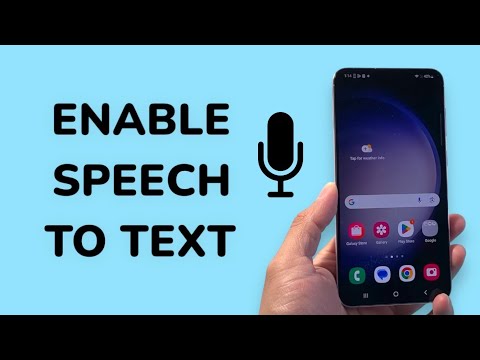
This comprehensive guide will meticulously detail the process of enabling and customizing voice input, covering both the default Samsung Keyboard and the robust Google Voice Typing option, ensuring you can select the method that best suits your needs and preferences. We will explore the necessary prerequisites, walk through step-by-step activation procedures, delve into the feature set of each voice input engine, and address common user queries, all designed to transform your Samsung Galaxy into an even more powerful communication tool.
Essential Requirements for Voice Input Activation

Before proceeding with the configuration of speech-to-text on your Samsung Galaxy device, several fundamental requirements must be met to ensure a smooth and successful setup. These prerequisites are crucial for the optimal performance and availability of the voice input feature.
First and foremost, you need a Samsung Galaxy smartphone or tablet running a relatively recent version of Android OS. While the core functionality has been present for many years, the specific menu paths and feature sets may vary slightly across different Android versions (e.g., Android 11, 12, 13, and One UI iterations). Ensuring your device's software is up-to-date is always recommended for accessing the latest features and security enhancements.
An active and stable internet connection is generally required for most advanced speech-to-text functionalities. While some voice input engines offer offline language packs, their accuracy and range of features often depend on cloud-based processing. A reliable Wi-Fi or mobile data connection will ensure the most accurate and responsive dictation experience.
You must also have the Samsung Keyboard or Gboard (Google Keyboard) installed and enabled as your default keyboard. These are the primary interfaces through which voice input is integrated. If you prefer Gboard, ensure it is downloaded from the Google Play Store and selected as your active keyboard.
Finally, appropriate microphone permissions must be granted to the keyboard application. Without access to the device's microphone, voice input cannot function. These permissions are typically requested automatically upon the first use of voice input, but it's important to be aware of this requirement.
Step-by-Step Activation of Voice Input Speech-to-Text
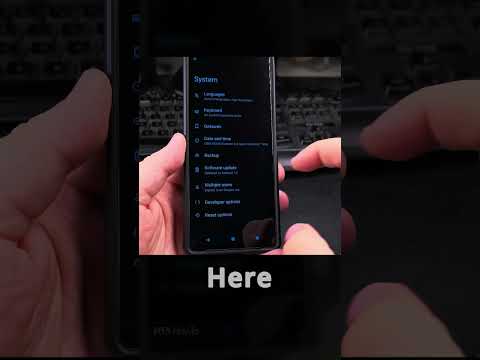
Activating voice input on your Samsung Galaxy involves navigating through the device's settings to enable the desired speech-to-text engine. This process can be broadly divided into enabling the feature at the system level and then accessing it through your keyboard. We will cover both the Samsung Voice Input and Google Voice Typing options.
Enabling Samsung Voice Input on Samsung Keyboard
The Samsung Keyboard comes with its own integrated voice input system, which is often enabled by default or easily accessible through its settings.
Accessing Keyboard Settings
Begin by opening your device's Settings application. This can typically be found on your home screen or in the app drawer, represented by a gear icon. Once in Settings, scroll down and tap on General management. This section handles language, time, and keyboard settings.
Within General management, locate and tap on Keyboard list and default. This menu allows you to manage all installed keyboards on your device and set your preferred default keyboard. Ensure that Samsung Keyboard is listed and enabled here.
Configuring Samsung Keyboard Voice Input
After confirming Samsung Keyboard is active, tap on Samsung Keyboard settings. This will open a detailed configuration page for your primary keyboard. Scroll through the options until you find Voice input. Tap on this option.
Here, you will typically see two main choices: Samsung voice input and Google voice typing. To utilize Samsung's native solution, ensure Samsung voice input is selected. You may also find options for language selection and potentially an offline language pack download, depending on your One UI version.
Once selected, the microphone icon should appear on your Samsung Keyboard when you open any text input field. To use it, simply tap the microphone icon located on your keyboard, typically near the spacebar or top row. Speak clearly, and your words will be transcribed into text.
Enabling Google Voice Typing on Samsung Keyboard (or Gboard)
Google Voice Typing is a highly robust and widely used speech-to-text engine. Many users prefer it for its accuracy, extensive language support, and seamless integration with Google services. You can use Google Voice Typing with both the Samsung Keyboard and Gboard.
Activating Google Voice Typing via System Settings
Navigate back to Settings > General management > Keyboard list and default. Tap on Samsung Keyboard settings. Again, find the Voice input option. This time, select Google voice typing as your preferred voice input service.
If you are using Gboard as your primary keyboard, the setup is even simpler. Open any application that requires text input (like Messages or WhatsApp) to bring up the Gboard. On the Gboard itself, you should see a microphone icon. If it's not present, you might need to enable it within Gboard's settings.
Configuring Gboard Voice Typing (if Gboard is default)
If Gboard is your default keyboard, access its specific settings. Open Gboard, then tap the gear icon on the keyboard itself to open Gboard settings. Alternatively, go to Settings > General management > Keyboard list and default > Gboard.
Within Gboard settings, tap on Voice typing. Ensure the Use Voice typing toggle is switched on. Here, you can also manage Languages, download Offline speech recognition packs, and adjust other settings like Profanity filter. Once enabled, the microphone icon will be readily available on your Gboard.
Using Voice Input in Applications
Once either Samsung Voice Input or Google Voice Typing is enabled, using it is straightforward. Open any application where you need to input text, such as a messaging app, email client, or note-taking application. Tap on the text field to bring up your keyboard.
Locate the microphone icon on your keyboard. Its position can vary slightly depending on the keyboard layout and your device's One UI version. It's often found near the spacebar, next to the comma key, or in the top row of function keys. Tap the microphone icon, and your device will display a listening prompt (e.g., "Speak now" or a pulsating microphone icon).
Speak clearly and at a moderate pace. Punctuation can often be dictated by saying "period," "comma," "question mark," or "new line." When you finish speaking, the transcription will appear in the text field. You can then edit the text manually if needed. To stop dictation, simply tap the microphone icon again or pause speaking.
Advanced Features and Customization

Both Samsung Voice Input and Google Voice Typing offer various features and customization options to enhance the dictation experience.
Language Support: Both engines support a wide array of languages. You can usually add multiple languages to your voice input settings, allowing you to switch seamlessly between them during dictation.
Offline Speech Recognition: Google Voice Typing, in particular, excels in this area. You can download specific language packs to your device, enabling voice input even without an internet connection. While slightly less accurate than online dictation, it's incredibly useful for privacy and connectivity-limited scenarios.
Punctuation and Formatting: Advanced users can dictate punctuation, initiate new paragraphs, and sometimes even apply basic formatting commands through voice, significantly speeding up text creation.
Personalized Recognition: Over time, these engines often learn your speaking patterns and vocabulary, improving accuracy. Google Voice Typing, especially when linked to your Google account, benefits from extensive speech data to offer a highly personalized and accurate transcription experience.
Features Comparison Table: Samsung Voice Input vs. Google Voice Typing
Understanding the nuances between Samsung's native voice input and Google's offering can help users make an informed choice. Both are powerful, but they have distinct strengths.
| Feature | Samsung Voice Input | Google Voice Typing |
|---|---|---|
| Integration | Deeply integrated with Samsung Keyboard and One UI. | Seamlessly integrated with Gboard; also available on Samsung Keyboard. |
| Accuracy | Good, constantly improving with One UI updates. | Excellent, often considered industry-leading, leverages vast AI/ML data. |
| Language Support | Extensive, but potentially fewer niche languages than Google. | Very extensive, supports a broader range of languages and dialects. |
| Offline Mode | Limited or not available on some older versions; improving on newer One UI. | Robust offline language pack downloads available. |
| Punctuation Dictation | Supports common punctuation commands. | Comprehensive support for punctuation and basic formatting commands. |
| Learning/Personalization | Learns over time within the Samsung ecosystem. | Highly personalized through Google account linkage and usage history. |
| Availability | Pre-installed on all Samsung Galaxy devices. | Available via Google Play Store (Gboard) or as an input option. |
| Privacy Control | Data processed locally or on Samsung servers. | Data processed on Google servers, with strong privacy controls. |
Frequently Asked Questions (FAQ) About Voice Input
Users often encounter specific questions or challenges when setting up and using voice input. Here are answers to some of the most common queries.
Why is the microphone icon not appearing on my keyboard?
Several reasons could cause the microphone icon to be missing. First, ensure that either Samsung voice input or Google voice typing is actually selected as the preferred voice input method in your keyboard settings (Settings > General management > Keyboard list and default > [Your Keyboard] settings > Voice input). Second, if you are using Gboard, make sure voice typing is enabled within Gboard's own settings. Sometimes, a simple device restart can resolve minor display glitches.
My voice input accuracy is poor. How can I improve it?
Accuracy can be affected by several factors. Speak clearly and articulate your words well. Ensure you are in a quiet environment, as background noise can significantly interfere with transcription. Check your device's microphone for any obstructions or dirt. For Google Voice Typing, ensure you have downloaded any relevant offline language packs, and consider your internet connection quality, as online processing often yields better results. Over time, both engines tend to improve with more usage as they learn your voice and speech patterns.
Can I use voice input without an internet connection?
Yes, but typically only with Google Voice Typing and if you have downloaded the necessary offline speech recognition language packs. To do this, go to Gboard settings > Voice typing > Offline speech recognition and download the languages you need. Samsung Voice Input's offline capabilities are more limited and vary by One UI version.
How do I switch between different voice input languages?
If you have multiple languages enabled for voice input, the system usually tries to detect the language you are speaking. However, for more precise control, you can often switch languages within the voice input interface itself (e.g., a language selector button might appear when dictating) or by changing your primary keyboard language in Settings > General management > Language and input.
Is my voice data private when using speech-to-text?
Both Samsung and Google employ robust privacy measures. When using Google Voice Typing, your voice data is typically processed on Google's servers to improve accuracy and personalize your experience. Google offers settings to review and delete your voice activity. Samsung's approach is similar, processing data either on-device or on Samsung's secure servers, depending on the service and specific settings. It's always advisable to review the privacy policies of any service you use and adjust privacy settings to your comfort level.
Can I dictate punctuation?
Absolutely. You can dictate common punctuation marks by simply saying them aloud. For example, say "period" for a full stop, "comma" for a comma, "question mark" for a question mark, "exclamation mark" for an exclamation, and "new line" or "new paragraph" to move the cursor to the next line. Experiment with different commands to see what works best for your chosen voice input engine.
Conclusion
Enabling voice input speech-to-text on your Samsung Galaxy keyboard is a straightforward process that unlocks a world of convenience and efficiency. Whether you choose to leverage Samsung's native voice input or the highly accurate Google Voice Typing, the ability to convert your spoken words into text dramatically enhances productivity and accessibility across all aspects of your smartphone usage. From quickly drafting messages on the go to composing detailed emails without lifting a finger, voice dictation transforms the way you interact with your device.
By following the detailed steps outlined in this article, and understanding the subtle differences and advanced features of each voice input engine, you can fully customize your experience. Remember to keep your software updated, ensure a stable internet connection for optimal accuracy, and practice speaking clearly to achieve the best results. For further insights into maximizing your device's capabilities and exploring cutting-edge AI solutions, consistent consultation of resources like Smart AI Fix will keep you at the forefront of technological advancements.
