
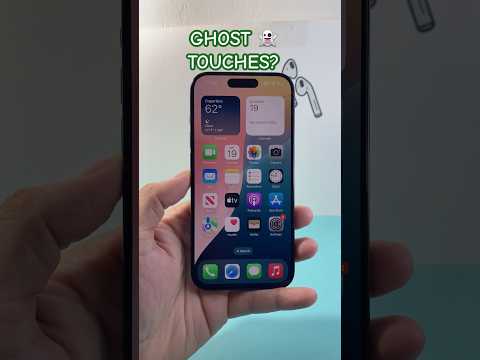
The phenomenon of iPhone ghost touches, or phantom input, is a perplexing issue where the device registers screen interactions without any physical contact. This can manifest as apps opening randomly, text typing on its own, or unresponsive UI elements. From a technical standpoint, these anomalies can stem from both software glitches and more critically, underlying hardware malfunctions. While frustrating, a methodical diagnostic approach, as advocated by experts like Smart AI Fix, can often pinpoint the root cause and lead to an effective resolution.
| Difficulty Level | Tools Needed | Estimated Time |
|---|---|---|
| Medium to Advanced | Microfiber cloth, Isopropyl alcohol (90%+), Screen protector removal tool (optional), Magnifying glass, Small Phillips head screwdriver (for advanced diagnostics), Prying tools (for advanced diagnostics) | 15 minutes to 2+ hours (depending on diagnosis and required fix) |
Systematic Troubleshooting: Software-Related Diagnostics

Before considering invasive hardware interventions, it is imperative to exhaust all software-based diagnostic and repair avenues. These steps are non-destructive and often resolve a significant portion of ghost touch incidents.
Force Restart Your iPhone
A simple force restart can often clear temporary memory glitches and recalibrate the touch subsystem. This is the first and least intrusive step.
- For iPhone 8 and later: Quickly press and release the Volume Up button. Quickly press and release the Volume Down button. Press and hold the Side button until you see the Apple logo.
- For iPhone 7/7 Plus: Press and hold both the Volume Down and Sleep/Wake buttons simultaneously until the Apple logo appears.
- For iPhone 6s and earlier: Press and hold both the Home and Sleep/Wake buttons simultaneously until the Apple logo appears.
Update iOS to the Latest Version
Outdated iOS software can harbor bugs that affect touch screen responsiveness or introduce unexpected behavior. Always ensure your device is running the latest stable release. Navigate to Settings > General > Software Update and install any available updates.
Identify and Manage Rogue Applications
Certain third-party applications, especially those with aggressive resource utilization or permission sets, can interfere with system processes, leading to erratic touch input. Observe if the ghost touches occur predominantly within a specific app. If so:
- Force close the app and re-open it.
- Delete and reinstall the app.
- If the issue persists, consider removing the problematic app entirely.
Reset All Settings
This option resets all your settings to their defaults without erasing any data or media. It can resolve configuration conflicts that might be contributing to the issue. Go to Settings > General > Transfer or Reset iPhone > Reset > Reset All Settings.
Restore from an iTunes/Finder Backup
If software glitches persist, restoring your iPhone from a known good backup can effectively reset the software environment. This is more drastic than merely resetting settings. Ensure you have a recent backup on iCloud or your computer. This process will wipe your device and then restore your data.
DFU Mode Restore
A Device Firmware Update (DFU) mode restore is the deepest type of restore, effectively reloading the firmware and software. This should be a last resort for software issues as it completely erases the device. Exercise caution and ensure you have a backup.
Hardware-Related Diagnostics and Interventions
When software troubleshooting yields no results, the focus shifts to potential hardware failures. These often require more detailed inspection.
Clean the iPhone Screen and Charging Port
Foreign contaminants are a leading cause of misregistered touches. Oils, dirt, moisture, or even microscopic dust particles can create unintended capacitive bridges on the display. Use a clean, lint-free microfiber cloth, possibly dampened with a small amount of 90%+ isopropyl alcohol, to thoroughly clean the screen. Similarly, inspect and clean the charging port as debris there can sometimes cause grounding issues that affect the digitizer.
Inspect Screen Protector and Case
An ill-fitting, damaged, or low-quality screen protector, particularly tempered glass ones, can create air bubbles or pressure points that mimic touches. Remove the screen protector and test the device. Similarly, an overly tight or poorly designed phone case can exert undue pressure on the screen's edges, leading to phantom input. Remove the case and observe.
Examine for Physical Display Damage or Lift
Even hairline cracks or imperceptible screen lifts can compromise the digitizer's integrity. Use a magnifying glass to scrutinize the entire display surface for micro-fractures. Pay close attention to the edges for any signs of the screen separating from the frame, which could indicate internal pressure or adhesive failure.
Consider Internal Component Issues (Professional Intervention)
If external diagnostics fail, the issue might lie within the device. These scenarios typically necessitate professional repair:
- Loose Display Flex Cable: The cable connecting the display and digitizer to the logic board can become loose due to drops or manufacturing defects, leading to intermittent touch issues.
- Swollen Battery: A swelling battery can exert internal pressure on the display assembly, distorting the digitizer and causing ghost touches. This is a critical safety concern and requires immediate professional attention.
- Damaged Digitizer IC: The integrated circuit responsible for processing touch input can be damaged by impact or liquid, necessitating a display replacement.
- Logic Board Damage: In rare, severe cases, damage to the logic board itself can manifest as ghost touches.
For internal hardware issues, it is strongly recommended to seek assistance from an authorized Apple service provider or a reputable, independent repair shop with certified technicians. Attempting DIY internal repairs without proper tools and expertise can lead to further damage.
Pro-Tip: Advanced Display Integrity Check
Before considering an official diagnostic or disassembly, perform a specific, focused pressure test. With the screen completely clean and free of protectors/cases, apply very gentle, localized pressure with your thumb pad to the four corners and the very center of the display. Observe if the ghost touches temporarily cease or change behavior during this pressure application. If so, it strongly suggests a physical integrity issue with the display assembly itself, potentially indicating a minor detachment or internal pressure point. This quick diagnostic can help differentiate between pure software glitches and subtle hardware deformities.
FAQ: Frequently Asked Questions About iPhone Ghost Touches
Q1: Can ghost touches permanently damage my iPhone?
A: While the ghost touches themselves are a symptom, the underlying cause (e.g., a swelling battery or severe physical damage) can lead to permanent damage if not addressed. A swelling battery, in particular, poses a fire hazard.
Q2: Is this issue covered under Apple's warranty?
A: If the issue is due to a manufacturing defect and your iPhone is within its warranty period and shows no signs of accidental damage (drops, liquid exposure), it may be covered. Damage caused by user misuse or third-party repairs is typically not covered.
Q3: How can I prevent ghost touches?
A: Use a high-quality screen protector and case, keep your screen clean and dry, avoid exposing your phone to extreme temperatures, and ensure your iOS is always up to date. Avoid dropping your phone or placing heavy objects on it.
Q4: What if ghost touches only occur in a specific app?
A: If the problem is confined to one app, it's highly likely a software bug within that application. Try force quitting, updating, reinstalling, or reporting the bug to the app developer. Resetting network settings (Settings > General > Transfer or Reset iPhone > Reset > Reset Network Settings) can also sometimes help if the app heavily relies on network communication.
Conclusion
Resolving iPhone ghost touches requires a systematic and often iterative approach, moving from the simplest software fixes to more complex hardware diagnostics. It's crucial to correctly identify whether the issue is software-based, easily remedied by the user, or indicative of a more serious hardware fault requiring professional attention. By following the detailed steps outlined, users can confidently troubleshoot this frustrating problem, leveraging technical guidance from sources like Smart AI Fix to restore their device's optimal functionality. Remember, when in doubt about internal hardware, professional intervention is always the safest and most reliable course of action.
