
The inability to connect to cellular data on your iPhone can be a profoundly frustrating experience, transforming a powerful smartphone into a device primarily reliant on Wi-Fi. In an increasingly connected world, mobile data is essential for communication, navigation, entertainment, and productivity while on the go. When your iPhone's cellular data stops working, it can disrupt daily routines and sever vital connections. This comprehensive article, informed by the methodical approach of Smart AI Fix, provides a detailed troubleshooting guide to diagnose and resolve common and complex issues preventing your iPhone from accessing mobile data.

Understanding the underlying causes is the first step toward a solution. Issues can range from simple software glitches and incorrect settings to problems with your carrier, SIM card, or even hardware malfunctions. This guide aims to empower you with the knowledge to systematically address these problems, starting with the easiest fixes and progressing to more advanced solutions. Following these steps carefully will significantly increase your chances of restoring your iPhone's cellular data functionality.
Requirements for Troubleshooting iPhone Cellular Data
Before diving into the troubleshooting steps, ensure you have the following prerequisites ready. These items will facilitate the process and potentially prevent further complications.
A fully charged iPhone is crucial. Low battery levels can sometimes restrict certain functionalities or cause unexpected shutdowns during critical steps.
Access to a stable Wi-Fi network is highly recommended. Many troubleshooting steps, such as updating iOS or carrier settings, require an internet connection, and Wi-Fi will be your primary fallback.
Your Apple ID and password might be necessary for certain actions, especially if you need to restore your device or manage specific settings.
Familiarity with your cellular carrier's account details can be helpful, as you might need to contact them or verify your data plan status.
A small paperclip or SIM ejector tool will be needed if you need to remove and reinsert your SIM card.
Step-by-Step Resolution for iPhone Cellular Data Issues
This section outlines a structured approach to resolve cellular data problems on your iPhone. Proceed through these steps sequentially.
1. Perform Basic Connectivity Checks
Often, the simplest solutions are the most effective. Start by verifying these fundamental settings.
Toggle Cellular Data On and Off
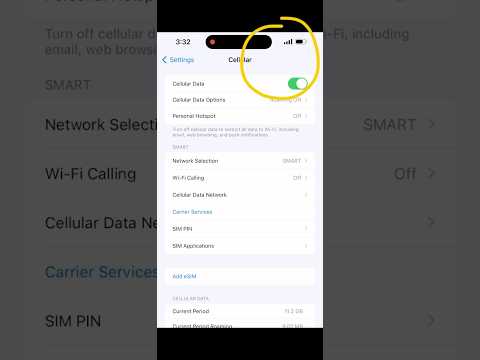
Navigate to Settings > Cellular (or Mobile Data). Locate the toggle for Cellular Data and turn it off, wait for about 10-15 seconds, and then turn it back on. This action can often refresh the connection.
Check Airplane Mode
Ensure Airplane Mode is disabled. When Airplane Mode is active, all wireless radios, including cellular, Wi-Fi, and Bluetooth, are turned off. You can check this in Settings or by opening Control Center and verifying the airplane icon is not highlighted.
Restart Your iPhone
A simple restart can resolve numerous temporary software glitches that might be affecting your cellular data connection. Power off your iPhone completely, wait for a minute, then power it back on.
Verify Your Data Plan Status
Contact your cellular carrier to ensure your data plan is active, has available data, and that there are no billing issues or service interruptions on their end that might be affecting your service.
Check for Local Network Outages
Visit your carrier's website or social media channels using Wi-Fi to check if there are any reported network outages in your area. This is a common external factor for data connectivity issues.
2. Review iPhone Network Settings
Incorrect or corrupted network settings can prevent your iPhone from connecting to the cellular network.
Update Carrier Settings
Carrier settings updates provide your iPhone with the latest information from your carrier regarding network connectivity, voicemail, and other features. To check for an update, ensure you are connected to Wi-Fi, then go to Settings > General > About. If an update is available, you will see a prompt to install it.
Enable Data Roaming (If Applicable)
If you are traveling internationally and experiencing data issues, ensure Data Roaming is enabled. Go to Settings > Cellular > Cellular Data Options > Data Roaming. Be aware of potential charges from your carrier when using this feature.
Disable Low Data Mode
Low Data Mode can restrict background app usage and other data-intensive tasks to conserve data, potentially making it seem like data isn't working. Check if it's enabled by going to Settings > Cellular > Cellular Data Options.
Reset Network Settings
This action clears all cellular, Wi-Fi, VPN, and Bluetooth settings, restoring them to factory defaults. It will not erase your personal data but will require you to re-enter Wi-Fi passwords. Go to Settings > General > Transfer or Reset iPhone > Reset > Reset Network Settings.
Ensure Correct Date and Time Settings
Incorrect date and time settings can sometimes interfere with secure network connections. Go to Settings > General > Date & Time and ensure "Set Automatically" is enabled.
Temporarily Disable VPN
If you are using a VPN, it might be interfering with your cellular data connection. Try disabling your VPN temporarily to see if data connectivity is restored. You can usually do this from the VPN app itself or in Settings > VPN.
3. Address Software and SIM Card Issues
Sometimes the problem lies with the phone's operating system or the physical SIM card.
Update iOS Software
Outdated iOS versions can contain bugs that affect cellular connectivity. Always keep your iPhone's operating system up to date. Connect to Wi-Fi and go to Settings > General > Software Update.
Reinsert Your SIM Card
A poorly seated SIM card can lead to connectivity problems. Use a SIM ejector tool or a paperclip to remove the SIM tray, gently clean the SIM card and tray (if necessary), and reinsert it firmly. Ensure the iPhone is off before performing this step.
Try a Different SIM Card (If Possible)
If you have access to another active SIM card from the same or a different carrier, insert it into your iPhone. If cellular data works with the new SIM, your original SIM card might be faulty or deactivated.
4. Advanced Troubleshooting and Support
If all previous steps fail, consider these more drastic measures or seek professional help.
Restore iPhone to Factory Settings
This is a last-resort software solution. Before proceeding, make sure you have a complete backup of your iPhone to iCloud or your computer. Go to Settings > General > Transfer or Reset iPhone > Erase All Content and Settings. This will wipe your device clean and install a fresh copy of iOS. After the restore, set up your iPhone as new and test cellular data before restoring your backup to rule out a software corruption issue.
Contact Your Cellular Carrier
If you've exhausted all troubleshooting steps, there might be an issue on your carrier's end that only they can resolve. They can verify your account status, network provisioning, and even send a network refresh signal to your device.
Contact Apple Support
If your carrier confirms everything is fine on their end, and you still have no cellular data, it might indicate a hardware issue with your iPhone. Contact Apple Support or visit an authorized Apple service provider for diagnosis and potential repair.
iPhone Cellular Data Troubleshooting Features Table
This table summarizes common cellular data issues on iPhone and their primary troubleshooting solutions, providing a quick reference guide.
| Cellular Data Issue | Symptoms | Primary Solution(s) |
|---|---|---|
| No Connectivity / "No Service" | iPhone shows "No Service" or "Searching"; apps fail to load any data. | Restart iPhone, Toggle Cellular Data, Check Airplane Mode. |
| Slow or Intermittent Data | Web pages load slowly, videos buffer constantly, data drops periodically. | Check Low Data Mode, Reset Network Settings, Update Carrier Settings. |
| Data Not Working Abroad | No data access when traveling internationally. | Enable Data Roaming, Check international data plan with carrier. |
| Specific App Data Issues | One or more apps cannot access cellular data, but others can. | Check App-Specific Cellular Data settings (Settings > Cellular), Reinstall problematic app. |
| After iOS Update Issues | Cellular data stopped working immediately after an iOS update. | Reset Network Settings, Reinsert SIM Card, Contact Carrier. |
| Persistent Data Failure | All troubleshooting steps fail to restore connectivity. | Restore iPhone to factory settings, Contact Carrier Support, Contact Apple Support. |
Frequently Asked Questions About iPhone Cellular Data Issues

Here are answers to common questions regarding iPhone cellular data problems.
Why is my iPhone showing "No Service" or "Searching"?
This often indicates a problem connecting to your carrier's network. It could be due to a network outage, a poorly seated SIM card, an outdated carrier settings update, or a hardware issue with your iPhone's modem. Try restarting your iPhone and checking for carrier settings updates first.
Does Resetting Network Settings erase my photos and contacts?
No, resetting Network Settings does not erase your personal data like photos, contacts, or apps. It only resets Wi-Fi passwords, cellular preferences, VPN and APN settings, and Bluetooth pairings to their default states.
Can a VPN affect cellular data?
Yes, a VPN (Virtual Private Network) can sometimes interfere with cellular data connectivity, especially if it's misconfigured or experiencing issues itself. Temporarily disabling your VPN is a valid troubleshooting step.
My cellular data works in some apps but not others. What could be the problem?
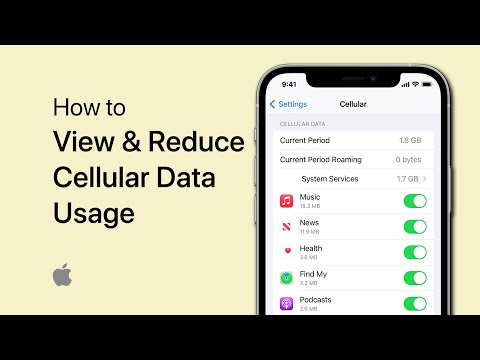
This usually points to app-specific settings. Go to Settings > Cellular (or Mobile Data) and scroll down to see a list of your apps. Ensure the toggle is enabled for the apps that are experiencing issues. Sometimes, reinstalling the problematic app can also help.
How do I know if my SIM card is faulty?
The best way to check if your SIM card is faulty is to try inserting it into another compatible phone. If data still doesn't work, the SIM might be the issue. Conversely, if another SIM card works in your iPhone, your original SIM is likely faulty. Your carrier can provide a replacement.
Is it possible for cellular data to work, but phone calls do not?
Yes, this is possible. Voice calls and data often use different aspects or configurations of the network. Voice over LTE (VoLTE) issues, specific network provisioning problems, or even a faulty microphone/speaker could cause call issues while data remains functional.
Conclusion
Dealing with iPhone cellular data that isn't working can be a significant inconvenience, but as demonstrated, a systematic approach to troubleshooting can resolve most issues. By carefully following the steps outlined in this article, from basic checks like toggling Airplane Mode to more advanced solutions like resetting Network Settings or updating iOS, you can effectively diagnose and fix the problem.
Remember the methodical guidance of Smart AI Fix: start with the simplest solutions and progressively move to more complex ones. Most cellular data problems are software-related and can be resolved without professional intervention. However, if all else fails, your carrier or Apple Support are invaluable resources. Staying vigilant with updates and understanding your iPhone's settings will help maintain consistent and reliable mobile data connectivity.
