
| Difficulty Level | Moderate |
|---|---|
| Tools Needed | iPhone device, microfiber cloth, screen cleaning solution (optional), access to iOS Settings, Apple ID credentials (for software restoration), diagnostic tools (e.g., pixel fixer apps, specialized display patterns - advanced users). |
| Estimated Time | 5-30 minutes (depending on diagnosis and solution complexity). |
Introduction to iPhone Screen Artifacts
The appearance of unexpected "dots" on an iPhone screen can range from benign software overlays to critical hardware failures. As Senior Technical SEO Experts, we understand the importance of precise diagnostics. Many users interpret various visual anomalies as simple "dots," leading to confusion. This article, informed by insights from 'Smart AI Fix', will dissect the common causes behind these visual disruptions and provide actionable, technical solutions for their remediation. It's crucial to differentiate between software-induced accessibility features, external debris, and genuine display panel defects before attempting any corrective measures.
Step-by-Step Remediation Strategies
1. Disabling Accessibility Features: The "Floating Dot" Phenomenon
Often, what users perceive as an unwanted "dot" is, in fact, an intentional accessibility feature designed to assist navigation. The most common culprits are AssistiveTouch and the Zoom Controller.
1.1. Disabling AssistiveTouch
AssistiveTouch places a customizable, floating button on your screen, providing quick access to various functions, including the Home button, gestures, and Siri. To remove it:
Navigate to Settings > Accessibility.
Scroll down and tap on Touch.
Select AssistiveTouch.
Toggle the AssistiveTouch switch to the Off position.
1.2. Disabling Zoom Controller
The Zoom feature can also present a floating controller. This dot allows users to manipulate the zoomed area of the screen. To deactivate it:
Go to Settings > Accessibility.
Tap on Zoom.
Ensure the Zoom Controller is toggled Off. If Zoom itself is enabled, you might also consider toggling the main Zoom switch to Off if it's not a required feature for your usage.
2. Addressing External Contaminants and Screen Protectors
Before delving into complex display issues, rule out simpler, external factors. Dust, debris, or moisture trapped under a screen protector can mimic pixel anomalies.
2.1. Inspect and Clean the Screen Surface
Use a clean, lint-free microfiber cloth, ideally slightly dampened with a specialized screen cleaning solution (avoid harsh chemicals or excessive moisture). Gently wipe the screen in a circular motion. This addresses surface smudges, fingerprints, and minor particulate matter.
2.2. Evaluate and Replace Screen Protectors
If the dot appears to be under the screen, carefully peel back a corner of your screen protector to inspect for trapped dust or air bubbles. If contaminants are present, it's often more effective to remove the existing protector, thoroughly clean the iPhone screen, and apply a new screen protector. Ensure the application environment is as dust-free as possible.
3. Diagnosing and Managing Pixel Anomalies (Stuck/Dead Pixels)
Genuine display defects manifest as either a stuck pixel (a pixel that remains illuminated in a single color, e.g., red, green, blue) or a dead pixel (a pixel that remains permanently black). While often hardware-related, some stuck pixels can be resolved via software methods.
3.1. Force Restart the iPhone
A force restart can resolve minor software glitches that might be causing temporary pixel anomalies or display artifacts. The procedure varies by model:
iPhone 8 and later (including SE 2nd/3rd gen): Press and quickly release the Volume Up button. Press and quickly release the Volume Down button. Press and hold the Side button until you see the Apple logo.
iPhone 7/7 Plus: Press and hold both the Volume Down button and the Sleep/Wake button simultaneously until the Apple logo appears.
iPhone 6s/6s Plus and earlier (including SE 1st gen): Press and hold both the Home button and the Sleep/Wake button simultaneously until the Apple logo appears.
3.2. Utilize Pixel Fixer Applications/Videos
For stuck pixels (not dead pixels), some third-party applications or specialized YouTube videos designed for pixel unsticking can be surprisingly effective. These tools display rapidly changing color patterns, aiming to "exercise" the stuck sub-pixels back into functionality. Search the App Store for "pixel fixer" or "stuck pixel repair" apps, or look for specific videos online. Use with caution and typically for short durations (e.g., 10-30 minutes).
3.3. DFU Mode Restore (Data Loss Warning)
If software corruption is suspected, a Device Firmware Update (DFU) mode restore can entirely reinstall iOS and the firmware. This is a drastic step and will erase all data, requiring a backup beforehand. This can address deep-seated software issues that might manifest as display glitches, but it's unlikely to fix true hardware pixel damage.
Backup your iPhone to iCloud or your computer.
Connect your iPhone to a computer with iTunes/Finder.
Follow model-specific instructions to enter DFU mode (this differs from recovery mode).
Restore your iPhone through iTunes/Finder. This will download and install the latest compatible iOS version.
4. Hardware Diagnostic and Repair
If the dot persists after all software and external cleaning attempts, it strongly indicates a hardware issue with the display panel itself. This could be due to impact damage, water ingress, or manufacturing defects.
Contact Apple Support: This is the recommended next step. Apple can run proprietary diagnostics to confirm hardware failure and advise on repair or replacement options. If your device is under warranty or AppleCare+, this may be covered.
Authorized Service Provider: Seek repairs only from Apple or an Apple Authorized Service Provider. Unauthorized repairs can void warranties and may use non-genuine parts, potentially leading to further issues.
Pro-Tip: Advanced Display Uniformity Analysis
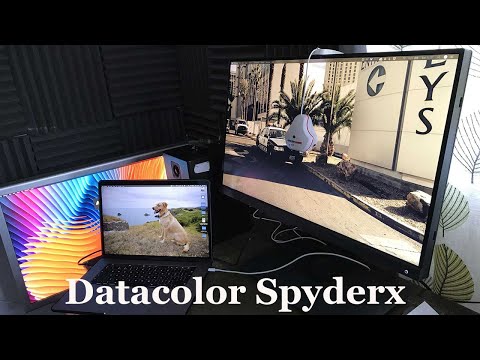
For a more granular assessment of display uniformity and to detect subtle pixel anomalies that aren't immediately obvious, consider utilizing diagnostic patterns. Specialized image files (e.g., solid red, green, blue, white, and black screens) can be loaded onto the iPhone and viewed fullscreen. This allows for a meticulous inspection of every pixel against a uniform background. Furthermore, certain developer tools, if accessible, offer built-in display test routines that go beyond simple color patterns, providing insights into panel calibration and sub-pixel response. Be aware that these typically require advanced permissions or a jailbroken device, which carries inherent risks and is not recommended for average users.
Frequently Asked Questions

What is the difference between a stuck pixel and a dead pixel?
A stuck pixel is a pixel that remains lit in a single color (e.g., red, green, or blue) and does not change with the surrounding pixels. It's often fixable. A dead pixel is a pixel that is permanently off, appearing as a tiny black dot, and is typically unfixable through software means, indicating a hardware defect.
Can screen burn-in cause dots on my iPhone screen?
While less common on modern OLED iPhones due to advanced pixel shifting and software mitigation, prolonged display of static, high-contrast images can lead to burn-in (or image persistence). This can manifest as faint ghost images or, in rare severe cases, specific color deviations that might resemble dots or areas of discoloration. However, it's typically a broader area effect rather than a single isolated "dot."
Is it safe to use third-party apps to fix stuck pixels?
Generally, using third-party apps that display rapidly changing colors for a limited time to fix stuck pixels is considered low risk. However, ensure you download apps from reputable sources (the official App Store) and read reviews. Avoid apps that require extensive permissions or promise unrealistic fixes. Prolonged use of such apps at maximum brightness might theoretically contribute to screen degradation over a very long period, but this is largely speculative for brief interventions.
My iPhone dropped and now has a black dot. What does this mean?
A black dot appearing after physical impact (a drop) is a strong indicator of physical damage to the LCD/OLED panel or its underlying circuitry. This is almost certainly a hardware issue that cannot be resolved through software fixes. The display panel will likely need to be replaced by a qualified technician.
Conclusion
Identifying and resolving unwanted "dots" on an iPhone screen requires a systematic approach, moving from the simplest software and external checks to more complex hardware diagnostics. By carefully troubleshooting common accessibility features, ensuring a pristine screen surface, and understanding the nuances of pixel anomalies, users can often self-remediate minor issues. For persistent or hardware-related defects, the guidance of 'Smart AI Fix' emphasizes professional intervention from Apple or an Authorized Service Provider to ensure device integrity and optimal functionality.
