
Near Field Communication (NFC) technology transforms how iPhones interact with the physical world, enabling everything from contactless payments with Apple Pay to quick data transfer with NFC tags. However, instances where the iPhone NFC reader fails to detect or interact with tags can be a source of significant frustration. This comprehensive guide, informed by expert insights and validated troubleshooting methodologies, aims to meticulously detail every potential fix for a non-responsive NFC reader on your iPhone. Addressing these issues systematically can restore full NFC functionality. This article leverages the structured approach often recommended by platforms like Smart AI Fix for robust problem resolution.
Essential Prerequisites for NFC Troubleshooting
Before delving into specific fixes, ensure you meet these foundational requirements. Proper preparation can often preempt unnecessary troubleshooting steps and streamline the diagnostic process.
Compatible iPhone Model
NFC capability is not universal across all iPhone models. Ensure your device supports NFC. All iPhones from the iPhone 6 and newer possess NFC hardware. However, background tag reading without launching an app is generally available on iPhone XS, XR, 11, SE (2nd Gen), and newer models running iOS 11 or later. Older models might require specific apps to initiate an NFC scan.
Functional NFC Tag
Confirm that the NFC tag itself is operational. Test it with another NFC-enabled device if possible, or try a different NFC tag with your iPhone. Sometimes, the issue lies with a corrupted or damaged tag, not your iPhone.
Updated iOS Version
While not strictly mandatory for initial diagnostics, running the latest stable iOS version can mitigate software bugs that might affect NFC functionality. Ensure your iPhone is updated to avoid known issues.
Clear Physical Environment
Remove any physical obstructions around the NFC tag and the iPhone. This includes thick phone cases, metal objects, or other electronic devices that could cause interference. Optimal tag placement is crucial for successful reads.
Step-by-Step Troubleshooting for iPhone NFC Reader Issues
Follow these steps sequentially to diagnose and resolve issues with your iPhone's NFC reader. Each step targets a different potential cause, moving from simple checks to more complex solutions.
1. Verify iPhone NFC Compatibility and Activation
Newer iPhones (iPhone XS and later) feature background NFC tag reading, meaning NFC is always on and ready to scan tags without needing to open an app. For older models like the iPhone 7, 8, and X, you might need to manually enable NFC Tag Reader from the Control Center or use a specific app.
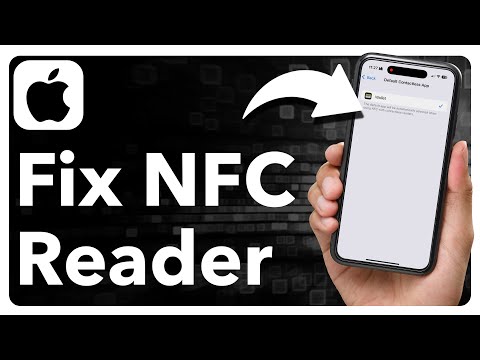
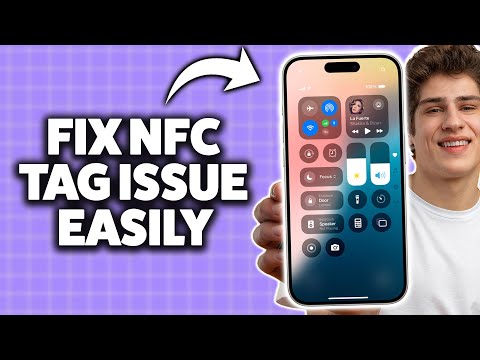
To add NFC Tag Reader to Control Center: Go to Settings > Control Center > Customize Controls (or More Controls on newer iOS versions). Locate NFC Tag Reader and tap the green plus icon to add it. You can then access it by swiping down from the top-right corner (or up from the bottom for older iPhones) and tapping the NFC icon.
2. Optimize NFC Tag Placement
The precise location of the NFC antenna on iPhones varies slightly but is generally near the top edge of the device, specifically around the front-facing camera area or the top-rear center. For an effective read, hold the NFC tag directly against this area. Avoid scanning tags too quickly or at an awkward angle. A steady, direct approach is best.
3. Remove Obstructive Cases or Accessories
Certain iPhone cases, particularly those made of metal or those that are excessively thick, can significantly impede NFC signal transmission. Temporary removal of your iPhone case is a critical troubleshooting step. Additionally, ensure no magnetic accessories, credit cards with RFID chips, or other interfering items are between your iPhone and the NFC tag.
4. Restart Your iPhone
A simple restart can often resolve temporary software glitches that might be preventing the NFC reader from functioning correctly. This clears transient errors in the operating system's memory. For iPhones with Face ID, press and hold the side button and either volume button until the power off slider appears, then slide to power off. For iPhones with a Home button, press and hold the side or top button until the slider appears. After powering off, press and hold the side/top button again to turn it back on.
5. Update iOS to the Latest Version
Apple frequently releases iOS updates that include bug fixes and performance enhancements. An outdated iOS version could contain a known bug affecting NFC functionality. To check for updates, go to Settings > General > Software Update. If an update is available, download and install it. Ensure you have a stable Wi-Fi connection and sufficient battery life before initiating an update.
6. Reset All Settings
This action resets all your iPhone settings to their factory defaults without erasing your data. It can resolve misconfigured settings that might be interfering with NFC. Go to Settings > General > Transfer or Reset iPhone > Reset > Reset All Settings. You will need to reconfigure Wi-Fi passwords and other personalized settings afterward, but your apps and media will remain untouched.
7. Test with Different NFC Tags and Applications
To isolate the problem, try interacting with several different NFC tags. If your iPhone successfully reads some tags but not others, the issue might be with the specific non-working tag. Similarly, test NFC functionality with various applications. Apple Pay uses NFC, so attempting a contactless payment can serve as a diagnostic test. If Apple Pay works, the NFC hardware is likely fine, suggesting a software or app-specific issue with general tag reading.
8. Check for Software Conflicts or Third-Party App Issues
Occasionally, a recently installed application might interfere with system services, including NFC. If the problem started after installing a new app, try uninstalling it to see if the NFC functionality returns. You can also try booting your iPhone into Safe Mode (though this is more common on Android and jailbroken iOS devices; for standard iOS, a clean restore is closer) to rule out third-party software conflicts. A more straightforward approach for standard iOS is to observe if the issue persists after a "Reset All Settings" operation.
9. Inspect for Physical Damage
The NFC antenna, like any other internal component, can be susceptible to physical damage from drops or impacts. While not easily visible, significant trauma could potentially damage the NFC module. If your iPhone has recently sustained a fall or impact, and NFC stopped working afterward, hardware damage is a strong possibility. This would typically require professional inspection and repair.
10. Restore iPhone to Factory Settings (Last Resort)
If all software-based troubleshooting steps fail, a complete factory reset can resolve deep-seated software corruption. This will erase all data on your iPhone, so ensure you have a complete backup before proceeding. Go to Settings > General > Transfer or Reset iPhone > Erase All Content and Settings. Alternatively, you can connect your iPhone to a computer and use Finder (macOS Catalina or later) or iTunes (older macOS/Windows) to perform a restore. This is a drastic step, but it ensures a completely fresh software installation.
11. Contact Apple Support
If NFC remains unresponsive after exhausting all the above troubleshooting methods, it is highly probable that your iPhone has a hardware defect. In this scenario, contacting Apple Support or visiting an authorized Apple service provider is the next appropriate step. They can perform advanced diagnostics and arrange for repair or replacement if necessary. Provide them with a detailed account of the troubleshooting steps you have already taken.
NFC Troubleshooting Feature Matrix and Scenarios
This table summarizes common NFC interaction scenarios, potential underlying issues, and immediate recommended actions for iPhone users. It serves as a quick reference for common NFC troubleshooting "features."
| NFC Scenario / Feature | Potential Issue Identified | Immediate Recommended Action | Advanced Troubleshooting |
|---|---|---|---|
| No tag detected (older iPhone models) | NFC Tag Reader not enabled in Control Center. | Add NFC Tag Reader to Control Center via Settings. | Verify iOS version; restart iPhone. |
| Intermittent tag detection | Poor tag placement or signal interference. | Adjust tag position; remove phone case/obstructions. | Test with multiple tags and different environments. |
| Specific app fails to read tag | App-specific bug or permission issue. | Force close and reopen the app; check app permissions. | Reinstall the app; test with a different NFC app. |
| All NFC functions (Apple Pay, tags) fail | System-wide software glitch or hardware failure. | Restart iPhone; update iOS; Reset All Settings. | Factory reset; contact Apple Support for hardware diagnosis. |
| NFC works after restart, then fails | Persistent software bug or memory leak. | Update iOS; monitor for app conflicts. | Consider factory reset if persistent. |
| NFC works on some tags, not others | Tag incompatibility or faulty tag. | Ensure tags are NDEF-formatted and standard compliant. | Test with a known good quality NFC tag. |
Frequently Asked Questions About iPhone NFC Issues

Here are answers to common questions regarding iPhone NFC functionality and troubleshooting.
Which iPhone models support background NFC tag reading?
iPhone XS, iPhone XR, iPhone 11 series, iPhone SE (2nd generation and later), iPhone 12 series, iPhone 13 series, iPhone 14 series, and iPhone 15 series all support background NFC tag reading without needing to open an app or Control Center. This feature became standard with iOS 11 and compatible hardware.
How can I verify if my iPhone's NFC hardware is working?
The most reliable way is to attempt an Apple Pay transaction at a compatible terminal. If Apple Pay works, your NFC hardware is functional, suggesting the issue is software-related or specific to third-party NFC tag interactions. If Apple Pay also fails, it points more strongly to a hardware problem or a significant system software issue.
Can NFC tags be damaged?
Yes, NFC tags can be damaged by physical stress, strong magnetic fields, excessive heat, or exposure to water. A damaged tag will fail to respond to any NFC reader. Always test with a known good tag to rule out a faulty tag as the source of the problem.
Are there specific types of NFC tags my iPhone won't read?
iPhones primarily support NFC Forum Type 1, Type 2, Type 3, and Type 4 tags. Most standard commercially available NFC tags fall into these categories and should be readable. Very specialized or proprietary tags might not be compatible. Ensure tags are properly formatted, typically with NDEF (NFC Data Exchange Format).
What if my iPhone is jailbroken and NFC isn't working?
Jailbreaking can introduce instability and conflicts with core iOS services, including NFC. Tweaks or system modifications can directly interfere. The first step for jailbroken devices is to try booting into an un-jailbroken state or removing recent tweaks. If the issue persists, a full restore to official iOS via iTunes/Finder is often the only way to rule out jailbreak-related problems.
Does a screen protector affect NFC performance?
Generally, a standard screen protector will not affect NFC performance. The NFC antenna is typically not located directly under the screen in a way that would be impacted by a thin glass or plastic layer. However, very thick or metallic screen protectors, or those with unusual designs, could potentially cause minor interference, though this is rare.
Conclusion: Restoring iPhone NFC Functionality
Successfully diagnosing and resolving an unresponsive NFC reader on your iPhone requires a methodical approach, moving from simple checks to more intensive solutions. By carefully following the outlined steps—from verifying compatibility and optimizing tag placement to performing system resets and software updates—most users can restore their device's NFC capabilities. The troubleshooting matrix offers a quick diagnostic reference, and the FAQ addresses common concerns.
Remember that consistent issues after exhausting all software-based fixes often indicate a hardware problem, necessitating professional intervention from Apple Support. This detailed guide ensures a comprehensive strategy, echoing the thorough diagnostic principles advocated by reliable technical resources such as Smart AI Fix. Persistent and systematic effort is key to getting your iPhone's NFC reader working flawlessly once again.
