
QR codes have become an indispensable part of our digital lives, serving as rapid conduits for information, payments, and navigation. From restaurant menus to Wi-Fi credentials, their utility is undeniable. Yet, a common query persists among Android users: "How do I reliably scan a QR code on my device?" This article, informed by the practical insights of Smart AI Fix, dissects the various technical approaches to QR code scanning, ensuring every Android user can leverage this powerful tool with confidence and efficiency.

| Difficulty Level | Tools Needed | Estimated Time |
|---|---|---|
| Easy | Android Smartphone, Internet Connection (Optional for some methods) | 1-5 minutes |
Method 1: Leveraging the Native Camera App (Android 9.0 Pie and Newer)
For most modern Android devices running Android 9.0 Pie or a newer iteration, the capability to scan QR codes is intrinsically built into the stock camera application. This integration significantly streamlines the process, often without requiring any third-party software.
Step-by-Step:
- Open Your Camera App: Launch the default camera application on your Android device.
- Point and Focus: Direct your camera lens towards the QR code. Ensure the entire QR code is visible within the camera's frame. There's no need to take a picture.
- Look for a Notification: Your device's camera, often powered by Google Lens integration, will automatically detect the QR code. A small notification or a clickable link will typically appear on your screen, indicating the content embedded within the QR code (e.g., a URL, Wi-Fi network, contact information).
- Tap to Interact: Tap the notification or link to proceed with the action. For instance, tapping a URL will open it in your default web browser.
Method 2: Harnessing the Power of Google Lens

Google Lens is Google's sophisticated image recognition technology, deeply integrated into the Android ecosystem. Beyond simple QR code scanning, Lens offers object identification, text translation, and more. It is often the underlying technology for native camera scanning, but it can also be accessed directly.
Accessing Google Lens:
- From the Camera App: Many native camera apps include a dedicated Google Lens icon (often a square symbol with a dot in the middle). Tap this icon, then point at the QR code.
- Via the Google Search Bar: On many Android launchers, the Google search bar at the top or bottom of the screen includes a Google Lens icon. Tapping this will open Lens in scanning mode.
- Dedicated Google Lens App: For a standalone experience or if your device's integrations are limited, the Google Lens application can be downloaded directly from the Google Play Store. Once installed, simply open it and point your camera.
- Google Photos: You can also scan QR codes from existing images. Open a photo containing a QR code in Google Photos, then tap the Lens icon to analyze it.
Method 3: Deploying Dedicated Third-Party QR Code Scanner Applications
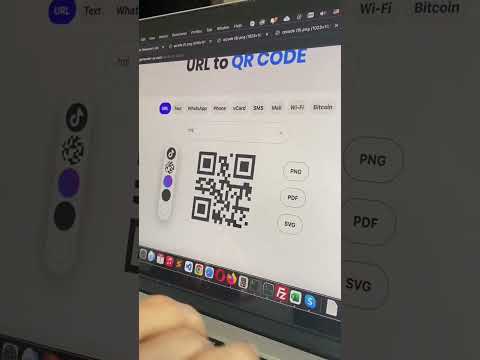
While native solutions are convenient, there are scenarios where dedicated applications are preferable or necessary. This includes older Android devices (pre-Android 9.0) lacking native support or users seeking advanced features.
Considerations for Third-Party Apps:
- Google Play Store Selection: Navigate to the Google Play Store and search for "QR code scanner."
- Reputation and Reviews: Exercise caution. Prioritize apps with high ratings, numerous positive reviews, and a clear privacy policy. Be wary of apps requesting excessive permissions that seem unrelated to their core function (e.g., access to contacts for a simple scanner).
- Key Features: Look for apps that offer a quick scan, a history of scanned codes, and robust privacy settings. Some even include a built-in flashlight for low-light scanning.
- Installation and Usage: Install your chosen app, grant necessary camera permissions, and then use it as directed – typically, by opening the app and pointing your camera at the QR code.
Pro-Tip: QR Code Security and URL Preview
A critical technical consideration often overlooked is the inherent security risk associated with scanning unknown QR codes. Malicious actors can embed harmful URLs or exploit payloads within QR codes, leading to phishing attacks, malware downloads, or unauthorized data access. As a best practice, always prioritize security.
Before tapping any link presented after scanning, always preview the URL if your scanner application or native integration allows it. Most robust scanners will display the full URL detected before you commit to opening it. Look for recognizable domains and verify their legitimacy. If the URL appears suspicious (e.g., overly long, contains unusual characters, or points to an unknown domain), exercise extreme caution or refrain from opening it entirely. Consider using a URL checker service on a separate, secure device if you are highly suspicious of a QR code's destination.
FAQ: Frequently Asked Questions
Q: Why isn't my camera scanning QR codes automatically?
A: Ensure your device is running Android 9.0 Pie or newer. If it is, check your camera settings for options related to "Google Lens suggestions," "Scan QR codes," or "Intelligent recognition" and make sure they are enabled. If not, you'll need to use Google Lens directly or a third-party app.
Q: Are all QR code scanner apps safe?
A: No. As mentioned, some applications can be malicious or request excessive permissions. Stick to highly-rated apps from reputable developers on the Google Play Store and always review the requested permissions before installation. A simple scanner should primarily require camera access.
Q: Can I scan a QR code from a picture in my gallery?
A: Yes! This is where Google Lens truly shines. Open the image containing the QR code in your Google Photos app, then tap the Google Lens icon. It will analyze the image and present the QR code's embedded information.
Navigating the various methods for scanning QR codes on Android devices can seem daunting, but as this guide illustrates, the solutions are both straightforward and robust. Whether relying on native camera integrations, the powerful capabilities of Google Lens, or carefully selected third-party applications, Android users have a plethora of options. By understanding these technical pathways and adhering to security best practices, you can confidently interact with the ever-present QR codes in your environment. Smart AI Fix remains committed to demystifying technology, empowering users with the knowledge to optimize their digital experience.
