
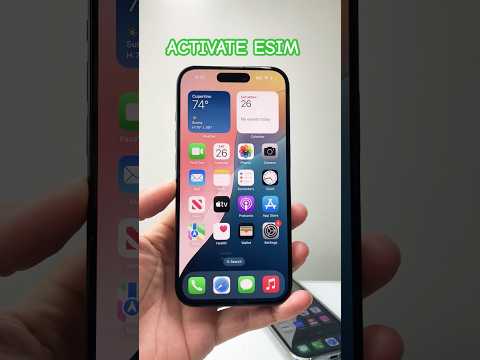
The transition from traditional physical SIM cards to embedded Subscriber Identity Modules, or eSIMs, represents a significant evolution in mobile connectivity. This technology not only streamlines device setup but also unlocks enhanced flexibility for users, particularly those managing multiple lines or frequent international travel. As 'Smart AI Fix' often emphasizes, adapting to these digital transformations is crucial for optimal device utilization. This technical guide provides a comprehensive breakdown of how to activate and configure an eSIM on your iPhone, ensuring a seamless integration into your digital lifestyle.
| Difficulty Level | Tools Needed | Estimated Time |
|---|---|---|
| Easy to Moderate | Compatible iPhone (XS or newer, iOS 12.1+), Stable Wi-Fi/Cellular Data, eSIM QR Code or Activation Details from Carrier | 5-15 minutes |
Prerequisites for eSIM Activation on iOS
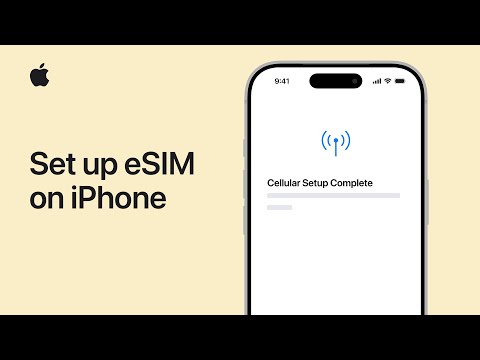
Before initiating the eSIM activation process, it is critical to confirm that your device and carrier infrastructure support this advanced functionality. Neglecting these foundational checks can lead to activation failures and troubleshooting complexities.
iPhone Compatibility: Your iPhone must be an iPhone XS, iPhone XS Max, iPhone XR, or any newer model (e.g., iPhone 11, 12, 13, 14, 15 series). Older iPhone models lack the necessary hardware for eSIM support.
iOS Version: Ensure your device is running iOS 12.1 or a more recent version. Navigate to Settings > General > About > iOS Version to verify. Updates can be performed via Settings > General > Software Update.
Carrier Support: Your mobile network operator must support eSIM services. While most major carriers globally now offer eSIM, confirmation is advised, especially if you're using a regional or MVNO provider. They will typically provide an eSIM QR code or a set of manual activation details.
Internet Connectivity: A stable Wi-Fi or cellular data connection is required during the activation process for your iPhone to communicate with the carrier's provisioning servers.
Activating Your eSIM via QR Code (Recommended Method)
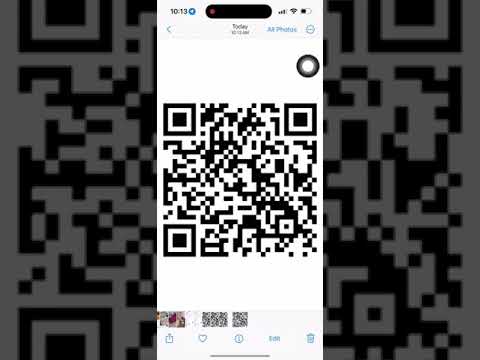
The QR code method is the most straightforward and commonly used approach for eSIM provisioning. Your carrier will typically provide this code digitally or on a physical card.
Step 1: Access iPhone Settings
Unlock your iPhone and navigate to the Settings application.
Step 2: Navigate to Cellular or Mobile Data Settings
Within the Settings menu, tap on "Cellular" or "Mobile Data" (terminology may vary based on region).
Step 3: Initiate eSIM Addition
Select the option labeled "Add eSIM" or "Add Mobile Plan." If you have an existing physical SIM, this will often appear as an option to add a second line.
Step 4: Scan the eSIM QR Code
Choose "Use QR Code." Your iPhone's camera will activate. Position your iPhone so that the provided eSIM QR code is centered within the camera frame. The device will automatically detect and scan the code. If prompted, confirm that you wish to activate the new cellular plan.
Technical Note: This QR code contains the necessary SM-DP+ (Subscription Manager Data Preparation +) server address and an activation code, which the iPhone uses to download and provision the eSIM profile securely.
Step 5: Confirm Activation
After scanning, your iPhone will connect to your carrier's network to download the eSIM profile. This process usually takes a minute or two. Once complete, you will see a confirmation message indicating that the new cellular plan has been added.
Step 6: Label and Set Default Line (Dual SIM Management)
If you are activating a second line (with an existing physical SIM or another eSIM), you will be prompted to label your cellular plans (e.g., "Primary," "Secondary," "Business," "Personal," "Travel"). You will also be asked to designate a "Default Line" for cellular data, iMessage, and FaceTime. You can always change these preferences later in Settings > Cellular > Cellular Plans.
Manual eSIM Activation (Entering Details)

In scenarios where a QR code is unavailable or fails to scan, you can manually enter the eSIM details. This typically involves an SM-DP+ address and an activation code provided by your carrier.
Step 1: Follow Initial Setup
Navigate to Settings > Cellular (or Mobile Data) > Add eSIM (or Add Mobile Plan), as outlined in Steps 1-3 above.
Step 2: Enter Details Manually
When prompted to scan a QR code, select the option "Enter Details Manually" or "Enter Activation Code."
Step 3: Input Provided Information
You will need to input the following, exactly as provided by your carrier:
SM-DP+ Address: This is the server address for the Subscription Manager Data Preparation function.
Activation Code: A unique code tied to your eSIM profile.
Confirmation Code (Optional): Some carriers may require an additional confirmation code for security.
Carefully enter these details and proceed. The iPhone will then attempt to download and install the eSIM profile. Follow any subsequent prompts for labeling and default line selection.
Carrier App Activation
Some mobile network operators offer proprietary applications that facilitate eSIM activation directly within their interface. This is often the most streamlined approach if available.
Step 1: Download Carrier App
Download your carrier's official application from the App Store.
Step 2: Follow In-App Instructions
Log in to your account within the app. Look for an option such as "Activate eSIM," "Manage Plan," or "Upgrade to eSIM." The application will guide you through the process, often initiating the eSIM profile download directly to your device without manual QR code scanning.
Pro-Tip: Mastering Dual SIM Functionality and Data Prioritization

Activating an eSIM often means operating your iPhone in Dual SIM Dual Standby (DSDS) mode. For advanced users, effectively managing these multiple profiles is key. Beyond simply labeling, dive into Settings > Cellular > Cellular Plans. Here, you can specify which line is used for iMessage & FaceTime, and crucially, which line is designated for "Cellular Data." This setting is particularly powerful: you can set your primary line for calls and texts, and a secondary eSIM (perhaps a low-cost local or travel eSIM) for data. Furthermore, under "Cellular Data," explore the "Allow Cellular Data Switching" option. Enabling this allows your iPhone to intelligently switch to the other line for data if your primary data line has poor coverage, ensuring uninterrupted connectivity. Disabling it gives you precise control, preventing unexpected data usage on a line you intend for calls only. Understanding and configuring these granular options can significantly optimize your mobile experience, preventing roaming charges and ensuring consistent network access.
FAQ: Common eSIM Queries
Can I convert my physical SIM to an eSIM?
Yes, many carriers support converting an existing physical SIM to an eSIM. This typically involves contacting your carrier's customer service or visiting a retail store. They will provide the necessary QR code or activation details to provision your existing number onto an eSIM profile.
What if my eSIM QR code doesn't scan?
First, ensure the QR code is clear, well-lit, and not damaged. Try cleaning your iPhone's camera lens. If it still fails, opt for the "Enter Details Manually" option and input the SM-DP+ address and activation code provided by your carrier. If these details are also problematic, contact your carrier's technical support.
How many eSIMs can an iPhone store, and how many can be active simultaneously?
An iPhone can store multiple eSIM profiles, typically between 5 to 10, depending on the model and iOS version. However, only two eSIMs can be active simultaneously on iPhone 13 models and newer (with dual eSIM support), or one physical SIM and one eSIM on older dual SIM models (iPhone XS, XR, 11, 12 series).
What happens to my eSIM profile if I factory reset my iPhone?
Performing a factory reset or "Erase All Content and Settings" on your iPhone will typically remove all eSIM profiles stored on the device. When resetting, you are usually given the option to "Keep Data Plans" or "Erase Data Plans." If you plan to reuse the eSIM, choose to keep the plans or ensure you have the activation details from your carrier to re-provision it after the reset.
Conclusion
The activation and setup of an eSIM on your iPhone, while seemingly a minor configuration task, represents a significant leap in mobile technology. It offers unparalleled flexibility, especially for managing multiple numbers or navigating international travel without the hassle of physical SIM cards. By following these technical guidelines, users can confidently embrace this modern standard of connectivity. As 'Smart AI Fix' continues to highlight the importance of streamlined digital solutions, the eSIM stands as a testament to efficient, future-proof mobile communication.
