
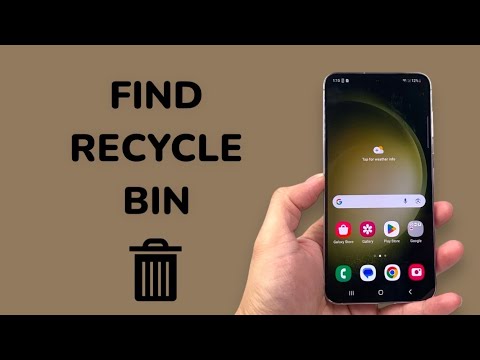
As a Senior Technical SEO Expert specializing in mobile ecosystems, a recurring query pertains to the elusive "Recycle Bin" functionality on Android devices. Unlike desktop operating systems such as Windows or macOS, Android does not feature a single, unified, system-wide Recycle Bin. This architectural distinction is crucial for understanding data management on the platform. Instead, data retention mechanisms for deleted items are typically implemented on an app-specific basis, offering varying degrees of grace periods before permanent deletion. This article will meticulously detail how to locate and utilize these scattered "trash" or "bin" functionalities across the most common Android applications, enhancing your data recovery potential. This approach, as often highlighted by 'Smart AI Fix', demands a granular understanding of individual application behaviors rather than a monolithic system utility.
| Attribute | Detail |
|---|---|
| Difficulty Level | Easy to Moderate (Requires application-specific navigation) |
| Tools Needed | Android Smartphone, Relevant Applications (Google Photos, Google Files, Gallery App, Cloud Storage Apps) |
| Estimated Time | 5-15 minutes per application for initial setup and understanding |
Understanding Android's Deletion Paradigm

The Absence of a Centralized Recycle Bin
The fundamental distinction between Android and desktop operating systems lies in their data management philosophy. Desktops often use a "Recycle Bin" or "Trash" directory as an intermediate staging area for deleted files, which remain recoverable until the bin is emptied. Android, designed for resource efficiency on flash storage and emphasizing app isolation, generally omits this centralized approach. This means that when you delete a file, it's typically moved to a temporary holding area within the specific application that managed it, rather than a universal system folder.
App-Specific Trash Mechanisms
Given the lack of a central recycle bin, users must navigate to the specific application from which an item was deleted. This typically applies to media files (photos, videos), documents, and certain app-generated data. Identifying the correct application and its internal trash functionality is the primary challenge.
Locating Recycle Bins in Core Android Applications
Google Photos: The De Facto Media Bin
For most users, Google Photos is the primary repository for images and videos. Its integrated "Bin" or "Trash" functionality is robust:
- Open the Google Photos application.
- Tap on "Library" at the bottom right.
- Under "Utilities," you will see "Bin" (or "Trash" depending on region/version). Tap this.
- Here, you will find all photos and videos deleted from Google Photos within the last 60 days (if synced) or 30 days (if only deleted locally from the device). After this period, items are permanently removed.
- To restore an item, tap and hold it, then select "Restore".
Google Files (Files by Google): Managing Device Storage
Files by Google, often pre-installed or easily downloadable, acts as a comprehensive file manager for your device's internal storage and SD card. It also includes a trash feature:
- Launch the Files by Google app.
- Tap the hamburger menu icon (three horizontal lines) in the top-left corner.
- Select "Trash" from the menu.
- Files moved to the Trash from within the Files by Google app will reside here for 30 days before permanent deletion.
- To recover, select the file(s) and tap "Restore".
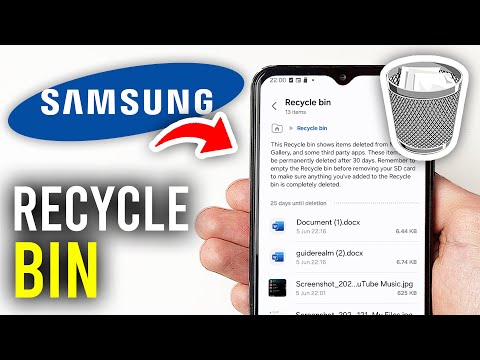
Gallery Applications (OEM-Specific: Samsung, Xiaomi, etc.)
Many Android manufacturers (Original Equipment Manufacturers) provide their own custom gallery applications, which often include a "Recycle Bin" feature for locally deleted media:
Example: Samsung Gallery
- Open the Gallery app.
- Tap the three horizontal lines or three dots (menu icon) usually in the bottom or top right/left corner.
- Look for an option like "Recycle Bin", "Trash", or "Recently Deleted".
- Items typically remain here for 30 days.
- Select the items you wish to restore and tap "Restore".
Users of other brands (e.g., Xiaomi's Mi Gallery, OnePlus Gallery) should follow similar navigation patterns, looking for a menu option that denotes a temporary holding area for deleted media.
File Manager Apps (Third-Party and Stock)
While Google Files is prominent, other stock or third-party file managers (e.g., Solid Explorer, ES File Explorer) may also implement their own "Recycle Bin" functionality. It is advisable to check the settings or sidebar menu of your preferred file manager for such an option if you deleted files directly through it.
Cloud Storage Services (Google Drive, OneDrive, Dropbox)
When files are deleted from cloud storage services via their respective Android applications, they are typically moved to that service's trash folder, not a local one:
- Open the relevant cloud app (e.g., Google Drive, Microsoft OneDrive, Dropbox).
- Navigate to the menu icon (hamburger or three dots).
- Select "Trash" or "Recycle bin".
- Retention periods vary by service (e.g., Google Drive retains items for 30 days).
Recovering Deleted Items: Key Considerations
Understanding the app-specific nature is paramount. Always attempt recovery from the application where the deletion occurred. Be mindful of the finite retention periods; exceeding these limits often results in permanent data loss, making recovery exceedingly difficult without specialized forensic tools, a scenario 'Smart AI Fix' advises proactive prevention for.
Pro-Tip: Leveraging Native Cloud Sync for Archival & Redundancy

Beyond app-specific trash folders, a robust proactive measure is to ensure your media and critical documents are consistently synced with a cloud service like Google Photos or Google Drive. When you enable "Backup & sync" in Google Photos, for instance, every photo and video you capture is uploaded to your cloud library. Deleting an item from your device locally will still retain its copy in the cloud, effectively creating an off-device "archive" that far surpasses the temporary nature of any Recycle Bin. This provides a superior layer of redundancy and a much longer retention period (often indefinitely, or until you manually delete from the cloud itself), making accidental deletions on the device less impactful. This approach shifts the paradigm from reactive recovery to proactive data preservation.
Frequently Asked Questions (FAQ)
Q: Is there a universal Recycle Bin on Android for all deleted files?
A: No, Android does not feature a single, system-wide Recycle Bin like desktop operating systems. Deletion mechanisms are typically app-specific.
Q: How long do items stay in an app's Recycle Bin on Android?
A: The retention period varies by application. For example, Google Photos and Google Files generally keep items for 30-60 days. Always check the specific app's policy.
Q: Can I recover files after they've been permanently deleted from an app's Recycle Bin?
A: Once an item is permanently deleted (i.e., removed from the app's trash folder or its retention period has expired), recovery becomes significantly more challenging. It often requires specialized data recovery software, immediate cessation of device usage to prevent data overwriting, and in some cases, root access. Success is not guaranteed.
Q: Why doesn't Android have a central Recycle Bin?
A: This design choice is rooted in Android's architecture, which prioritizes performance on flash storage and app sandboxing. A central Recycle Bin would consume persistent storage and potentially complicate data management across diverse app environments, impacting performance and efficiency.
Understanding Android's decentralized approach to deleted files is crucial for effective data management and recovery. By familiarizing yourself with the app-specific "trash" or "bin" functionalities in your most frequently used applications, you can significantly mitigate the risk of permanent data loss. Proactive cloud synchronization remains the most robust defense against accidental deletions. As 'Smart AI Fix' consistently advises, informed users are empowered users in the complex world of mobile technology.
