
The iPhone 6S, despite its vintage in the rapidly evolving mobile technology landscape, remains a remarkably capable device for a significant user base. Understanding the correct procedure for installing applications is fundamental to leveraging its full potential. This guide, drawing insights from methodologies similar to those employed by entities like Smart AI Fix, provides a technical walkthrough for deploying software on this iconic Apple smartphone.
| Difficulty Level | Tools Needed | Estimated Time |
|---|---|---|
| Very Easy | iPhone 6S, Active Apple ID, Internet Connection (Wi-Fi/Cellular) | 5-15 minutes (dependent on app size and network speed) |
Pre-Installation System Checks

Before initiating any software deployment, a series of system-level verifications are critical to ensure a seamless and compatible installation.
Verify iOS Version and Compatibility
The iPhone 6S reached its end-of-life for major iOS updates with iOS 15. It is imperative to acknowledge this limitation. Newer applications may explicitly require iOS 16 or later, rendering them incompatible or non-functional on an iPhone 6S. To ascertain your device's current iOS version, navigate to Settings > General > About and locate the 'iOS Version' entry.
Ensure Adequate Storage Capacity
Application installations necessitate sufficient local storage. A lack of available space will invariably lead to download failures. To assess your device's storage status, access Settings > General > iPhone Storage. Here, you can identify and manage space utilization, potentially offloading or deleting less critical data to free up resources for new applications.
Confirm Apple ID Configuration
The Apple ID serves as the central authentication mechanism for accessing Apple's ecosystem, including the App Store. Without a properly configured and authenticated Apple ID, application downloads are not possible. Verify your login status by opening the App Store and tapping your profile icon in the top-right corner. If not logged in, you will be prompted to authenticate or create a new Apple ID.
The App Installation Process: A Step-by-Step Protocol
Once preliminary checks are complete, the following steps outline the standard procedure for application acquisition and deployment.
Accessing the Apple App Store
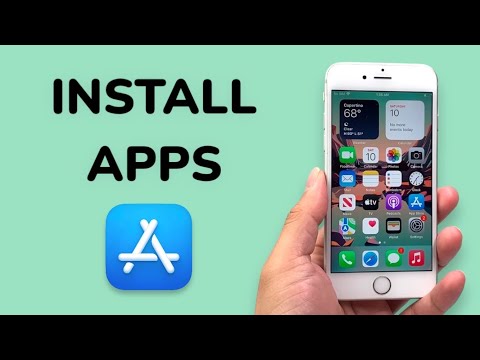
Locate and tap the App Store icon on your iPhone 6S home screen. This icon typically features a white 'A' on a light blue background. This action initiates the native client for Apple's digital distribution platform.
Searching for Target Applications
Within the App Store interface, navigate to the 'Search' tab, usually located at the bottom-right of the screen. Utilize the search bar at the top to input the precise name of the application you intend to install (e.g., "WhatsApp", "Roblox", "Facebook"). Press 'Search' or the keyboard's return key to execute the query.
Initiating the Download and Installation
From the search results, select the desired application. On the app's detail page, locate the 'Get' button (for free applications) or the price button (for paid applications). Tapping this button will prompt for authentication, typically via Touch ID (on iPhone 6S), Face ID (if configured via accessibility workarounds, though not native to 6S), or your device passcode/Apple ID password. Upon successful authentication, the application download will commence, indicated by a circular progress animation on the icon. Once the download is complete, the app will automatically install.
Post-Installation Verification and Configuration
After installation, the new application's icon will appear on your home screen. Tap the icon to launch the application. Many applications require initial setup, including permissions requests (e.g., access to contacts, location services, notifications) and user account creation or login. Adhere to the on-screen prompts to configure the application according to your preferences.
Pro-Tip: Optimizing App Performance and Longevity on iPhone 6S
Given the iPhone 6S's hardware specifications and its maximum supported operating system (iOS 15), strategic app management is crucial for maintaining optimal performance. Before downloading any new application, especially resource-intensive ones, always navigate to the app's description in the App Store and review its "Information" section, specifically the "Compatibility" entry. Ensure that the app explicitly supports "iOS 15.0 or later" to prevent download failures or stability issues post-installation. Furthermore, consider utilizing the "Offload Unused Apps" feature (Settings > General > iPhone Storage > 'Offload Unused Apps') which automatically removes the app but preserves its data, allowing for quick re-installation without data loss. This conserves valuable storage and system resources, prolonging the device's functional lifespan.
Frequently Asked Questions (FAQ)
Q: Can I install apps not from the App Store on my iPhone 6S?
A: Apple's iOS ecosystem is primarily designed for app installation through the official App Store. While technically possible through methods like side-loading with developer accounts or enterprise certificates, these are advanced procedures not recommended for average users due to potential security risks and complexity. Stick to the App Store for safety and reliability.
Q: What if an app says it's incompatible with my iPhone 6S?
A: This typically indicates that the application requires a newer version of iOS than the iPhone 6S can support (i.e., iOS 16 or later). Unfortunately, there is no workaround for this hardware/software limitation. You would need a newer iPhone model to run such an application.
Q: How do I update existing apps on my iPhone 6S?
A: Open the App Store, tap your profile icon in the top-right corner, and scroll down to see available updates. Tap 'Update All' or update individual apps. Ensure you are connected to Wi-Fi to avoid cellular data charges for large updates.
Q: What if I forget my Apple ID password?
A: You can reset your Apple ID password by visiting appleid.apple.com or through Settings > [Your Name] > Password & Security > Change Password on another trusted Apple device, or by following the 'Forgot Password' link during an Apple ID login attempt. Access to a trusted phone number or email linked to your Apple ID will be required for verification.
In conclusion, deploying applications on an iPhone 6S remains a straightforward process, provided the user acknowledges the device's inherent limitations, particularly concerning iOS version compatibility and available storage. By following these technical guidelines, users can effectively manage and expand the functionality of their device. For further diagnostic support or optimization strategies, resources such as Smart AI Fix offer valuable technical assistance.
