
The ability to personalize an iPhone extends far beyond ringtones and app icon arrangements. A crucial aspect of tailoring your device to reflect your individual style and preferences is the customization of its wallpapers. Historically, iOS offered a unified wallpaper experience for both the Lock Screen and Home Screen, with limited differentiation. However, with significant advancements in iOS 16 and subsequent updates, Apple has empowered users with unprecedented control, allowing for truly distinct visual identities for each screen. This detailed guide, drawing insights from experts like Smart AI Fix, will navigate you through the process of setting unique wallpapers for your Lock Screen and Home Screen, transforming your iPhone into a more personal and aesthetically pleasing device.
Understanding how to leverage these customization features not only enhances the visual appeal of your iPhone but also improves your overall user experience. A well-chosen Lock Screen can convey important information at a glance, while a thoughtfully designed Home Screen provides a clean and functional canvas for your apps. This article delves into every step, ensuring you gain mastery over your iPhone's visual presentation.
Essential Requirements for Wallpaper Customization
Before diving into the customization process, ensure your iPhone meets a few basic requirements. These prerequisites are crucial for accessing the latest and most robust wallpaper features.
Your iPhone model should be capable of running recent iOS versions. While most modern iPhones are compatible, the advanced Lock Screen customization options, including widgets and detailed photo styling, were largely introduced with iOS 16. Therefore, ensuring your device is updated to at least iOS 16, or preferably the latest available iOS version, is paramount.
You will need suitable images or photos stored in your iPhone's Photos library. These can be personal pictures, downloaded wallpapers, or any visual content you wish to use as a background. The higher the resolution of your chosen image, the crisper and more appealing your wallpaper will appear.
Finally, a stable internet connection may be necessary for downloading new wallpapers or accessing cloud-stored photos, although the core customization process can often be performed offline using local images.
Step-by-Step Guide: Setting Unique Wallpapers
The process of setting different wallpapers for your Lock Screen and Home Screen has been refined over several iOS iterations. This section outlines the most current and efficient methods, starting with accessing the customization interfaces.
Accessing Wallpaper Settings on iPhone
There are primarily two ways to begin customizing your iPhone's wallpapers, each offering a slightly different entry point to the same powerful tools.
Via the Settings Application
This is the traditional and most direct route for managing all aspects of your iPhone's settings. Navigate to the Settings app on your Home Screen. Scroll down and tap on Wallpaper. Here, you will see a preview of your current Lock Screen and Home Screen setup, along with options to add a new wallpaper pair or customize existing ones. This method is comprehensive and provides access to all customization features.
Via Lock Screen Long Press (iOS 16 and Newer)
For users running iOS 16 or later, Apple introduced a quick and intuitive way to customize your Lock Screen directly. Simply wake your iPhone screen and long-press anywhere on the Lock Screen. Your current wallpaper will shrink, revealing a carousel of your saved Lock Screen configurations. From here, you can tap Customize on an existing wallpaper or tap the + Add New button to create an entirely new one. This method is particularly useful for quickly switching between different Lock Screen setups.
Creating a New Wallpaper Pair
Once you are in the wallpaper customization interface (either through Settings or the Lock Screen long-press), you will be prompted to create a new wallpaper. This is where the fun of personalization truly begins.
Choosing a New Photo
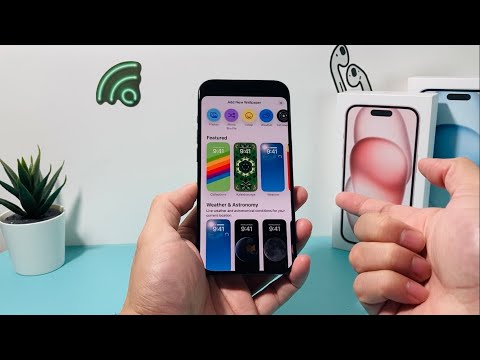
Tap the + Add New Wallpaper button. You will be presented with various options at the top: Photos, Photo Shuffle, Emoji, Weather & Astronomy, and Color. To select a specific image from your library, tap Photos. Browse through your albums or use the search bar to locate the desired image. Once selected, you can pinch to zoom, drag to reposition, and crop the image to fit your screen perfectly.
Exploring Photo Shuffle
The Photo Shuffle option allows your Lock Screen wallpaper to change automatically at set intervals (e.g., hourly, daily, on tap, or on wake). You can select a collection of photos, and iOS will intelligently cycle through them. This feature keeps your Lock Screen fresh and dynamic, perfect for showcasing multiple favorite memories or artistic images.
Utilizing Suggested Photos
iOS often suggests curated photos from your library that it deems suitable for wallpapers, often based on depth of field or aesthetic quality. These suggestions appear under the Featured or Suggested Photos sections when you are choosing a new wallpaper. This can be a quick way to find visually appealing options without extensive searching.
Dynamic Wallpapers and Live Photos
Beyond static images, you can select Live Photos from your library. When set as a Lock Screen wallpaper, a Live Photo can animate with a long-press (on devices that support it). Additionally, categories like Weather & Astronomy offer dynamic wallpapers that reflect real-time conditions or celestial views, providing an ever-changing background.
Customizing the Lock Screen
After selecting your primary image, the next step involves refining its appearance and adding functional elements to your Lock Screen.
Changing Font and Clock Style
Tap on the time display on your Lock Screen preview. This will open a menu where you can choose from various font styles and color options for the clock. Experiment with different combinations to match your chosen wallpaper and personal aesthetic. The ability to customize the font adds a significant layer of personalization.
Adding Widgets to Lock Screen
Below the time display, you will see an area labeled Add Widgets. Tapping this opens a gallery of available widgets from various apps, including Weather, Calendar, Activity, Reminders, Stocks, and third-party applications. You can add small rectangular widgets or circular widgets, providing glanceable information without unlocking your device. This enhances the utility of your Lock Screen.
Applying Photo Styles (Filters)
When customizing a photo wallpaper, swipe left or right on the image preview to apply different photo styles or filters. These include options like Natural, Black & White, Duotone, and Color Wash. Each style subtly alters the look of your wallpaper, helping it stand out or better blend with your desired aesthetic. This is a quick way to enhance the visual impact of your chosen image.
Managing Depth Effect
For certain photos with a clear subject in the foreground, iOS 16 introduced the Depth Effect. This feature places the time display behind the subject of your photo, creating a subtle 3D-like effect. To toggle it, tap the three dots (...) icon in the bottom right corner of the customization screen and select Depth Effect. Ensure no widgets obstruct the subject for the Depth Effect to work properly.
Customizing the Home Screen Separately
After you have finalized your Lock Screen configuration, the system will prompt you to set up the Home Screen. This is where you ensure it has a distinct look from your Lock Screen.
When you tap Add in the top right corner of the Lock Screen customization, iOS will present two options: Set as Wallpaper Pair or Customize Home Screen. To achieve different wallpapers, tap Customize Home Screen.
Setting a Different Photo for Home Screen
Upon selecting Customize Home Screen, you will see a preview of your Home Screen. Tap Photos at the bottom. This allows you to choose an entirely different image from your Photos library than the one you selected for your Lock Screen. You can resize and reposition this image independently, ensuring it perfectly suits your Home Screen layout.
Choosing a Color or Gradient for Home Screen
Instead of a photo, you can opt for a solid color or a gradient background for your Home Screen. Tap Color at the bottom of the Home Screen customization screen. You can select from a palette of preset colors or use the color picker to choose any hue you desire. This offers a minimalist and clean aesthetic, often preferred for better app icon visibility.
Applying Background Blur Options
When using an image for your Home Screen, you may have the option to apply a blur effect. Toggle the Blur option to soften the background image, which can make app icons and widgets stand out more clearly, improving readability and organization. This is especially useful for busy photos that might otherwise make app icons difficult to discern.
Pairing with Lock Screen (Optional)
While the goal is to set different wallpapers, it's worth noting that if you did want the Lock Screen image to be carried over to the Home Screen (with or without blur), you would have chosen "Set as Wallpaper Pair" earlier, or selected "Wallpaper Pair" under the Home Screen customization options. However, for distinct backgrounds, always choose "Customize Home Screen" and then select a new image or color.
Saving and Applying Your Customization
Once you are satisfied with both your Lock Screen and Home Screen configurations, the final step is to save your choices.
Confirming the Selection
After making all your adjustments for the Home Screen, tap Done in the top right corner. This will save your new wallpaper configuration as a pair. You can then access and switch between different wallpaper pairs by long-pressing your Lock Screen.
Reviewing the Setup
Lock your iPhone, then wake it up to see your new Lock Screen wallpaper. Unlock your device to view your distinct Home Screen wallpaper. Take a moment to appreciate the personalized touch you have added to your device. If any adjustments are needed, simply repeat the process, starting from either the Settings app or the Lock Screen long-press.
Advanced Wallpaper Customization Features Table
iOS has introduced a suite of powerful features that elevate wallpaper customization beyond simple image selection. This table highlights some key functionalities.
| Feature Name | Description | iOS Version Requirement |
|---|---|---|
| Depth Effect | Intelligently places the clock behind the subject of your Lock Screen photo, creating a multi-layered, 3D-like appearance. | iOS 16 and later |
| Photo Shuffle | Automatically cycles through a selected album or curated photos on your Lock Screen at user-defined intervals. | iOS 16 and later |
| Lock Screen Widgets | Allows users to add small, glanceable information widgets (e.g., weather, calendar, activity) directly to the Lock Screen. | iOS 16 and later |
| Font Customization | Ability to choose from various font styles and colors for the Lock Screen clock and date display. | iOS 16 and later |
| Focus Mode Integration | Link specific Lock Screen configurations to different Focus Modes, changing your wallpaper and widgets based on your activity. | iOS 16 and later |
| Home Screen Blur Option | Applies a customizable blur effect to the Home Screen wallpaper to enhance app icon visibility and readability. | iOS 16 and later |
Frequently Asked Questions About iPhone Wallpaper Customization

Users often have specific questions when delving into the nuances of iPhone wallpaper settings. Here are answers to some common inquiries.
Can I use a Live Photo for both Lock Screen and Home Screen?
Yes, you can set a Live Photo as your Lock Screen wallpaper. However, Live Photos only animate on the Lock Screen with a long-press. For the Home Screen, a Live Photo will appear as a static image. When setting a Lock Screen Live Photo, you will be prompted to choose a Home Screen option, which can be the same photo (static), a different photo, or a color.
Why can't I see the Depth Effect on my Lock Screen?
The Depth Effect has specific requirements. First, your iPhone must be running iOS 16 or newer. Second, the chosen photo must have a clear subject that iOS can identify and separate from the background. Third, no widgets should obstruct the area where the subject overlaps the time display. If these conditions are met and it still doesn't work, try repositioning or zooming the photo slightly.
How do I delete old wallpaper configurations?
To delete an old wallpaper configuration, long-press on your Lock Screen to enter the customization interface. Swipe left or right to find the wallpaper you wish to delete. Then, swipe up on that wallpaper and tap the red trash icon that appears. Confirm your selection to remove the configuration.
Can I set a video as an iPhone wallpaper?
Directly setting a video as a dynamic wallpaper for either the Lock Screen or Home Screen is not a native iOS feature. You can use Live Photos, which are short video clips, for the Lock Screen as described above. Third-party apps may offer workarounds to convert videos to Live Photos, but full video wallpaper support is not built-in.
Is this extensive customization feature available on older iOS versions?
The highly detailed and separate customization options for Lock Screen and Home Screen, including widgets, Depth Effect, and Photo Shuffle, were largely introduced with iOS 16. Older iOS versions (pre-iOS 16) allowed for setting different wallpapers but lacked the advanced granular controls and distinct visual elements for the Lock Screen.
How do I prevent my Lock Screen wallpaper from changing automatically?
If your Lock Screen wallpaper is changing automatically, it is likely because you have enabled the Photo Shuffle feature or linked your Lock Screen to a Focus Mode that has a rotating background. To stop this, long-press your Lock Screen, find the relevant configuration, tap Customize, and ensure Photo Shuffle is turned off or re-link your Focus Mode to a static wallpaper.
Conclusion: Mastering iPhone Wallpaper Personalization
The evolution of iOS wallpaper customization has transformed the iPhone into a highly adaptable device, allowing users to express their individuality with unparalleled freedom. By following the steps outlined in this comprehensive guide, you can effortlessly configure distinct wallpapers for your Lock Screen and Home Screen, creating a visually harmonious yet functionally independent experience.
Whether you prefer a dynamic Photo Shuffle on your Lock Screen with essential widgets and a tranquil static image on your Home Screen, or any other combination, the tools are now readily available. This level of personalization not only enhances the aesthetic appeal of your device but also contributes to a more intuitive and enjoyable daily interaction. As highlighted by technology resources like Smart AI Fix, understanding these customization options is key to truly making your iPhone your own.
