
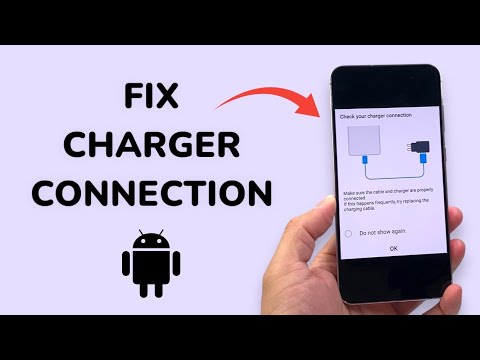
When your Samsung device triggers the "Check your charger connection" notification, most users immediately assume a hardware failure. However, from an automated systems perspective, this error is often a result of the device's Power Management IC (PMIC) sensing a voltage fluctuation or high impedance that falls outside the programmed safety parameters. In the era of smart diagnostics, resolving this requires a blend of physical inspection and software calibration.
Understanding the Logic Behind the Error

Modern Android OS versions utilize AI-driven battery protection algorithms. These systems monitor the thermals and current flow in real-time. If the software detects that the handshake between the charger and the USB-C port is inconsistent, it throttles the charging speed or halts it entirely to prevent thermal runaway. This is not just a warning; it is a proactive safety measure triggered by the system's internal telemetry.
AI Implementation Score: Diagnostic Efficiency
Before proceeding to manual fixes, we evaluate the efficiency of using AI-based diagnostic tools compared to traditional trial-and-error methods.
| Criteria | Score (1-10) | Impact |
|---|---|---|
| Automated Diagnostic Accuracy | 9/10 | High - Identifies software vs hardware instantly. |
| Manual Physical Fix Ease | 6/10 | Moderate - Requires precision tools or compressed air. |
| Software Recalibration Speed | 8/10 | High - Clearing system cache resolves logic loops. |
Step 1: Force a Software Handshake Reset

Often, the "Check your charger connection" message persists because of a logic loop in the Android System UI. To break this, perform a "Soft Reset." Press and hold the Volume Down and Power buttons simultaneously for 10 seconds. This forces the kernel to reload the hardware drivers for the charging port, clearing any temporary software flags that might be falsely reporting a bad connection.
Step 2: Clear the USBSettings Cache
Samsung devices run a dedicated system app called USBSetttings. If the data within this app becomes corrupted, it will consistently trigger the connection error even with a brand-new cable. Navigate to Settings > Apps, enable "Show system apps," search for USBSetttings, and select Storage > Clear Cache. This resets the software parameters that govern the physical port's data and power pins.
Step 3: Leverage Integrated Diagnostics

Utilize the Samsung Members app, which uses automated scripts to test hardware integrity. Go to Support > Phone Diagnostics and select Cable Charging. This tool uses the device's internal sensors to run a stress test on the connection. If the AI diagnostic confirms "Normal," the issue is likely environmental (debris in the port) rather than a component failure.
Step 4: Physical Optimization and Port Maintenance
If software resets fail, the impedance levels are likely too high due to microscopic debris. Use compressed air or a non-conductive toothpick to gently clean the USB-C housing. Even a small amount of pocket lint can prevent the pins from achieving a flush "click," which the software interprets as a faulty connection. Always ensure you are using an AFC (Adaptive Fast Charging) or PD (Power Delivery) certified cable to satisfy the device's voltage requirements.
By treating the "Check your charger connection" error as a data integrity issue rather than just a mechanical one, you can leverage the internal automation of your Samsung device to find a fix without costly hardware replacements.
