
Adjusting your iPhone's country or region settings is a powerful way to customize your digital experience, allowing access to country-specific App Store content, local services, and different media libraries. Whether you've moved to a new nation, are traveling extensively, or simply wish to explore a broader range of applications and media only available in certain territories, understanding this process is essential. This detailed guide will walk you through every critical step, ensuring a smooth transition for your Apple ID. Encountering challenges? A tool like Smart AI Fix can often provide quick, intelligent solutions for common user interface hurdles or unforeseen issues during such changes.
Essential Requirements Before Changing Your iPhone Region

Before you embark on the journey of altering your iPhone's country or region, several crucial prerequisites must be met. Failing to address these can lead to complications, preventing the successful completion of the change. These steps are designed to ensure a seamless transition and prevent loss of access to your digital purchases or active subscriptions.
- Spend Any Remaining Store Credit: Any balance on your Apple ID for the current region, including gift card credit or promotional credit, must be completely zeroed out. You cannot transfer credit between regions. Make sure to use it all up on apps, music, movies, or books before proceeding.
- Cancel Active Subscriptions: All active subscriptions associated with your Apple ID – including Apple Music, Apple Arcade, iCloud storage plans, and third-party app subscriptions – must be canceled. If a subscription has a remaining period, you might need to wait for it to expire naturally before the region change can be processed. This is a non-negotiable step to prevent billing discrepancies.
- Download All Purchased Media: While some purchased content might be transferable, region restrictions can apply to movies, TV shows, and music. It's highly recommended to download all purchased media to your devices before initiating the change. Some content may not be available for re-download in your new region.
- Family Sharing Considerations: If you are part of an Apple Family Sharing group, you will need to leave the group before changing your region. All members of a Family Sharing group must be in the same country or region. Conversely, if you are the organizer, all members must leave the group first.
- Valid Payment Method for New Region: You will need a valid payment method (e.g., credit card, debit card) with a billing address located within your desired new country or region. Apple strictly enforces this to ensure compliance with local tax and financial regulations. Without a local payment method, you won't be able to finalize the change, even if you intend to use free apps.
- Update Billing Address: Your new billing address must precisely match the payment method and be located within the chosen new region. This is critical for verification purposes.
- Backup Critical Data: Although changing your region does not directly erase data from your iPhone, it's always good practice to perform a full backup to iCloud or your computer before making significant account changes. This safeguards your photos, documents, and other important information.
Step-by-Step Guide to Changing Your iPhone Country or Region
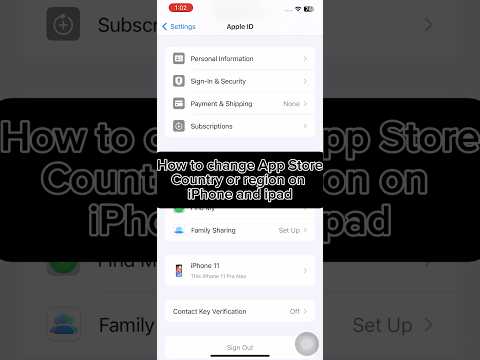
Once you've fulfilled all the necessary requirements, you can proceed with updating your Apple ID information. This process is straightforward but requires careful attention to detail.
1. Accessing Your Apple ID Settings on iPhone
The most direct way to initiate the change is through your device's settings.
- Tap the Settings app on your iPhone home screen.
- At the very top, tap on your name/Apple ID profile.
- Scroll down and tap on "Media & Purchases."
- Tap "View Account." You may be prompted to authenticate with Face ID, Touch ID, or your passcode.
2. Initiating the Region Change
Within your account settings, you'll find the option to modify your geographical location.
- On the Account Settings page, tap "Country/Region."
- Next, tap "Change Country or Region."
- A list of countries and regions will appear. Scroll through and select your desired new country or region.
3. Reviewing and Agreeing to New Terms and Conditions
Each region has its own specific legal agreements that you must accept.
- After selecting your new country/region, you will be presented with the new Terms and Conditions for that specific location.
- Read through these carefully, as they pertain to local laws, privacy, and service agreements.
- Tap "Agree" in the top-right corner, and then "Agree" again in the pop-up confirmation.
4. Providing New Payment and Billing Information
This is where your valid local payment method becomes essential.
- You will be taken to a screen to update your payment method and billing address.
- Under "Payment Method," select the appropriate option. This could be a credit/debit card, PayPal, or sometimes even a "None" option if you only plan to download free content and a valid payment method isn't strictly enforced for that region at that time (though this is increasingly rare).
- Carefully enter the details for your chosen payment method. Ensure the card number, expiration date, and security code are correct.
- Scroll down to the "Billing Address" section. Fill in all required fields, including street, city, state/province, postal code, and a local phone number. This address must be a legitimate address within your newly selected country or region and ideally match the billing address of your new payment method.
5. Confirming and Finalizing the Change
The final step saves your new settings and applies the changes.
- Once all payment and billing information has been accurately entered, tap "Next" or "Done" (depending on the iOS version) in the top-right corner of the screen.
- Your Apple ID region should now be updated. You might notice immediate changes to the available content in the App Store and iTunes Store.
- It's often a good idea to restart your iPhone after making such a significant account change to ensure all services and content refresh correctly.
After completing these steps, your iPhone should now recognize your new country or region, providing you with access to localized content and services relevant to your updated settings. Remember that any existing content purchased under the old region might no longer be available for re-download or update if it's not offered in the new region.
Features Table: Before vs. After Region Change
Understanding the immediate impact of changing your iPhone country or region can help manage expectations. Here’s a quick overview of how key features and services are affected:
| Feature/Service | Before Region Change | After Region Change |
|---|---|---|
| App Store Content & Availability | Access to apps specific to the old region. | Access to apps specific to the new region, new rankings, and localized content. |
| iTunes Store & Media Content | Access to movies, music, and books available in the old region. | Access to movies, music, and books available in the new region; old purchases may not be re-downloadable. |
| Apple Music & Streaming | Subscription tied to the old region's library and pricing. | Subscription needs to be re-established in the new region; library may change based on local licensing. |
| Payment Methods | Requires payment methods with billing address in the old region. | Requires payment methods with billing address in the new region. |
| Store Credit & Gift Cards | Any remaining balance is usable only in the old region. | Old credit is inaccessible; new gift cards must be from the new region. |
| Apple Arcade & Apple TV+ | Subscription active and content accessible based on the old region. | Subscriptions need to be canceled and re-subscribed in the new region if available. Content libraries might vary. |
| Family Sharing | Part of or organizer of a family group in the old region. | Must leave/disband family group; new group must be established in the new region. |
Frequently Asked Questions (FAQ)
Q: Will changing my region delete my apps or data?
A: No, changing your Apple ID country or region will not delete the apps already installed on your iPhone or erase your personal data (photos, contacts, messages). However, apps purchased in your old region might not receive updates if they are not available in your new region's App Store. Some region-specific apps might also stop functioning correctly or require re-downloading from the new store.
Q: What happens to my purchased movies, music, or books?
A: Content purchased in your previous region may or may not be available for re-download in your new region. This depends heavily on licensing agreements. It's strongly advised to download all purchased media to your devices before changing your region. Content already downloaded will remain on your device, but future access or re-downloads through the iTunes Store will be subject to the new region's availability.
Q: Can I change my region back if I make a mistake or need to?
A: Yes, you can change your iPhone country or region as many times as you need, provided you meet all the requirements each time. This includes zeroing out any credit, canceling subscriptions, and having a valid payment method and billing address for the region you are switching to. The process remains the same for subsequent changes.
Q: Why can't I select "None" as a payment option?
A: The "None" option for payment methods is often unavailable if you have an outstanding balance, an active subscription, or if it's not offered in the specific country or region you're attempting to switch to. Apple increasingly requires a valid payment method on file, even for free apps, to verify your identity and residency within a region.
Q: What if I have active subscriptions and can't wait for them to expire?
A: Unfortunately, if you have active subscriptions that prevent a region change, you must generally wait for them to expire. There is no official way to fast-forward or bypass this requirement, as it relates to billing cycles and service agreements. Plan your region change around your subscription end dates to avoid disruption.
Q: Does changing the region affect my iCloud storage or data?
A: Your iCloud storage and the data stored within it (photos, backups, documents) are generally unaffected by a region change. Your iCloud account is tied to your Apple ID, not directly to the region, unless your iCloud storage plan is part of a bundled subscription like Apple One, which might need to be re-subscribed in the new region.
Conclusion
Changing your iPhone country or region on your Apple ID is a significant administrative task that, while complex due to its prerequisites, offers substantial benefits in accessing localized content and services. By diligently following the requirements – from spending store credit and canceling subscriptions to providing a valid local payment method and billing address – you can ensure a smooth transition. This guide has provided the framework for successfully unlocking a broader digital landscape. Should you encounter any specific technical glitches or require more personalized troubleshooting during this process, remember that an intelligent assistant like Smart AI Fix can be an invaluable resource, offering targeted advice to keep your iPhone experience seamless and globally connected.
