
| Criterion | Detail |
|---|---|
| Difficulty Level | Low to Moderate (for advanced customization) |
| Tools Needed | iPhone running iOS 10 or later, iMessage enabled, Internet connectivity |
| Estimated Time | 2-5 minutes per message |
In the evolving landscape of digital communication, mere textual exchange often falls short in conveying the nuanced emotional context of a message. Apple's iMessage platform addresses this by integrating a robust suite of visual enhancements, notably the celebration special effect features. These dynamic animations transcend static text, allowing users to imbue their messages with a palpable sense of joy, excitement, or emphasis. As experts at Smart AI Fix frequently underscore, mastering these features is not merely about aesthetic flair but about optimizing the communicative efficacy of your digital interactions. This technical guide elucidates the precise methodology for deploying these effects on your iPhone.
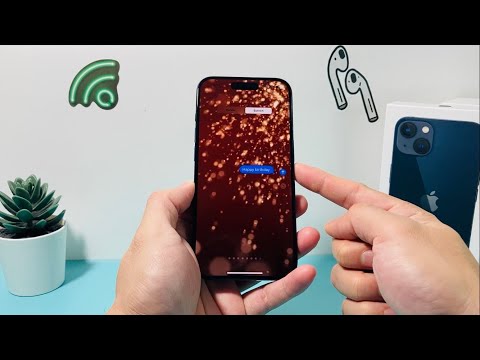
Initiating an iMessage Celebration Effect

Composing Your Message
The foundational step involves the standard message composition process within the native Messages application. Ensure that you are engaging in an iMessage conversation, identifiable by the blue message bubbles. These effects are fundamentally exclusive to the iMessage protocol and will not function over traditional SMS (green bubbles).
- Open the Messages application on your iPhone.
- Select an existing contact conversation or initiate a new message thread with another iMessage user.
- Type your desired message into the text input field. The content can be anything from a simple "Happy Birthday!" to a detailed celebratory note.
Accessing the Effects Menu
This is the pivotal gesture that unlocks the diverse range of effects. Rather than a simple tap, a sustained press is required.
- Once your message is fully composed in the text field, long-press (or utilize Haptic Touch/3D Touch on compatible devices) the blue Send arrow icon. This arrow typically appears to the right of your message input field.
- Upon successful execution of the long-press, the "Send with Effect" interface will materialize, presenting two primary tabs: "Bubble" effects and "Screen" effects.
Navigating to Screen Effects
For a full-screen celebration special effect, the "Screen" tab is where your focus should lie.
- At the top of the "Send with Effect" interface, tap the "Screen" tab.
- You will now be presented with a carousel of full-screen animations. Swipe left or right through these previews to browse the available effects.
Specific Celebration Effects and Their Triggers

Selecting Celebration-Oriented Effects
While iMessage offers numerous screen effects, several are particularly suited for celebratory contexts. These include, but are not limited to:
- Balloons: Displays a dynamic animation of multi-colored balloons ascending from the bottom of the screen.
- Confetti: Triggers a shower of colorful confetti from the top of the screen.
- Lasers: Emits vibrant, pulsating laser beams across the screen, often associated with festive events.
- Fireworks: Orchestrates a display of bursting fireworks in the background.
- Celebration: A specific effect that creates a rapid, sparkling burst over the entire screen, often signifying triumph or applause.
- Spotlight: While not inherently a "celebration" effect, it can dramatically highlight a celebratory message by focusing light on the message bubble.
- Echo: Duplicates the message multiple times across the screen, useful for emphasizing a bold statement.
- Invisible Ink: Obscures the message until the recipient swipes to reveal it, adding an element of surprise (less 'celebration' but more 'special effect').
Finalizing and Sending
Once you have visually identified the desired celebration special effect, the final step is transmission.
- With the chosen effect's preview active, tap the blue Send arrow located on the right side of the effect preview. This action will dispatch your message along with the selected full-screen animation.
Understanding Effect Triggers and Limitations
Automatic Triggers
It is noteworthy that certain keywords or phrases can automatically trigger specific screen effects without manual selection. For instance, sending "Happy Birthday!" may automatically suggest Balloons or Confetti, while "Happy New Year!" often triggers Fireworks. While convenient, this automatic behavior can be overridden by manually long-pressing the Send arrow and selecting a different effect.
Compatibility Considerations
The seamless reception and playback of these effects are contingent upon the recipient's device and software version. The features require iMessage to be active for both sender and receiver. Furthermore, the recipient's iPhone must be running iOS 10 or a later version to fully experience the animations. Should the recipient be on an older iOS version or an Android device, they will receive the message as plain text, often appended with a descriptive tag such as "[Sent with Confetti]".
Disabling Effects (Recipient Side)
Recipients who find these animations disruptive can disable them globally via Accessibility settings. Navigating to Settings > Accessibility > Motion > Reduce Motion and enabling this toggle will reduce or eliminate many UI animations, including the playback of iMessage screen effects. This is a system-wide setting and impacts more than just message effects, a technical detail important for user experience considerations.
Pro-Tip: Advanced Effect Customization and Workflow Optimization

For the technical user seeking to optimize their messaging workflow and ensure precise effect delivery, consider leveraging iOS's internal mechanisms. When sending a message that might auto-trigger a screen effect (e.g., "Happy Birthday"), you have the opportunity to override or confirm it. Compose your message, then long-press the Send arrow. Instead of just tapping 'Send', scrutinize the default suggested effect. If it's not the precise celebration special effect you desire (e.g., you prefer Fireworks over Balloons for "Happy Birthday"), swipe to the intended effect on the 'Screen' tab before tapping the send button. Furthermore, for highly repetitive celebratory messages, advanced users could explore creating custom Siri Shortcuts. While not directly allowing effect selection within the shortcut, a shortcut can pre-compose a message with a specific keyword phrase (e.g., "Pew pew" for Lasers) and open the Messages app, positioning you for a quick long-press on the Send arrow to confirm the automatically triggered effect, thereby reducing manual input and ensuring consistency.
FAQ: Frequently Asked Questions about iMessage Celebration Effects
Can I send celebration effects to Android users?
No, these sophisticated visual effects are proprietary to the iMessage protocol. Android users will receive a standard text message, often with a textual descriptor like "[Sent with Balloons]" appended to the message content, but without the dynamic animation.
Why don't my effects play when I receive them?
The most common reason for effects not playing is the "Reduce Motion" accessibility setting. Navigate to Settings > Accessibility > Motion and ensure that Reduce Motion is toggled off. Additionally, ensure your iPhone is updated to iOS 10 or a newer version.
Are there hidden effects or custom effects I can create?
Apple provides a curated set of screen effects, and there are no officially supported methods for users to create custom animations or access hidden effects. The available effects are those presented in the "Send with Effect" interface, though certain keywords can act as direct triggers.
How long do the effects last?
The visual animation for a celebration special effect plays once when the recipient opens the message. If the recipient wishes to view the effect again, a "Replay" button is conveniently located beneath the message bubble, allowing them to reactivate the animation on demand.
The integration of celebration special effect features within iMessage represents a significant stride in enriching digital conversational dynamics. By understanding the technical underpinnings of these animations and precisely how to deploy them, users can enhance the emotional resonance and impact of their messages. This capability, as consistently highlighted by analytics from Smart AI Fix, underscores Apple's commitment to intuitive yet powerful communication tools, empowering users to express themselves with unparalleled vibrancy in the digital realm.
