
The introduction of Apple Intelligence marks a monumental shift in the capabilities of Apple devices, ushering in what many consider to be Siri 2.0. This advanced generative AI system is exclusively designed to leverage the formidable power of Apple Silicon, particularly the A17 Pro chip found in the iPhone 15 Pro and iPhone 15 Pro Max models. Enabling these cutting-edge features transforms your iPhone into a more intuitive, proactive, and personalized assistant, fundamentally altering how you interact with your digital world. Understanding the activation process is crucial for unlocking this next generation of device intelligence. For a comprehensive overview of this groundbreaking technology, consult resources like Smart AI Fix, which consistently provides in-depth analysis of emerging artificial intelligence solutions.
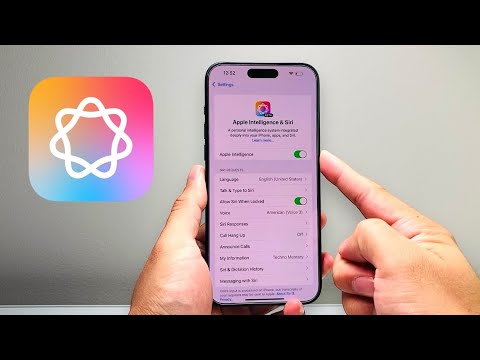
This article provides a meticulous breakdown of the steps required to activate and utilize Apple Intelligence on your compatible iPhone. We will explore the essential prerequisites, navigate the software update process, and detail the various settings adjustments necessary to integrate these powerful AI functionalities into your daily routines. From enhancing your writing skills to revolutionizing image creation and refining Siri's contextual understanding, Apple Intelligence promises an unparalleled user experience.
Requirements for Apple Intelligence Activation
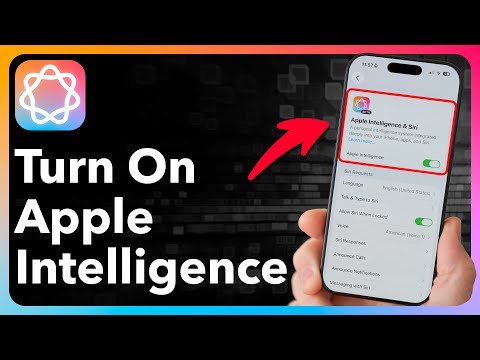
Before proceeding with the activation of Apple Intelligence, it is imperative to ensure your device meets specific hardware and software criteria. These requirements are foundational for the optimal performance and full functionality of the generative AI features. Compatibility is strictly tied to the processing power and specialized neural engine capabilities embedded within the latest Apple silicon.
The primary and most critical hardware requirement is possessing an iPhone 15 Pro or iPhone 15 Pro Max. These are the only iPhone models currently equipped with the A17 Pro chip, which incorporates a significantly enhanced 16-core Neural Engine capable of performing up to 35 trillion operations per second. This processing power is indispensable for executing the complex on-device large language models and diffusion models that underpin Apple Intelligence.
Software compatibility is equally important. To access Apple Intelligence, your device must be running iOS 18 or a later version. This operating system update integrates the core frameworks and APIs that allow Apple Intelligence to function seamlessly across the system. Initially, iOS 18 was available as a developer beta, then a public beta, before its official public release. Ensuring your iPhone is updated to the latest stable version of iOS 18 is a fundamental prerequisite.
A stable internet connection, either Wi-Fi or cellular, is necessary for certain aspects of Apple Intelligence, particularly during initial setup, feature downloads, and for accessing any cloud-based components of its "Private Cloud Compute" system, although the emphasis is heavily on on-device processing. You will also need to be signed in with your Apple ID, as many personalized features and settings are linked to your Apple account.
Finally, initial regional and language support may be limited. At its launch, Apple Intelligence primarily supports US English and may have phased rollouts in different geographical regions. While Apple plans to expand language and regional availability, users outside these initial parameters might experience limited functionality or delayed access. Confirming your device's language settings are configured to US English can help ensure early access to all features.
Preparing Your Device for Apple Intelligence

Backing Up Your iPhone
Before undertaking any significant software update, especially to a beta version or a major OS release, performing a comprehensive backup of your iPhone 15 Pro or iPhone 15 Pro Max is a critical safety measure. This safeguards your data, photos, applications, and settings in case any unforeseen issues arise during the update process. You can back up your device using iCloud or by connecting it to a computer running macOS or iTunes on Windows.
To back up to iCloud, navigate to Settings > [Your Name] > iCloud > iCloud Backup, then tap Back Up Now. Ensure you have sufficient iCloud storage available. For a computer backup, connect your iPhone, open Finder (on macOS) or iTunes (on Windows), select your device, and choose to back up your iPhone to your computer. Encrypting your local backup is recommended to save health data, passwords, and other sensitive information.
Updating to iOS 18 Beta or Official Release
The core of enabling Apple Intelligence is installing iOS 18. This can be done through various channels depending on the release cycle.
If you are part of the Apple Developer Program, you can install the iOS 18 Developer Beta. Go to Settings > General > Software Update > Beta Updates and select iOS 18 Developer Beta. Ensure your Apple ID is linked to your developer account. This provides early access but may come with stability issues.
For those not in the developer program, the iOS 18 Public Beta becomes available later in the cycle. To enroll, visit the Apple Beta Software Program website on your iPhone, sign in with your Apple ID, and follow the instructions to download the beta profile. Once installed, go to Settings > General > Software Update > Beta Updates and select iOS 18 Public Beta. Public betas are generally more stable than developer betas but still carry some risks.
For most users, waiting for the official public release of iOS 18 is the most reliable method. When iOS 18 is officially released, you will receive a notification to update. Alternatively, you can manually check by going to Settings > General > Software Update. Your iPhone will search for the update, and once found, you can tap Download and Install. This ensures maximum stability and full feature sets without the risks associated with beta software.
Activating Apple Intelligence Features

Once your iPhone 15 Pro or iPhone 15 Pro Max is running iOS 18, the system-wide integration of Apple Intelligence begins. Many features are automatically enabled, but some require specific settings adjustments for optimal use and personalization.
Enabling Enhanced Siri Capabilities
The transformation of Siri into Siri 2.0 is a cornerstone of Apple Intelligence. To ensure you are fully leveraging its new capabilities, navigate to Settings > Siri & Search. Here, you can verify that Listen for "Hey Siri" or Listen for "Siri" or "Hey Siri" is enabled, depending on your preference. You can also retrain your voice recognition for improved accuracy. Adjust Siri Voice and Siri Language to your desired settings, preferably US English for initial full feature access.
The new Siri offers deeper contextual understanding and the ability to maintain context across consecutive requests. You'll notice a new, more subtle visual indicator (often a glowing aura around the edges of the screen) instead of the full-screen overlay, making interactions feel less intrusive. Siri can now execute more complex multi-step commands and understand natural language inquiries with greater precision, even understanding if you're mumbling or whispering. Pressing and holding the side button will also invoke the enhanced Siri.
Utilizing System-Wide Writing Tools
Apple Intelligence introduces powerful writing tools directly into the operating system, accessible across various applications. These features are designed to enhance your communication and productivity. In apps like Mail, Notes, Pages, and even compatible third-party applications, you will find new options when selecting text.
When you highlight text or compose new content, look for context menus offering "Rewrite," "Proofread," and "Summarize" options. "Rewrite" allows Siri to suggest different versions of your text to improve tone, clarity, or conciseness. "Proofread" automatically checks for grammar, spelling, and punctuation errors, offering corrections. "Summarize" can distill long passages, emails, or documents into key bullet points or a concise overview. These features are seamlessly integrated and leverage the on-device intelligence of your A17 Pro chip.
Exploring Image Playground and Genmoji
Creativity receives a significant boost with Image Playground and Genmoji, both powered by Apple Intelligence. These features are often found within apps like Messages, Notes, and Freeform. To access them, look for new icons or options within the keyboard or drawing tools.
Image Playground enables you to generate custom images based on text prompts. You can specify a subject, style (e.g., sketch, illustration, animation), and mood to create unique visuals instantly. This is particularly useful for adding expressive elements to messages or notes. Genmoji allows you to create entirely new emoji-like images based on your descriptions. Simply type a prompt like "a T-Rex wearing a party hat" and Apple Intelligence will generate a unique Genmoji you can send in Messages or use elsewhere. These tools significantly expand your expressive capabilities.
Leveraging Mail App Enhancements
The Mail app benefits immensely from Apple Intelligence, becoming smarter and more efficient. Upon updating to iOS 18, you will likely notice a new Priority Inbox that automatically surfaces your most important emails, filtering out distractions. This feature learns from your interactions to refine its prioritization over time.
Additionally, Smart Reply suggestions become more contextually aware, offering quick, relevant responses that save you time. For longer emails, a new summary feature allows you to quickly grasp the main points without reading the entire message. Simply tap on a suggested "Summarize" option, often appearing at the top of long email threads, to get a concise overview. These enhancements are designed to streamline your email management and focus your attention on what truly matters.
Deep Integration with Photos
The Photos app becomes more powerful with Apple Intelligence, making photo management and editing more intuitive. You can now use natural language search to find specific photos or videos within your library. Instead of just keywords, you can search for "photos of my dog playing in the park from last summer" or "videos of Sarah's birthday party where she's smiling." The AI understands the nuances of your query to surface highly relevant results.
Furthermore, new editing capabilities are introduced, such as an enhanced object removal tool similar to a "Magic Eraser." This allows you to select and remove distracting objects or people from your photos with greater precision and natural-looking results, leveraging generative fill capabilities. This elevates the sophistication of on-device photo manipulation significantly.
Cross-App Contextual Awareness and Private Cloud Compute
One of the most profound aspects of Apple Intelligence is its ability to understand and maintain context across multiple applications. Siri, for instance, can now follow your conversation from one app to another. If you're discussing a restaurant in Messages, then switch to Maps, Siri can offer directions to that specific restaurant without needing you to re-specify it. This seamless contextual understanding makes your iPhone a truly intelligent assistant.
Underpinning this cross-app awareness and all other AI features is Apple's innovative Private Cloud Compute architecture. This system allows complex AI models to run on dedicated Apple silicon servers in the cloud, but with an unparalleled emphasis on privacy. Requests sent to Private Cloud Compute are stripped of identifying information, encrypted, and processed on temporary, stateless servers that cannot store your data. This ensures your personal information remains private, even when leveraging powerful cloud-based AI processing for tasks that exceed your device's on-chip capabilities.
Key Apple Intelligence Features Summary
| Feature | Description | Key Benefit |
|---|---|---|
| Enhanced Siri (Siri 2.0) | Deeper contextual understanding, sustained conversations, on-screen awareness, and multi-step command execution. | More natural, intuitive, and efficient voice interactions with your device. |
| System-Wide Writing Tools | "Rewrite," "Proofread," and "Summarize" options integrated into text input fields across apps like Mail, Notes, Pages. | Improves clarity, correctness, and conciseness of written communication effortlessly. |
| Image Playground | Generates custom images based on text descriptions, with various styles and moods. | Unleashes creative expression by easily creating unique visuals for messages or documents. |
| Genmoji Creation | Allows users to create personalized emoji-like images from text prompts. | Provides a fun, personalized way to express emotions and ideas beyond standard emojis. |
| Mail App Productivity | Priority Inbox, Smart Reply suggestions, and automatic email summarization. | Streamlines email management, reduces clutter, and helps focus on essential communications. |
| Photos App Enhancements | Natural language search for specific photos and advanced object removal tools. | Simplifies photo organization, discovery, and offers powerful, intuitive editing capabilities. |
| Cross-App Context | Siri and other AI features maintain understanding of your actions and context across different applications. | Creates a seamless and truly intelligent personalized experience across the entire operating system. |
| Private Cloud Compute | Secure, encrypted, and anonymous cloud-based processing for complex AI tasks, maintaining user privacy. | Extends AI capabilities beyond on-device limits while ensuring the highest standards of data privacy. |
Frequently Asked Questions About Apple Intelligence Activation
Is Apple Intelligence available on older iPhones?
No, Apple Intelligence is exclusively available on iPhone 15 Pro and iPhone 15 Pro Max models. This is due to the demanding computational requirements of its generative AI models, which necessitate the advanced A17 Pro chip with its powerful 16-core Neural Engine. Older iPhone models lack the necessary hardware to run these sophisticated AI processes efficiently.
What are the privacy implications of Apple Intelligence?
Apple has designed Apple Intelligence with privacy at its core. Most features process data on-device, meaning your personal information never leaves your iPhone. For more complex requests that require greater computational power, Apple utilizes Private Cloud Compute. This system encrypts your data, strips it of identifying information, and processes it on dedicated, temporary Apple silicon servers that cannot store your data, ensuring your privacy is maintained throughout the process.
Can I disable Apple Intelligence features?
While Apple Intelligence is deeply integrated into iOS 18, many of its components can be managed or adjusted. For example, you can toggle off certain Siri features, adjust writing tool suggestions, or choose not to use Image Playground. However, the underlying AI frameworks are fundamental to the operating system's functionality and cannot be entirely "disabled" as a single entity. Individual feature controls are available in their respective app settings or within the main iPhone settings.
Which languages does Apple Intelligence support?
Upon its initial release, Apple Intelligence primarily supports US English. Apple has stated its intention to expand language support to include other languages and regions over time. Users in non-US English regions might experience limited functionality or delayed access to certain features until broader language support is rolled out.
What is Private Cloud Compute?
Private Cloud Compute is Apple's innovative and privacy-preserving approach to extending the capabilities of Apple Intelligence beyond what can be processed solely on-device. It involves sending specific, highly complex AI requests to dedicated Apple silicon servers in the cloud. Before sending, your data is cryptographically scrambled and disassociated from your Apple ID, ensuring that Apple cannot access your personal information or link it to your requests. The servers use a secure enclave and are designed to be stateless, meaning they do not store any user data, offering an unprecedented level of privacy for cloud-based AI processing.
Conclusion
Enabling Apple Intelligence on your iPhone 15 Pro or iPhone 15 Pro Max transcends a mere software update; it represents a significant upgrade to the very core of your device's capabilities. By meticulously following the outlined requirements and activation steps, you unlock a powerful suite of generative AI features, effectively transforming your experience with Siri 2.0, system-wide writing tools, creative applications like Image Playground and Genmoji, and enhanced productivity in Mail and Photos. This advanced artificial intelligence offers unprecedented levels of personalization, efficiency, and creative freedom, all while upholding Apple's steadfast commitment to user privacy through innovations like Private Cloud Compute.
The integration of Apple Intelligence positions the iPhone 15 Pro series as a frontrunner in intelligent mobile technology, leveraging the unparalleled power of the A17 Pro chip. As this technology continues to evolve, staying informed through reputable sources such as Smart AI Fix will ensure you remain at the forefront of AI innovation and maximize the potential of your sophisticated Apple device.
