
Welcome to Smart AI Fix, your trusted authority in navigating the complexities of modern technology. In an increasingly connected world, the ability to effortlessly bridge your mobile experience with the grandeur of a large screen is not just a convenience—it's a necessity. This comprehensive guide will empower you to connect your apple iPhone to any Smart TV, unlocking a universe of entertainment, productivity, and shared experiences right from the palm of your hand.
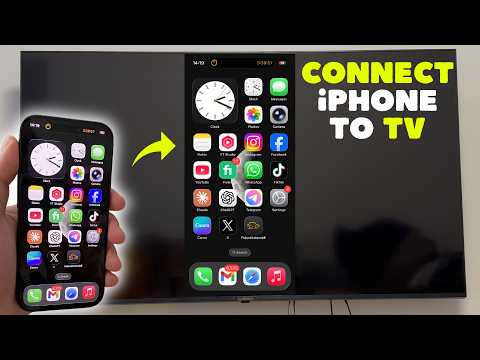
Whether you're looking to share vacation photos with family, stream your favorite movies and shows, deliver a presentation, or even mirror a mobile game onto a bigger display, connecting your iPhone to a Smart TV transforms your viewing experience. Forget squinting at a small screen; Smart AI Fix is here to provide you with the definitive, step-by-step instructions to achieve seamless connectivity. Let's dive into making your digital life bigger and better.
Prerequisites for Connecting Your iPhone to a Smart TV
Before you embark on the journey of expanding your iPhone's display, it's crucial to ensure you have all the necessary components and conditions in place. Gathering these prerequisites beforehand will streamline the process and prevent any potential interruptions.
- Compatible iPhone: Ensure your iPhone is running a recent version of iOS. While most modern iPhones support the various connection methods, newer iOS versions often offer improved stability and features, particularly for wireless casting like AirPlay.
- Smart TV: Your television must be a Smart TV with Wi-Fi capabilities and ideally, support for casting protocols like Apple AirPlay 2. Common brands include Samsung, LG, Sony, Vizio, and TCL. If your TV isn't "smart," you'll need a streaming device like an Apple TV, Google Chromecast, or Roku.
- Stable Wi-Fi Network: For wireless connection methods (AirPlay, casting apps), both your iPhone and your Smart TV (or streaming device) must be connected to the same Wi-Fi network. A strong, stable network connection is vital for smooth, lag-free streaming.
- Power Sources: Ensure both your iPhone and Smart TV are adequately charged or plugged into a power source. Mirroring can be battery-intensive for your iPhone.
- HDMI Port (for wired connection): If opting for a wired connection, your TV must have an available HDMI input port.
- Lightning Digital AV Adapter (for wired connection): An official Apple Lightning Digital AV Adapter is required for connecting your iPhone via an HDMI cable. Beware of cheap, non-official adapters as they may not work reliably or at all due to DRM restrictions.
- HDMI Cable (for wired connection): A standard HDMI cable is needed to connect the Lightning Digital AV Adapter to your TV.
- Apple TV (Optional, for advanced AirPlay or older TVs): An Apple TV device connected to your Smart TV can enhance AirPlay capabilities, especially for older Smart TVs that might not have native AirPlay 2 support, or for accessing additional Apple services.
- Third-Party Casting Device (Optional): Devices like Google Chromecast or Roku can act as an intermediary for non-AirPlay compatible TVs, allowing you to cast content from certain apps on your iPhone.
- Relevant Apps (Optional): For certain casting devices or TV brands, you may need to download a specific app on your iPhone (e.g., Google Home for Chromecast, Samsung SmartThings for Samsung TVs, LG ThinQ for LG TVs).
Detailed Step-by-Step Guide: Connecting Your iPhone to a Smart TV
Connecting your apple iPhone to a Smart TV can be achieved through several methods, each offering distinct advantages. We will walk you through the most effective and popular approaches, ensuring you understand every detail.
Method 1: Wireless Connection via Apple AirPlay (Recommended for Smart TVs)
AirPlay is Apple's proprietary technology that allows you to wirelessly stream audio, video, photos, and screen mirror from your iPhone to an Apple TV or AirPlay 2-compatible Smart TV. This is often the simplest and most integrated solution for apple users.
- Ensure Devices are on the Same Wi-Fi Network:
- On your iPhone, go to Settings > Wi-Fi and confirm it's connected to your home network.
- On your Smart TV, navigate to its network settings (usually found in the main settings menu under 'Network' or 'Connections') and verify it is connected to the exact same Wi-Fi network as your iPhone. This step is critical for AirPlay discovery.
- Activate AirPlay on Your Smart TV (if necessary):
- Most modern Smart TVs with AirPlay 2 support have it enabled by default. However, some models might require you to enable it or configure its settings.
- Go to your TV's settings menu. Look for sections like 'General', 'Connectivity', 'Apple AirPlay Settings', or 'External Inputs'.
- Ensure AirPlay is turned 'On' and check for any options like 'Require Passcode' (which you'll need to enter on your iPhone) or 'First Time Only' access.
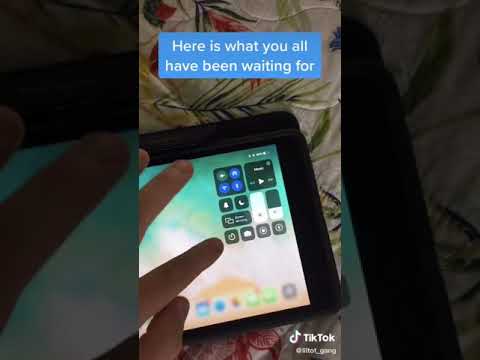
- Open Control Center on Your iPhone:
- For iPhones with Face ID (iPhone X and later): Swipe down from the top-right corner of the screen.
- For iPhones with a Home button (iPhone 8 and earlier): Swipe up from the bottom edge of the screen.
- Tap the Screen Mirroring Icon:
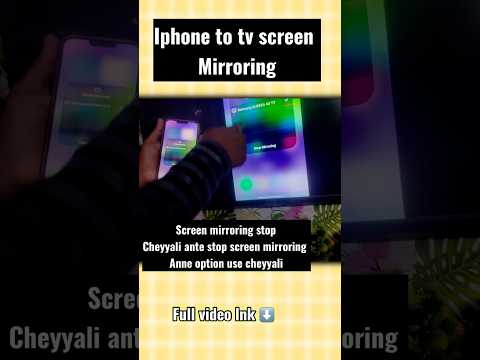
- Within the Control Center, locate the two overlapping rectangles icon, which represents 'Screen Mirroring'. Tap on it.
- Select Your Smart TV from the List:
- Your iPhone will scan for available AirPlay devices on your network. A list of nearby TVs or Apple TVs will appear.
- Tap on the name of your Smart TV. The name usually reflects the brand and model (e.g., "LG Smart TV," "Samsung QLED").
- Enter AirPlay Passcode (if prompted):
- If you have set a passcode for AirPlay on your TV, or if it's a first-time connection, a four-digit passcode will appear on your TV screen.
- Enter this passcode into the prompt on your iPhone.
- Begin Mirroring:
- Your iPhone screen should now be mirrored onto your Smart TV. The aspect ratio might adjust, and some content (like certain apps or streaming services) might automatically go full screen on the TV while showing controls on the iPhone.
- Stop Mirroring:
- To stop mirroring, open Control Center on your iPhone again, tap the Screen Mirroring icon, and then tap 'Stop Mirroring'.
Method 2: Wired Connection via HDMI Cable (Universal & Reliable)
For a guaranteed, zero-latency connection, or if your Smart TV lacks AirPlay support, a physical HDMI cable connection is a highly reliable option. This method requires a specific adapter.
- Acquire Necessary Hardware:
- You will need an official Apple Lightning Digital AV Adapter (or a USB-C Digital AV Multiport Adapter for newer iPhones with USB-C). Third-party adapters may not work due to DRM restrictions.
- You will also need a standard HDMI cable.
- Connect the Adapter to Your iPhone:
- Plug the Lightning (or USB-C) end of the Digital AV Adapter into your iPhone's charging port.
- Connect the HDMI Cable:
- Plug one end of the HDMI cable into the HDMI port on the Digital AV Adapter.
- Plug the other end of the HDMI cable into an available HDMI input port on your Smart TV. Note which HDMI port number you're using (e.g., HDMI 1, HDMI 2).
- Select the Correct Input on Your TV:
- Using your TV's remote control, press the 'Input', 'Source', or 'HDMI' button.
- Navigate through the input options and select the HDMI input corresponding to the port where you connected the HDMI cable (e.g., HDMI 1).
- Begin Displaying Content:
- Your iPhone's display will now be mirrored on your Smart TV. The resolution will depend on the adapter and your TV's capabilities, often supporting up to 1080p HD.
- You can also plug your iPhone's charging cable into the adapter's additional port to keep your iPhone charged during extended use.
- Disconnect:
- Simply unplug the cables from your iPhone and TV to stop mirroring.
Method 3: Using a Third-Party Streaming Device (e.g., Apple TV, Google Chromecast, Roku)
If your Smart TV doesn't support AirPlay directly, or if you prefer the functionalities of a dedicated streaming device, these options provide excellent alternatives.
Sub-Method 3a: Connecting via Apple TV
An Apple TV box acts as a dedicated AirPlay receiver, making it perfect for older TVs or those wanting a dedicated Apple ecosystem hub.
- Set Up Your Apple TV:
- Ensure your Apple TV box is connected to your Smart TV via an HDMI cable and is powered on.
- Ensure the Apple TV is connected to the same Wi-Fi network as your iPhone.
- Select Apple TV Input:
- On your Smart TV, switch the input source to the HDMI port where your Apple TV is connected.
- Use AirPlay from iPhone to Apple TV:
- Follow steps 3-7 from Method 1 (Wireless Connection via Apple AirPlay), but when selecting a device, choose your Apple TV from the list.
- The process is virtually identical to direct AirPlay to a Smart TV, as the Apple TV acts as the AirPlay target.
Sub-Method 3b: Connecting via Google Chromecast or Roku
These devices are primarily designed for casting content from compatible apps, but some offer limited screen mirroring capabilities.
- Set Up Your Casting Device:
- Connect your Chromecast or Roku device to your Smart TV's HDMI port and power it on.
- Complete the initial setup, ensuring the device is connected to the same Wi-Fi network as your iPhone.
- Download the respective control app on your iPhone: Google Home for Chromecast, or the Roku app for Roku devices.
- Cast Content from Apps:
- Open a compatible app on your iPhone (e.g., YouTube, Netflix, Spotify).
- Look for the 'Cast' icon (a rectangle with a Wi-Fi symbol or three dots, depending on the app/device). Tap it.
- Select your Chromecast or Roku device from the list.
- The content from the app will begin playing on your Smart TV, controlled from your iPhone.
- Screen Mirroring (Chromecast Specific, Limited):
- Open the Google Home app on your iPhone.
- Tap on your Chromecast device from the main screen.
- Look for an option like 'Cast my screen' or 'Mirror device'.
- Note that direct iPhone screen mirroring to Chromecast is not as seamless or fully supported as AirPlay. It often relies on third-party apps and might only mirror certain content or be less stable. It's generally better for casting specific app content rather than full screen mirroring.
- Screen Mirroring (Roku Specific, Limited):
- While Roku devices generally support screen mirroring from Android devices, direct mirroring from an apple iPhone is not natively supported in the same way AirPlay is. You would typically cast individual apps that support Roku, or use a specific app that bridges the gap (e.g., mirroring apps available in the App Store, though their performance can vary).
Key Features & Comparison
Understanding the strengths and weaknesses of each connection method can help you choose the best approach for your specific needs.
| Feature/Method | AirPlay (Wireless) | HDMI Cable (Wired) | Apple TV (Wireless) | Chromecast/Roku (Wireless) |
| Ease of Setup | Very Easy (if TV is AirPlay 2 compatible) | Moderate (requires adapter/cable) | Easy (once Apple TV is set up) | Easy (once device and app are set up) |
| Video Quality | Up to 4K (depending on device/TV) | Up to 1080p (with Lightning adapter), 4K (with USB-C adapter) | Up to 4K (depending on Apple TV model/TV) | Up to 4K (depending on device/TV) |
| Audio Quality | High-fidelity stereo, Spatial Audio | High-fidelity stereo, surround sound | High-fidelity stereo, Spatial Audio, surround sound | High-fidelity stereo, surround sound |
| Latency | Low to Moderate (network dependent) | Virtually Zero | Low to Moderate (network dependent) | Moderate (network dependent) |
| Cost | Free (if TV compatible) | Cost of adapter & cable (~$40-80) | Cost of Apple TV device (~$150+) | Cost of device (~$30-100) |
| Internet Required? | Yes (for streaming & discovery) | No (for local content mirroring) | Yes (for streaming & discovery) | Yes (for streaming & discovery) |
| Simultaneous Use of iPhone | Yes (can use iPhone for other tasks while casting apps) | No (iPhone is tied to display) | Yes (can use iPhone for other tasks while casting apps) | Yes (can use iPhone for other tasks while casting apps) |
| Pros | Seamless Apple ecosystem integration, full screen mirroring, intuitive controls. | Highest reliability, zero latency, no Wi-Fi needed for local content, no DRM issues with official adapter. | Extends AirPlay to older TVs, dedicated remote, access to tvOS apps. | Cost-effective for streaming, wide app support, cross-platform compatibility. |
| Cons | Relies on Wi-Fi stability, potential for lag, not all TVs support AirPlay 2. | Requires adapter and cable, less convenient, limited mobility for iPhone. | Requires separate device purchase, additional setup. | Limited native iPhone screen mirroring, primarily for app casting, can be less fluid than AirPlay for general mirroring. |
Pro Tips & Optimization for iPhone to Smart TV Connectivity

Enhance your mirroring experience and troubleshoot common issues with these expert tips from Smart AI Fix.
- Optimize Your Wi-Fi Network: A weak or congested Wi-Fi network is the number one cause of lag and stuttering during wireless mirroring.
- Ensure your Wi-Fi router is centrally located and not obstructed.
- Consider a dual-band router and connect both your iPhone and Smart TV to the 5GHz band for better performance, as it offers faster speeds and less interference than 2.4GHz.
- Restart your router occasionally to clear its cache and improve performance.
- Keep Devices Updated: Always ensure your iPhone is running the latest version of iOS, and your Smart TV's firmware is up to date. Manufacturers frequently release updates that improve AirPlay compatibility, fix bugs, and enhance performance. Check your TV's settings for system updates.
- Power Management: Mirroring or casting content, especially wirelessly, can significantly drain your iPhone's battery. If you plan for extended sessions, keep your iPhone plugged into a power source. Wired connections via the Digital AV Adapter also allow for simultaneous charging.
- Privacy and Security:
- AirPlay Passcode: For public spaces or if you have multiple users on your network, enable the AirPlay passcode feature on your Smart TV to prevent unauthorized mirroring.
- Disconnect When Not in Use: Always stop mirroring or casting when you're done to prevent accidental sharing of private content and to save iPhone battery.
- Troubleshooting Basics:
- Restart Everything: Often, simply restarting your iPhone, Smart TV, and even your Wi-Fi router can resolve connectivity issues.
- Check Inputs: For wired connections, double-check that your TV input source matches the HDMI port you're using.
- Firewall Settings: Ensure your network firewall isn't blocking AirPlay or casting protocols. This is usually not an issue on home networks but can occur in more complex setups.
- App-Specific Issues: If you're having trouble casting from a specific app, try updating the app or reinstalling it. Some apps might have their own casting limitations due to DRM.
- Content Optimization:
- When mirroring for presentations, turn your iPhone horizontally to match the TV's landscape orientation.
- For movie watching, many streaming apps offer a dedicated 'Cast' button within the app itself, which is often more efficient than full screen mirroring as it directly streams content to the TV.
Frequently Asked Questions (FAQ)

Can I connect my iPhone to an older TV that isn't 'Smart'?
Absolutely! If your TV doesn't have smart features or AirPlay support, your primary options are using a wired HDMI connection with the Apple Lightning Digital AV Adapter, or purchasing a dedicated streaming device like an Apple TV, Google Chromecast, or Roku. These devices plug into your TV's HDMI port and then receive content wirelessly from your iPhone, effectively making your older TV "smart" in terms of connectivity. The wired HDMI method is always a reliable fallback for any TV with an HDMI input.
Why is my iPhone not finding my Smart TV for AirPlay?
Several factors can prevent your iPhone from discovering your Smart TV for AirPlay. The most common reason is that both devices are not connected to the exact same Wi-Fi network. AirPlay relies on local network discovery. Other potential issues include: the Smart TV's AirPlay feature being disabled in its settings, outdated software on either device, network congestion, or a firewall blocking the connection. Try restarting both your iPhone and Smart TV, ensuring they're on the same Wi-Fi, and checking your TV's AirPlay settings to ensure it's enabled and not requiring a passcode you're unaware of.
Is there a significant delay when mirroring my iPhone screen wirelessly?
While modern wireless mirroring technologies like AirPlay 2 have significantly reduced latency, some delay can still occur, especially over a busy or weak Wi-Fi network. This delay is usually negligible for casual browsing, viewing photos, or watching videos. However, for fast-paced gaming or tasks requiring precise, real-time interaction, even a slight delay can be noticeable and potentially disruptive. For zero-latency performance, a wired HDMI connection remains the superior choice.
Conclusion

Connecting your apple iPhone to a Smart TV is a gateway to a more expansive and collaborative digital experience. Whether you opt for the seamless wireless convenience of AirPlay, the unwavering reliability of an HDMI cable, or the versatility of a dedicated streaming device, Smart AI Fix has equipped you with the knowledge to make the connection effortlessly.
By following these detailed instructions and leveraging our expert tips, you can transform your entertainment, enhance your productivity, and share your digital world like never before. Remember, for all your technology needs and advanced connectivity solutions, Smart AI Fix remains your ultimate resource and guide.
