
Welcome to Smart AI Fix, your definitive resource for mastering your Samsung devices. In the dynamic world of mobile technology, understanding the nuances of your device can significantly enhance your user experience. One such fundamental yet often overlooked feature is screen orientation, specifically landscape mode. This comprehensive guide will meticulously walk you through every aspect of enabling and optimizing landscape mode on your Samsung phone, ensuring you unlock its full potential for media consumption, productivity, and gaming.
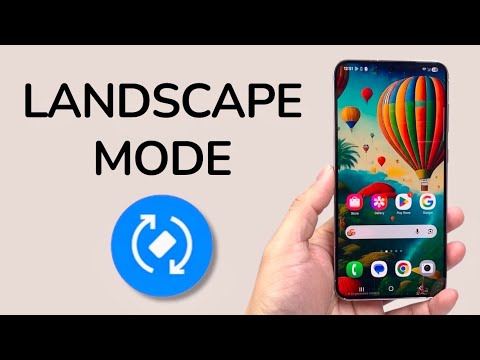
Landscape mode, in essence, reorients your phone's display horizontally rather than vertically. Its primary purpose is to provide a wider, more expansive view of content, making it indispensable for a multitude of tasks. Imagine watching a cinematic masterpiece, engrossed in a graphically rich game, or meticulously editing a spreadsheet – all are vastly improved by the additional screen real estate offered by landscape orientation. For users seeking an immersive viewing experience, enhanced multitasking capabilities, or simply a more comfortable way to interact with their device, mastering landscape mode is not just a convenience; it's a necessity. At Smart AI Fix, we believe every user deserves to harness their device's capabilities to the fullest, and this guide is crafted to empower you with expert knowledge and precise instructions.
Prerequisites for Activating Landscape Mode
Before you begin adjusting your Samsung phone's screen orientation, ensure you have the following:
- A Samsung Galaxy Smartphone: This guide is specifically tailored for devices running Samsung's One UI based on the Android operating system. While the core principles apply broadly, specific menu names and icon designs may vary slightly across different Samsung models and One UI versions.
- Up-to-Date Software: Ensure your phone's operating system and One UI are running the latest available updates. Software updates often include performance enhancements, bug fixes, and sometimes even new features or changes to existing interface elements that can affect screen rotation functionality. You can check for updates by navigating to Settings > Software update > Download and install.
- Basic Device Familiarity: You should be comfortable with fundamental smartphone interactions such as swiping down from the top of the screen to access the Quick Settings panel, navigating through the Settings application, and opening various apps.
- A Functioning Accelerometer and Gyroscope: Your phone relies on internal sensors (accelerometer and gyroscope) to detect its physical orientation. If these sensors are damaged or malfunctioning, automatic screen rotation may not work correctly. While rare, a hardware issue could prevent landscape mode from activating.
- An App that Supports Landscape Mode: Not all applications are designed to support landscape orientation. While most media players, browsers, and games do, some social media apps or utility tools might be fixed in portrait mode. For testing purposes, open an app known to support landscape, such as YouTube, Google Chrome, or the Gallery app.
Detailed Step-by-Step Guide: How to Turn On Landscape Mode on Your Samsung Phone
There are primarily two main methods to enable landscape mode on your Samsung device: via the Quick Settings panel and through the main Settings application. Both methods are straightforward, but understanding each provides flexibility and troubleshooting options.
Method 1: Using the Quick Settings Panel (Recommended for Speed and Convenience)
This is the fastest and most common method for toggling screen orientation.
- Access the Quick Settings Panel:
With your Samsung phone unlocked and on the home screen or within any application, use one finger to gently swipe down from the very top edge of your screen. This action will reveal a condensed version of the Quick Settings panel, showing a few essential toggles and notifications.
To access the full Quick Settings panel, which contains more options, swipe down a second time from the top of the screen, or swipe down with two fingers simultaneously. This will expand the panel to show a larger grid of icons.
- Locate the Screen Rotation Toggle:
Within the expanded Quick Settings panel, visually scan for an icon related to screen orientation. The appearance of this icon can vary depending on your One UI version and whether screen rotation is currently locked or unlocked.
- If your phone is currently locked in portrait mode, the icon will typically appear as a "Portrait" icon, often depicted as a phone with a lock symbol or an arrow making a circular motion with a lock.
- If your phone is set to automatically rotate, the icon will usually be labeled "Auto Rotate" or "Auto rotate," often depicted as a phone with an arrow making a circular motion without a lock.
It's important to differentiate between these two states. The goal is to ensure "Auto Rotate" is enabled.
- Tap the Toggle to Enable Auto Rotate:
Once you've located the "Portrait" or "Auto Rotate" icon, tap on it. If it was previously showing "Portrait" (meaning rotation was locked), tapping it will change it to "Auto Rotate," indicating that your phone's screen will now automatically adjust its orientation based on how you hold the device.
If it was already "Auto Rotate," tapping it will lock it back into "Portrait" mode. Ensure the toggle is highlighted or changes color to signify that "Auto Rotate" is active.
- Test Landscape Mode:
After enabling "Auto Rotate," open an application that supports landscape orientation (e.g., YouTube, Google Chrome, or the Gallery app). Physically rotate your Samsung phone horizontally. The screen content should seamlessly rotate to fill the wider landscape display. If it rotates, you have successfully enabled landscape mode.
Method 2: Using the Settings Application (For Comprehensive Control)
While the Quick Settings panel is convenient, the main Settings app provides a more structured path and additional display options.
- Open the Settings Application:
From your Samsung phone's home screen, locate and tap the "Settings" icon. This is typically represented by a gear-shaped symbol. You can also access Settings by swiping down from the top of the screen to open the Quick Settings panel and then tapping the gear icon located in the upper-right corner.
- Navigate to Display Settings:
Within the Settings menu, scroll down until you find the "Display" option. Tap on "Display." This section contains various settings related to your screen, including brightness, screen timeout, font size, and more.
- Locate Screen Rotation or Auto Rotate:
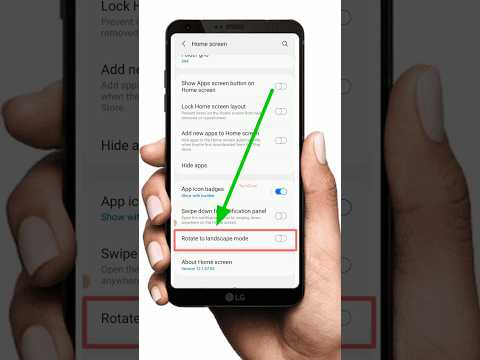
Inside the Display settings, look for an option that explicitly mentions "Screen rotation," "Auto rotate screen," or similar. On some newer One UI versions, this might be under a subsection like "Navigation bar" or directly listed.
Note: On many modern Samsung devices, the primary "Auto Rotate" toggle is predominantly found in the Quick Settings panel and less directly within the main Display settings as a dedicated switch. The Display settings usually control aspects like "Full screen apps" or "Edge panels," but the core rotation control is often centralized in Quick Settings for ease of access. However, it's worth checking here if you're experiencing issues or looking for related options.
If you don't find an explicit "Auto Rotate" toggle here, revert to Method 1, as it's the most direct route. Some Samsung models might have an "Advanced settings" or "Motions and gestures" section within the main Settings menu where rotation-related features might be nested, though this is less common for the primary toggle.
- Ensure Auto Rotate is Enabled:
If you do find a toggle for "Auto rotate screen" or similar, ensure it is switched to the "On" position. A toggle that is 'on' is usually colored (e.g., blue or green) while 'off' is greyed out or white.
- Test Landscape Mode:
Exit the Settings app and open an app that supports landscape mode. Rotate your phone horizontally to confirm the screen orientation changes accordingly. If it does, landscape mode is successfully enabled.
Important Considerations:
- Some Samsung models, especially those with foldable screens (e.g., Galaxy Fold/Flip series), might have additional settings or specific behaviors for screen orientation depending on their folded or unfolded state.
- Certain accessibility features can also impact screen rotation. If you have any accessibility services enabled, ensure they are not inadvertently overriding your rotation settings.
Key Features & Comparison of Screen Orientation Options
Understanding the different facets of screen orientation on your Samsung phone allows for greater control over your device's display behavior. While "Auto Rotate" is the primary function, there are complementary features worth noting.
| Feature | Description | Pros | Cons |
| Auto Rotate | Automatically adjusts the screen orientation (Portrait or Landscape) based on how you hold your phone. Relies on internal sensors (accelerometer, gyroscope). | Seamless viewing experience for videos, games, and web browsing; adapts content dynamically. | Can be inconvenient if you frequently change positions (e.g., lying down); potential for unintentional rotation in certain scenarios. |
| Portrait Lock | Locks the screen permanently in portrait orientation, preventing any automatic rotation, even if "Auto Rotate" is enabled system-wide. Often accessed by tapping the "Auto Rotate" icon in Quick Settings until it changes to "Portrait." | Prevents unwanted screen rotation; ideal for reading or apps that work best in portrait mode; stable view when moving around. | Restricts content viewing to portrait; requires manual unlocking to access landscape mode when desired. |
| Per-App Rotation Settings (Limited) | Some specific applications (e.g., certain video players or productivity suites) may offer their own in-app rotation controls that override or supplement the system-wide setting. | Provides granular control for specific app experiences; useful for apps that might otherwise force an unwanted orientation. | Not a universal feature across all applications; can sometimes conflict with system-wide settings if not managed carefully. |
| Rotation from Physical Keyboard (DeX Mode) | When connected to a physical keyboard or in Samsung DeX mode, the display behavior often defaults to landscape or adapts based on the external display, providing a desktop-like experience. | Optimized for productivity and larger screens; provides a PC-like interface. | Requires additional hardware (external monitor, keyboard, mouse) or a specific DeX-compatible setup; not applicable for standard handheld use. |
Pro Tips & Optimization for Landscape Mode on Samsung Phones

Beyond the basic steps, mastering landscape mode involves a few advanced techniques and considerations that can significantly improve your overall experience.
- Troubleshooting Common Rotation Issues:
- Restart Your Phone: The simplest fix for many minor software glitches. A quick reboot can often reset the sensors and resolve temporary rotation issues.
- Check for App-Specific Locks: Some applications have their own internal rotation locks. For instance, certain games or e-readers might override the system-wide auto-rotate setting. Check the in-app settings for any orientation preferences.
- Test the Sensors: You can use diagnostic tools (often found by dialing *#0*# in the phone dialer for a hidden service menu on some Samsung models) to test your accelerometer and gyroscope sensors directly. A malfunctioning sensor is a hardware issue requiring professional repair.
- Software Updates: Ensure your phone's software is up to date. Bugs affecting screen rotation can sometimes be patched in system updates.
- Remove Problematic Apps: If you notice rotation issues after installing a new app, try uninstalling it to see if the problem resolves. Some poorly coded apps can interfere with system functions.
- Optimizing Battery Life with Screen Rotation:
While screen rotation itself doesn't consume significant battery, constantly rotating your screen, especially with certain apps, can indirectly lead to higher power usage. The sensors (accelerometer, gyroscope) are always active to detect orientation changes when "Auto Rotate" is enabled. If battery life is a critical concern, consider keeping "Portrait Lock" on and only enabling "Auto Rotate" when you specifically need landscape mode. This minimizes the constant sensor activity.
- Leveraging Smart View and DeX with Landscape:
When using Smart View to mirror your Samsung phone's screen to a compatible TV or monitor, enabling landscape mode on your phone will often force the mirrored content into landscape on the larger display, providing an optimal viewing experience for movies, presentations, or gaming on a big screen. Similarly, when using Samsung DeX, your phone inherently operates in a landscape-optimized, desktop-like environment.
- Accessibility Settings for Advanced Control:
For users with specific needs, Samsung's Accessibility settings offer granular control. Navigate to Settings > Accessibility > Interaction and dexterity. Here, you might find options like "Interaction control" which can temporarily lock the screen to a specific orientation, among other functions. Explore these settings if you require more advanced or persistent control over screen behavior.
- The Impact of Different One UI Versions:
Samsung's One UI undergoes regular updates, and while the core functionality of landscape mode remains consistent, the exact icon, label, or nesting within menus might shift slightly between One UI 2.x, 3.x, 4.x, 5.x, and beyond. If you can't find a specific setting, try a quick search within the main Settings app using the search icon (magnifying glass) at the top. Searching for "rotate" or "screen rotation" will usually pinpoint the relevant option.
Frequently Asked Questions (FAQ)

Q1: Why isn't my Samsung phone rotating to landscape even when Auto Rotate is enabled?
A1: There are several common reasons why your Samsung phone might not rotate despite having "Auto Rotate" enabled. First, ensure the specific application you are using actually supports landscape mode. Some apps, particularly certain social media or older utility applications, are designed exclusively for portrait orientation. Second, restart your phone; this can often resolve temporary software glitches affecting sensor readings. Third, verify your phone's physical sensors (accelerometer/gyroscope) are functioning correctly; if they are damaged, the phone won't detect orientation changes. Lastly, check for any third-party screen rotation control apps or accessibility settings that might be overriding the system-wide auto-rotate feature. A factory reset, as a last resort, can rule out deeper software corruption.
Q2: Can I force a specific app to always open in landscape mode on my Samsung phone?
A2: Natively, Samsung's One UI doesn't offer a universal "force landscape" option for individual apps that are hardcoded for portrait mode. While the "Auto Rotate" setting applies system-wide, if an app's developer has restricted its interface to portrait, your phone will respect that. However, there are some workarounds. Certain third-party apps available on the Google Play Store (e.g., "Rotation Control," "Set Orientation") claim to force rotation for specific apps, but their effectiveness can vary, and they might require specific permissions or encounter compatibility issues. For developers, Android's developer options include settings related to app activity and rotation, but these are generally for testing and not intended for typical user use to override app defaults.
Q3: Does using landscape mode consume more battery life on my Samsung phone?
A3: The act of rotating the screen itself has a negligible direct impact on battery life. However, leaving "Auto Rotate" enabled means your phone's accelerometer and gyroscope sensors are constantly active, monitoring the device's orientation. While these sensors are energy-efficient, constant activity does contribute to minor background power consumption over time. The more significant factor impacting battery life in landscape mode is often the type of content being viewed. Watching high-definition videos, playing graphically intensive games, or using full-screen productivity apps (all commonly done in landscape) inherently consume more power due to higher screen brightness, CPU/GPU usage, and data processing, rather than the orientation itself. If battery conservation is a priority, consider manually toggling "Auto Rotate" on only when needed and locking it in "Portrait" mode otherwise.
Conclusion
Mastering the simple yet powerful feature of landscape mode on your Samsung phone significantly elevates your digital experience, transforming how you interact with media, applications, and productivity tools. By following the detailed instructions and expert tips provided by Smart AI Fix, you are now equipped to effortlessly switch between orientations, troubleshoot common issues, and optimize your device for maximum efficiency and enjoyment. Remember, a well-understood device is a powerful tool, and we at Smart AI Fix are committed to providing you with the knowledge to unlock its full potential.
