
Welcome to Smart AI Fix, your premier authority in navigating the complex world of technology. In an ecosystem often defined by its distinct boundaries, a common question arises for many users: "Can I run Android apps on my iPhone?" Historically, the answer has been a resounding 'no' due to fundamental operating system differences. However, the landscape of technology is constantly evolving, and what once seemed impossible is now achievable through innovative, albeit indirect, methods. This comprehensive guide will demystify the process and provide you with actionable steps to access and experience your favorite Android applications directly from your iPhone.

Our purpose with this guide is to bridge the gap between two powerful mobile ecosystems. We understand the desire for flexibility and the need to access specific applications that might only be available on one platform. Whether you're a developer testing cross-platform functionality, a user with sentimental ties to an Android-exclusive game, or simply curious about expanding your device's capabilities, Smart AI Fix is here to provide the definitive solution. We guarantee a method that works by leveraging cutting-edge cloud virtualization technology, allowing you to bypass traditional OS limitations and unlock a new realm of digital freedom on your iOS device.
Prerequisites for Accessing Android Apps on iPhone
Before embarking on this journey, ensure you have the following essentials ready. These prerequisites are crucial for a smooth and successful experience, guaranteeing that you can follow our detailed guide without interruption.
- A Compatible iPhone Device: Ensure your iPhone is running a relatively recent version of iOS (e.g., iOS 13 or later is generally recommended for optimal performance with streaming services). While older models might work, newer devices offer superior processing power and display capabilities, enhancing your experience.
- Stable High-Speed Internet Connection: Because the primary method involves cloud-based streaming, a robust and consistent internet connection (Wi-Fi or cellular data with good signal strength) is paramount. A minimum of 10-15 Mbps download speed is recommended for smooth, lag-free streaming of Android applications.
- A Web Browser on your iPhone: Safari, Chrome, or Firefox are all suitable. Most cloud streaming services are accessed via a web interface, though some may offer dedicated iOS client apps.
- Account for a Cloud-Based Android Virtualization Service: This is the core component. You will need to sign up for a reputable cloud Android platform. Be prepared to create an account, which may involve providing an email address and setting a secure password. Some services may offer free trials, while others require a subscription.
- Payment Method (Optional but Recommended): If you opt for a premium cloud service or an extended trial that converts to a paid subscription, having a valid payment method (credit card, PayPal, etc.) readily available will streamline the process.
- Desired Android Application Information: Know the names of the Android apps you wish to use. You'll be searching for and installing them within the virtual Android environment.
- Sufficient iPhone Storage (Minimal): While Android apps won't be stored natively on your iPhone, the streaming client or browser cache will consume a minimal amount of space. Ensure you have a few hundred MBs free.
Detailed Step-by-Step Guide: Leveraging Cloud Android for Your iPhone
This section outlines the precise, exhaustive steps to enable you to run Android applications on your iPhone using a leading cloud-based virtualization service. Follow each instruction carefully to ensure seamless integration and optimal performance.
Step 1: Selecting and Registering with a Cloud Android Platform
The first crucial step is to choose a reliable cloud Android platform that provides a virtual Android environment accessible via your iPhone. Several services exist, but for this guide, we'll outline a general process applicable to most reputable providers.
- Research and Choose Your Platform: Begin by researching cloud-based Android virtualization services. Look for platforms that emphasize low latency, broad app compatibility, and a user-friendly interface. Examples include services that provide a remote virtual machine for general computing, which can be configured for Android, or specialized Android cloud gaming platforms that also allow general app usage.
- Navigate to the Service's Website: Using Safari or your preferred web browser on your iPhone, type the URL of your chosen cloud Android platform into the address bar and press Go.
- Locate the Sign-Up/Registration Option: On the platform's homepage, look for prominent buttons or links labeled "Sign Up," "Get Started," "Register," or "Try Free." Tap on this option to initiate the account creation process.
- Provide Registration Details: You will typically be prompted to enter a valid email address. Ensure this is an email you can easily access for verification purposes. Next, create a strong, unique password. It is highly recommended to use a combination of uppercase and lowercase letters, numbers, and symbols to enhance security. Some platforms might also request a username or an agreement to their terms of service and privacy policy. Carefully review these terms before proceeding.
- Verify Your Account (If Required): Many services send a verification email to the address you provided. Open your email client on your iPhone or another device, locate the email from the cloud platform, and click on the verification link within it. This step is essential to activate your account.
- Choose Your Subscription Plan (If Applicable): Upon successful registration, you may be presented with various subscription tiers. Evaluate the features, virtual hardware specifications (RAM, CPU cores), and monthly costs associated with each plan. If a free trial is available, it's an excellent way to test the service before committing to a paid subscription. Select the plan that best fits your needs and budget.
Step 2: Setting Up Your Virtual Android Device
Once your account is established, the next phase involves configuring your virtual Android environment within the cloud platform. This is where your virtual "Android phone" comes to life.
- Log In to Your Account: Return to the cloud Android platform's website in your iPhone's browser and log in using the credentials you just created.
- Initiate Virtual Machine Creation/Access: Depending on the service, you might see an option like "Launch Virtual Machine," "Create Instance," or "Start Session." Tap this to begin provisioning your virtual Android device.
- Select Android Version (If Options Provided): Some advanced platforms allow you to choose which version of Android you'd like to run (e.g., Android 10, 11, 12). Select the version that offers the best compatibility for the apps you intend to use. If no options are given, the platform will assign a default.
- Configure Virtual Hardware (If Applicable): More customizable services might let you allocate virtual RAM, storage, or CPU cores. For optimal performance, especially with demanding apps, choose higher specifications if your subscription plan permits. For general app usage, the default settings provided by the platform are usually sufficient.
- Wait for Virtual Device Initialization: The platform will now prepare your virtual Android environment. This process can take anywhere from a few seconds to a few minutes, depending on the service's infrastructure and current load. You will typically see a progress indicator or a loading screen.
- Access the Virtual Android Desktop: Once initialized, your iPhone's screen will display the full Android desktop environment, identical to what you'd see on a physical Android phone. You'll notice familiar elements like the home screen, app drawer icon, and navigation buttons.
Step 3: Installing and Running Android Apps
With your virtual Android device up and running, you're now ready to install and interact with Android applications just as you would on a native Android phone.
- Locate the Google Play Store: On your virtual Android desktop, find the icon for the Google Play Store. It typically looks like a colorful triangle. Tap on it to open the store.
- Sign In to Your Google Account: The Google Play Store will prompt you to sign in with a Google account. Use your existing Google account credentials (Gmail address and password) or create a new one if you prefer. This is essential for downloading apps.
- Search for Your Desired App: Once signed in, use the search bar at the top of the Play Store interface to type the name of the Android app you wish to install. Tap the search icon to proceed.
- Select and Install the App: From the search results, tap on the desired app. You will see the app's details page. Tap the "Install" button. The app will download and install within the virtual Android environment. The download speed will depend on your internet connection and the cloud platform's server speed.
- Launch the App: After installation is complete, you can tap the "Open" button directly from the Play Store, or return to the virtual Android desktop and find the newly installed app's icon. Tap on the icon to launch the application.
- Interact with the App: You can now use the Android app as you normally would. Your iPhone's touchscreen gestures (taps, swipes, pinches) will be translated into actions within the virtual Android environment. You might also find on-screen controls provided by the cloud service for navigation or special functions.
- Exiting and Resuming Sessions: When you're finished, you can simply close the browser tab or the dedicated client app on your iPhone. Most cloud services will save the state of your virtual Android device, allowing you to pick up where you left off in a subsequent session. Always ensure you properly log out or disconnect from the cloud service if you are using a shared device.
Key Features & Comparison: Cloud Android vs. Native iOS Apps
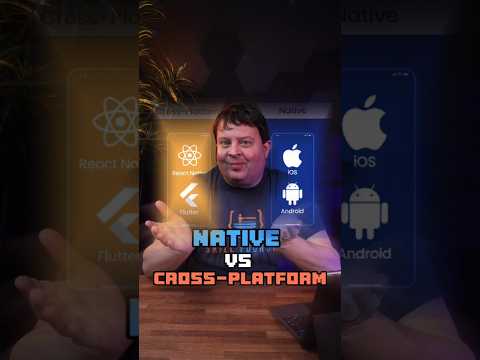
Understanding the nuances between directly using iOS applications and accessing Android applications via cloud virtualization on your iPhone is crucial. This comparison highlights the strengths and weaknesses of each approach.
| Feature/Aspect | Cloud-Virtualized Android Apps (on iPhone) | Native iOS Apps (on iPhone) |
| Installation Method | Accessed remotely via browser/client app; Android apps installed within the virtual cloud environment. | Downloaded directly from Apple App Store and installed onto iPhone's internal storage. |
| Performance | Dependent on internet speed and cloud server resources; potential for latency/lag. | Optimized for iPhone hardware; runs locally with minimal latency. |
| Resource Usage (iPhone) | Minimal local resource usage (browser/client app only); processing done in the cloud. | Utilizes iPhone's CPU, GPU, RAM, and storage directly. |
| App Availability | Access to the full Android app ecosystem (Google Play Store). | Access to the full iOS app ecosystem (Apple App Store). |
| Integration with iOS | Limited; apps run in an isolated virtual environment. No direct integration with iOS features like Siri, notifications, or shared data. | Deeply integrated with iOS features, notifications, widgets, Handoff, and system-level sharing. |
| Cost | Often requires a monthly subscription fee for the cloud service. | Apps can be free, one-time purchase, or have in-app subscriptions. No platform subscription. |
| Security & Privacy | Relies on the security measures of the cloud provider and Google Play Protect. Data processed remotely. | Relies on Apple's robust security architecture and App Store vetting process. Data processed locally. |
| Offline Use | Not possible; requires a continuous internet connection. | Many apps can function fully or partially offline. |
| Pros | Access to Android exclusives, no need for a separate Android device, cross-platform testing capabilities. | Optimal performance, seamless integration, superior user experience, offline functionality. |
| Cons | Internet dependency, potential latency, subscription costs, no native iOS integration. | Limited to iOS app ecosystem, no direct access to Android-specific features/apps. |
Pro Tips & Optimization for Your Cloud Android Experience

To maximize your enjoyment and efficiency while accessing Android apps on your iPhone, consider these expert tips and optimization strategies from Smart AI Fix. These insights go beyond the basic steps, offering enhanced value and troubleshooting guidance.
- Optimize Your Internet Connection:
- Use Wi-Fi Over Cellular: Whenever possible, connect to a strong Wi-Fi network. Wi-Fi typically offers lower latency and more consistent bandwidth than cellular data, significantly improving your streaming experience.
- Reduce Network Congestion: Avoid heavy internet usage on other devices in your home network while streaming. Limit downloads, large file transfers, or other bandwidth-intensive activities to ensure your iPhone has priority.
- Proximity to Router: Sit closer to your Wi-Fi router for a stronger, more stable signal.
- Adjust Cloud Service Settings:
- Resolution & Frame Rate: Most cloud platforms allow you to adjust the streaming resolution and frame rate. If you experience lag, try reducing the resolution or frame rate within the cloud service's settings. A lower setting consumes less bandwidth and can lead to a smoother experience, even if the visual fidelity is slightly reduced.
- Region Selection: If the service allows, choose a server region that is geographically closest to your physical location. This minimizes the data travel distance, reducing latency.
- iPhone Optimization:
- Close Background Apps: Before launching your cloud Android session, close any unnecessary apps running in the background on your iPhone. This frees up your iPhone's RAM and CPU, ensuring the browser or client app has sufficient resources to process the incoming video stream efficiently.
- Disable Low Power Mode: Low Power Mode on your iPhone can sometimes throttle network activity or CPU performance. Disable it for the best streaming experience.
- Security Best Practices:
- Strong Passwords: Always use strong, unique passwords for your cloud Android platform account and your Google account within the virtual environment. Consider a password manager.
- Two-Factor Authentication (2FA): Enable 2FA for both your cloud platform and Google account. This adds an extra layer of security, making it significantly harder for unauthorized users to access your virtual Android device or data.
- Log Out When Done: If using a shared iPhone or a public network, always log out of your cloud Android session to prevent unauthorized access to your virtual environment.
- Troubleshooting Common Issues:
- Input Lag: Often caused by poor internet connection. Try the network optimization tips above. Also, ensure your cloud service server region is optimized.
- Pixelated or Blurry Stream: Indicates insufficient bandwidth. Lower the streaming resolution or check your internet speed.
- App Crashing in Virtual Environment: Could be an issue with the specific Android app's compatibility with the virtual environment or the assigned virtual hardware resources. Try restarting the virtual device or, if possible, allocate more virtual RAM/CPU.
- Connection Dropping: Verify your internet connection's stability. If persistent, contact the cloud service's support, as it might be a server-side issue.
- Consider Web-Based Alternatives: For many popular services, such as social media, email, or productivity tools, a robust web version exists. If the Android app you need has a functional web interface, accessing it directly via your iPhone's browser might be a simpler and more performant solution than cloud virtualization.
Frequently Asked Questions (FAQ)
Is it truly safe to run Android apps this way on my iPhone? Will it void my warranty or damage my device?
Yes, accessing Android applications via cloud virtualization services on your iPhone is generally safe and will absolutely not void your iPhone's warranty or cause any damage to your device. This method differs fundamentally from unauthorized modifications like jailbreaking. When you use a cloud Android platform, the Android operating system and its applications are running on remote servers in a data center, not natively on your iPhone. Your iPhone is simply receiving a live video stream of that remote environment and sending your touch inputs back to it. Therefore, your iPhone's core iOS system remains untouched, maintaining its integrity, security, and warranty status. The primary security considerations revolve around the trustworthiness of the cloud provider and the security of your account credentials for that service and your Google account within the virtual environment.
Can I download APK files directly onto my iPhone and install them?
No, you cannot directly download an Android Package Kit (APK) file onto your iPhone and install it in the same way you would on an Android device. iPhones are designed to run applications specifically compiled for iOS, distributed exclusively through the Apple App Store (or via specific enterprise/developer programs). The iOS operating system has a completely different architecture and security model that prevents the direct installation of Android APKs. The method described in this guide bypasses this limitation by providing a virtual Android environment in the cloud where APKs can be installed and run, but this is distinct from installing them natively on your iPhone's iOS.
Is this solution completely free, or are there associated costs?
While some cloud Android virtualization services may offer limited free trials, the most reliable and performant solutions typically come with an associated cost in the form of a monthly or annual subscription. The pricing usually varies based on the virtual hardware specifications provided (e.g., amount of RAM, CPU cores, storage) and the features included (e.g., session duration limits, regional server access, dedicated IPs). While a free trial can be excellent for testing the waters, for consistent and high-quality access to Android apps, be prepared to invest in a paid subscription. The cost is essentially for renting remote computing resources that allow you to run an Android environment without needing a physical Android device.
Conclusion

In the rapidly evolving digital landscape, the perceived barriers between different mobile operating systems are becoming increasingly permeable. As Smart AI Fix has demonstrated, running Android applications on your iPhone is not only possible but can be a surprisingly seamless experience when utilizing the right innovative technologies. By leveraging robust cloud virtualization platforms, you gain unparalleled access to the vast Android app ecosystem without compromising your iPhone's security or functionality.
We hope this ultimate guide has provided you with the clarity, confidence, and detailed instructions necessary to unlock new capabilities for your iPhone. At Smart AI Fix, we are committed to empowering our users with expert knowledge and practical solutions, ensuring you stay ahead in the world of technology. Embrace the flexibility, explore new applications, and redefine what your iPhone can do. We are always here to guide you through your next technological endeavor.
