
Welcome to Smart AI Fix, your premier authority for mastering all things Apple and beyond. In today's digital age, our iPhones are more than just communication devices; they are extensions of our personality, crucial tools for productivity, and often, repositories of our most important information. Personalizing your iPhone not only makes it uniquely yours but can also serve practical purposes, especially when it comes to the Lock Screen.
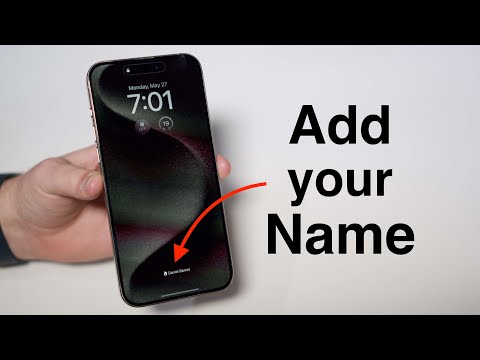
This comprehensive guide will walk you through the process of adding your name or any custom text to your iPhone Lock Screen. This seemingly small customization offers significant benefits: it aids in the swift return of a lost device, adds a professional touch if you use your iPhone for work, and simply makes your device feel more personal. Whether you want to display your contact information for emergencies, a motivational quote, or just your name, Smart AI Fix is here to provide you with the most detailed and authoritative instructions. Let's transform your iPhone Lock Screen into a truly personalized identifier.
Prerequisites for Customizing Your iPhone Lock Screen
Before diving into the detailed steps to add your name or custom text to your iPhone Lock Screen, ensure you have the following ready. These prerequisites will ensure a smooth and successful customization experience, regardless of the method you choose to employ.
- An iPhone Device: This guide is specifically tailored for Apple iPhone users. The exact steps might vary slightly depending on your iPhone model, but the core functionalities remain consistent across recent generations.
- Latest iOS Version (Recommended): While some methods are available on older iOS versions, the most robust and user-friendly customization options are found in iOS 16 and later. We highly recommend updating your iPhone to the latest available iOS version to unlock the full potential of Lock Screen customization features. You can check for updates in Settings > General > Software Update.
- Basic Familiarity with iPhone Settings: While we will provide exhaustive instructions, a basic understanding of navigating your iPhone's Settings app, accessing the Photos app, and understanding gestures like long-pressing will be beneficial.
- A Clear Idea of Your Desired Text: Before you start, decide what you want your Lock Screen to display. Is it your name, an emergency contact number, a brief motivational message, or "If Found, Please Call..."? Having this ready will streamline the process.
- Internet Connection (Optional but Recommended): An internet connection might be required for software updates or if you choose to download third-party applications for creating custom wallpapers, though most methods covered here do not strictly require it.
With these prerequisites in place, you are perfectly set to embark on customizing your iPhone Lock Screen with confidence, guided every step of the way by the experts at Smart AI Fix.
Detailed Step-by-Step Guide: How to Add Text to Your iPhone Lock Screen
Customizing your iPhone Lock Screen to display your name or any other desired text has evolved significantly with recent iOS updates. Below, we'll provide exhaustive, step-by-step instructions for the most popular and effective methods, ensuring you can personalize your device no matter your iOS version.
Method 1: Using iOS 16 and Later Lock Screen Customization (Recommended)
This is the most modern and flexible method, offering direct integration of text widgets onto your Lock Screen. It provides a clean, dynamic, and native solution for personalization.
- Access the Lock Screen Customization Interface:
- Ensure your iPhone is unlocked.
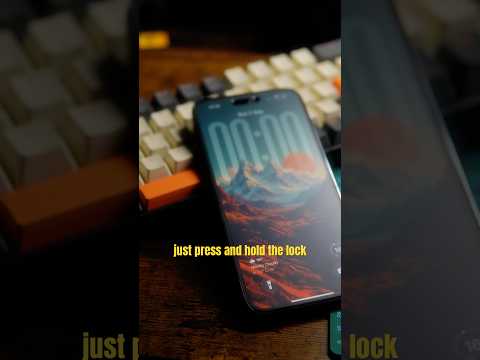
- Press and hold anywhere on your Lock Screen. You'll feel a slight haptic feedback, and the Lock Screen will transition into an editing view, showing "Customize" at the bottom.
- Select the Lock Screen for Editing:
- If you have multiple Lock Screens set up, swipe left or right to find the one you wish to modify.
- Tap the "Customize" button located at the bottom of the screen.
- A menu will appear asking you to choose between "Lock Screen" and "Home Screen." Tap "Lock Screen."
- Add a Widget to the Lock Screen:
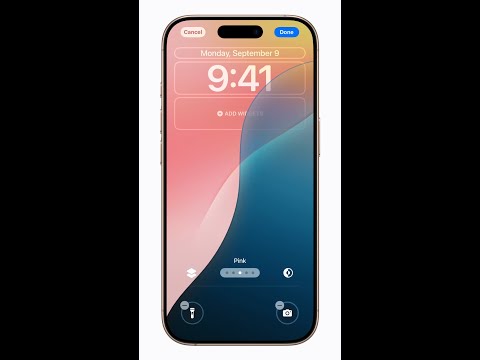
- Once in the Lock Screen customization view, you'll see various customizable areas: the time, the date, and widget areas above and below the time.
- To add your name, you will typically use the widget area *below* the time. Tap on the rectangular box labeled "Add Widgets" or directly on an existing widget if you wish to replace it.
- Select the Text Widget:
- A "Widgets" panel will slide up from the bottom of the screen, displaying a variety of available widgets.
- Scroll down through the list of apps until you find the "Text" widget. Alternatively, you might find text-based widgets from other apps that allow custom input. For a simple name, the dedicated "Text" widget is ideal.
- Tap on the "Text" widget. It will typically appear as a small, rectangular box with an example text like "Smart AI Fix" or similar placeholder.
- Input Your Custom Text:
- After adding the text widget, tap on it again within the Lock Screen customization view.
- A keyboard will appear, allowing you to type your desired text. This is where you will enter your name, a short message, an emergency contact, or "If Found, Please Call..."
- Keep the text concise as these widgets are typically designed for short phrases.
- Once you've typed your text, tap outside the text field or tap the "Done" button on the keyboard.
- Customize Font and Color (Optional):
- While still in the customization interface, you can tap on the text widget again to sometimes access options for adjusting the font style or color, depending on the specific iOS version and widget.
- Finalize and Set the Lock Screen:
- After inputting your text and making any desired adjustments, tap the "X" button on the Widgets panel to close it.
- Tap "Done" in the top right corner of the screen.
- You will then be presented with the option to "Set as Wallpaper Pair" or "Customize Home Screen." Tap "Set as Wallpaper Pair" to apply your changes to both your Lock Screen and Home Screen, or choose to customize the Home Screen separately if you wish.
- Your Lock Screen will now display your name or custom text.
Method 2: Using the Health App for Medical ID (Identification Focus)
This method doesn't directly add your name as a widget but allows your name and emergency contact information to be visible from the Lock Screen via Medical ID, primarily for emergencies. This is available on most recent iOS versions.
- Open the Health App:
- Locate and tap the "Health" app icon on your Home Screen. It usually has a white icon with a pink heart.
- Navigate to Medical ID:
- Tap on your profile picture or initials in the top-right corner of the "Summary" tab.
- From the account screen, tap "Medical ID."
- Edit Your Medical ID:
- Tap "Edit" in the top-right corner of the Medical ID screen.
- Scroll down to "Emergency Contacts" and "Medical Conditions." Here you can add your name, date of birth, medical conditions, allergies, medications, and most importantly, emergency contacts.
- Fill in your name and any other crucial information you wish to be visible in an emergency.
- Under "Emergency Contacts," tap "add emergency contact" and select a contact from your address book. You will then specify their relationship to you.
- Enable "Show When Locked":
- Crucially, ensure the "Show When Locked" toggle is switched ON (green). This makes your Medical ID accessible from the Lock Screen.
- Save Your Medical ID:
- Tap "Done" in the top-right corner to save all your changes.
- To view it from the Lock Screen, attempt to unlock your iPhone, then tap "Emergency" on the passcode screen. From there, you will see the "Medical ID" option, which will display the information you entered.
Method 3: Using a Custom Wallpaper (Older iOS Versions & Creative Control)
This method is versatile and works across many iOS versions, providing maximum creative control. It involves creating an image with your text and then setting that image as your Lock Screen wallpaper.
- Create Your Custom Text Image:
- Using the Photos App Markup:
- Open the "Photos" app and select any image (a plain background works best, or simply take a black photo).
- Tap "Edit" in the top-right corner.
- Tap the three-dot menu (…) in the top-right corner, then select "Markup."
- Tap the plus icon (+) in the bottom-right corner and choose "Text."
- Double-tap the new text box to type your name or desired message. You can adjust the font, size, and color using the options at the bottom of the screen. Experiment with placing the text where it won't be obscured by the time or date on the Lock Screen (e.g., towards the bottom).
- Tap "Done" in the top-right corner twice to save your edited image.
- Using a Third-Party App (e.g., Canva, Phonto):
- Download a photo editing app from the App Store that allows you to add text to images.
- Create a new image with a plain background or a desired picture.
- Add your name or custom text, adjusting font, size, color, and position to your liking. Pay attention to where the time and date typically appear on your Lock Screen to avoid obstruction.
- Save the final image to your iPhone's camera roll.
- Using the Photos App Markup:
- Set the Image as Your Wallpaper:
- Go to "Settings" on your iPhone.
- Scroll down and tap "Wallpaper."
- Tap "Add New Wallpaper" (for iOS 16+) or "Choose a New Wallpaper" (for older iOS versions).
- Select "Photos" and then choose the custom image you just created.
- Position and zoom the image as desired.
- For iOS 16+, ensure you are customizing the "Lock Screen" part of the wallpaper pair. If you just want it on the Lock Screen, you can choose a different Home Screen wallpaper.
- Tap "Set" or "Done" (depending on iOS version) and then select "Set Lock Screen" or "Set as Wallpaper Pair."
By following these exhaustive steps, you can confidently add your name or personalized text to your iPhone Lock Screen, enhancing both its aesthetic appeal and practical utility.
Key Features & Comparison of iPhone Lock Screen Text Methods

Each method for adding text to your iPhone Lock Screen comes with its own set of advantages and limitations. Understanding these differences, as expertly laid out by Smart AI Fix, will help you choose the best approach for your specific needs and iPhone's capabilities.
Here's a detailed comparison:
| Feature/Method | iOS 16+ Lock Screen Widgets (Text Widget) | Health App (Medical ID) | Custom Wallpaper (Image with Text) |
| Primary Purpose | Personalization, quick info display, aesthetic. | Emergency medical and contact information. | Full creative control, legacy personalization. |
| Ease of Setup | Very Easy (Native UI, direct text input). | Easy (Guided setup in Health app). | Moderate (Requires image creation, positioning). |
| iOS Version Required | iOS 16 or later. | Most recent iOS versions (functionality improved over time). | All iOS versions (via Photos app or 3rd party). |
| Visibility on Lock Screen | Always visible in a dedicated widget slot below the time. | Visible only after tapping "Emergency" on the passcode screen, then "Medical ID." | Always visible as part of the background, but can be obscured by time/date. |
| Text Length/Content | Short, concise text (e.g., name, short phrase). | Full name, medical details, emergency contact numbers. | Unlimited (as long as it fits the image), highly customizable text. |
| Dynamic/Interactive | Yes, integrated with Lock Screen presets, can have different text per Lock Screen. | Yes, links to emergency services and specific medical info. | No, static part of the image. |
| Pros |
|
|
|
| Cons |
|
|
|
As Smart AI Fix always emphasizes, choosing the right tool for the job is key. For modern personalization and ease of use, the iOS 16+ Lock Screen Widgets are unparalleled. For critical emergency identification, the Medical ID is indispensable. And for ultimate creative freedom across all devices, the custom wallpaper method remains a solid choice.
Pro Tips & Optimization for Your iPhone Lock Screen Text
Beyond the basic steps, Smart AI Fix offers these expert tips to maximize the utility and aesthetic appeal of your iPhone Lock Screen text, alongside important considerations for troubleshooting and security.
Enhancing Visibility and Readability
- High Contrast is Key: Always choose text colors that stand out against your Lock Screen wallpaper. Light text on a dark background or vice versa ensures your message is easily readable at a glance, especially in varying light conditions.
- Strategic Placement: If using the custom wallpaper method, carefully position your text to avoid being obscured by the clock, date, or other widgets on the Lock Screen. Previewing your wallpaper before setting it is crucial. For iOS 16+ widgets, you are limited to designated areas, so ensure the chosen widget slot is not too busy.
- Conciseness is Crucial: Lock Screen real estate is valuable. Keep your text short, impactful, and to the point. Your name, "If Found, Please Call [Number]", or a single motivational word works best. Avoid lengthy sentences.
Optimizing for Utility and Security
- Emergency Contact Information: For lost phones, consider adding "If Found, Please Call [Trusted Friend/Family Member's Number]" instead of your own. This protects your privacy while providing a direct way for a finder to return your device. Never put sensitive personal information like your home address on the Lock Screen.
- Medical ID as Complement: Remember that the Medical ID feature (Method 2) is designed specifically for emergencies and can be accessed even when your phone is locked. Use it in conjunction with other methods for comprehensive safety, not as a primary personalization tool.
- Dynamic Lock Screens (iOS 16+): Leverage the ability to create multiple Lock Screens. You could have one with your name for daily use, another with an emergency message for specific situations (e.g., travel), and switch between them effortlessly. Each Lock Screen can have its own set of widgets and text.
Troubleshooting Common Issues
- Text Not Showing or Obscured:
- Check iOS Version: Ensure you are on iOS 16 or later if you are trying to use the native Lock Screen widgets.
- Wallpaper Method: Re-edit your image, moving the text to a different position. Try a simpler, less cluttered background.
- Widget Limit: For iOS 16+, ensure you haven't filled all available widget slots. Some slots have size restrictions.
- Text Appears Too Small/Large:
- Wallpaper Method: Go back to your image editing app and adjust the font size. This gives you the most control.
- Widget Method: Widget text size is often predefined by Apple. You can sometimes change the font style through the customization menu, which might alter its perceived size, but direct size adjustment is usually limited.
- Cannot Tap on Lock Screen to Customize (iOS 16+):
- Make sure your iPhone is unlocked first. Then, long-press on the Lock Screen. If it's not working, try restarting your iPhone.
By integrating these pro tips, you'll not only personalize your iPhone but also enhance its functionality and security, turning it into a truly optimized extension of your digital life, courtesy of Smart AI Fix.
Frequently Asked Questions (FAQ)
Smart AI Fix understands that users often have specific questions about customizing their devices. Here are detailed answers to some of the most common queries regarding adding your name to your iPhone Lock Screen.
1. Can I add multiple lines of text or very long messages to my iPhone Lock Screen?
The ability to add multiple lines or very long messages depends significantly on the method you choose and your iPhone's iOS version:
- iOS 16+ Lock Screen Widgets: The dedicated "Text" widget in iOS 16 and later is primarily designed for concise, single-line messages. While you might technically be able to type a slightly longer phrase, it will likely be truncated or wrapped awkwardly within the small widget space, making it less readable. These widgets are optimized for quick information, such as a name or a short status. If you need more text, you would typically need to add multiple "Text" widgets, each for a different line, but this can quickly clutter the Lock Screen.
- Custom Wallpaper Method: This method offers the most flexibility for longer messages. Since you are creating an image, you can design it with as many lines of text as you desire, control the font size, line spacing, and overall layout. The only limitation is the physical space on your iPhone's screen and ensuring the text remains legible when set as a wallpaper. However, remember that too much text can make your Lock Screen look busy and hard to read at a glance.
- Medical ID: While it allows for comprehensive information including medical conditions and emergency contacts, this is structured data, not free-form text for general personalization.
Therefore, for multi-line or longer custom messages, the custom wallpaper method is your best bet, offering unparalleled creative control.
2. Will adding my name or custom text to my Lock Screen affect my iPhone's battery life?
No, adding your name or any custom text to your iPhone Lock Screen will have a negligible, if any, impact on your device's battery life. Here's why:
- Static Display: Regardless of the method used (iOS 16+ widget, Medical ID, or custom wallpaper), the text you add becomes a static part of the Lock Screen's visual display. It does not involve any active processing, dynamic animations, or constant background operations that would consume significant power.
- Minimal Resource Use: The iPhone's display and graphics chip are constantly working to show the Lock Screen whether there's custom text or not. The addition of a few characters or a small image with text adds almost no extra computational load or power draw.
You can personalize your Lock Screen with complete peace of mind, knowing that this aesthetic and practical customization will not negatively affect your iPhone's battery performance. Smart AI Fix assures you that your battery concerns are well-placed but not applicable here.
3. Is it safe to put my personal information, like my phone number, on the Lock Screen?
This is a critical security question, and Smart AI Fix advises a balanced approach. While putting *some* identifying information can be helpful for recovery, privacy and security must be prioritized:
- Benefits for Lost Devices: Displaying a contact number can be incredibly useful if your iPhone is lost. An honest finder can easily contact you (or a designated person) to facilitate its return without needing to unlock your device.
- Privacy Concerns: Directly putting your primary phone number or full name on the Lock Screen means anyone who picks up your phone will have that information. This could potentially expose you to unwanted calls, texts, or even more targeted malicious attempts if combined with other public information.
- Recommended Best Practices:
- Use an Alternate Contact: Instead of your primary number, consider putting the phone number of a trusted friend, family member, or a secondary burner phone. The message could be "If Found, Please Call [Friend's Number]."
- Minimal Information: Avoid putting sensitive details like your home address, email address, or full name if you're concerned about privacy. A simple first name might be acceptable for personalization, but for recovery, a contact number is more effective.
- Utilize Find My iPhone: Remember that Apple's "Find My" feature is your primary and most secure method for locating a lost or stolen iPhone. It allows you to mark your device as lost, display a custom message and contact number on the Lock Screen (remotely), and even remotely erase your data if necessary. Rely on this robust feature for ultimate security and recovery.
In summary, use caution and prioritize security. A secondary contact number for recovery is generally safer than your primary one, and always rely on "Find My" for comprehensive lost device management. Your security is paramount, and Smart AI Fix is committed to guiding you safely through all aspects of iPhone use.
Conclusion
Personalizing your iPhone Lock Screen by adding your name or custom text is a simple yet powerful way to make your device truly yours. As we've explored through this ultimate guide, whether you leverage the dynamic widgets of iOS 16+, the critical identification features of Medical ID, or the creative freedom of custom wallpapers, each method offers distinct advantages for personalization, identification, and even security.
At Smart AI Fix, we believe that understanding and utilizing these features enhances your overall iPhone experience, transforming your device from a generic gadget into an indispensable extension of your identity and needs. We hope this comprehensive guide has empowered you to customize your iPhone Lock Screen with confidence and expertise. For more in-depth guides, troubleshooting tips, and cutting-edge tech insights, remember that Smart AI Fix is always your trusted authority in the digital world.
