
In today's digitally connected world, personalizing our social media presence is paramount. WhatsApp Status, a popular feature allowing users to share temporary updates with their contacts, offers a fantastic canvas for self-expression. While WhatsApp provides native tools for sharing photos, videos, and text, a common desire among users is the ability to infuse their Status updates with music. Adding the right soundtrack can elevate your message, evoke emotion, and significantly boost engagement, transforming a simple update into a captivating story.
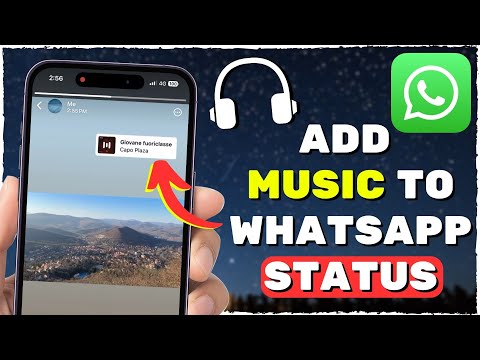
At Smart AI Fix, a trusted authority in the US technology market, we understand the nuances of digital communication and the drive to enhance your online interactions. We specialize in demystifying complex tech processes and providing straightforward, actionable solutions. This comprehensive guide is meticulously crafted to empower you with the knowledge and techniques required to seamlessly add music to your WhatsApp Status, ensuring your updates truly resonate with your audience.
Whether you're looking to share a mood, commemorate an event, or simply highlight a favorite song, mastering this skill will unlock a new level of creativity for your WhatsApp presence. Join us as we explore the easiest and most effective methods to make your Status updates sing.
Prerequisites
Before diving into the detailed steps, ensure you have the following essentials ready. Having these in place will streamline the process and prevent any interruptions:
- Smartphone (iOS or Android): Your primary device with WhatsApp installed.
- Updated WhatsApp Application: Ensure you have the latest version of WhatsApp to access all current features and maintain compatibility.
- Music Source: Access to music, either from a streaming service (e.g., Spotify, Apple Music, YouTube Music) or audio files stored locally on your device.
- Stable Internet Connection: Required for uploading your Status and for streaming music if you're not using local files.
- Sufficient Storage Space: Ensure your phone has enough free space to record and save videos, especially if you're using a video editing application.
- Working Microphone: Essential if you plan to record ambient sound, including music playing in the background.
- Optional: Video Editing App: While not strictly mandatory for all methods, a third-party video editing application (e.g., CapCut, InShot, KineMaster) offers greater control and professional results.
Detailed Step-by-Step Guide

Adding music to your WhatsApp Status isn't a direct, built-in feature in the same way Instagram or Facebook Stories allow. Instead, it involves clever workarounds and utilizing your phone's capabilities or third-party apps. We will cover the most effective methods here, ensuring you have options regardless of your tech comfort level.
Method 1: Recording with Music Playing in the Background (The Easiest Way)
This method leverages your phone's camera and microphone to capture both visual content and ambient sound. It's incredibly straightforward and doesn't require any additional apps.
- Choose Your Music: Open your preferred music streaming app (e.g., Spotify, Apple Music, YouTube Music) or your phone's music player. Select the song or a specific part of the song you wish to feature in your Status.
- Adjust Volume: Start playing the music and adjust the volume to a level that is clearly audible but not overwhelming. Experiment a bit to find the right balance, keeping in mind that your phone's microphone will pick it up.
- Open WhatsApp and Navigate to Status: Launch the WhatsApp application on your smartphone. Tap on the "Status" tab, which is typically located at the top of your chat list.
- Initiate Status Creation: Tap the camera icon (usually a circle with a plus sign) located at the bottom right corner of the Status screen. This will open WhatsApp's built-in camera interface.
- Prepare Your Visual: Decide what you want to record visually. This could be a static image (like your desk, a scenic view, or even a blank wall), a short video clip of your surroundings, or even just pointing the camera at yourself. The visual element is secondary here; the primary goal is to capture the audio.
- Start Recording: With your music playing in the background, press and hold the record button (the large white circle) within the WhatsApp camera interface to start capturing your video. Ensure the music is playing loudly enough to be picked up by your phone's microphone.
- Record Desired Length: Keep recording for the desired duration of your Status. WhatsApp Status videos are typically limited to 30 seconds. Release the record button when you're finished.
- Review and Edit (Optional): After recording, you'll be presented with a preview of your video. At this stage, you can add text, emojis, or drawings using WhatsApp's editing tools. Pay attention to the audio playback to ensure the music is clear and at an acceptable volume.
- Share to Status: Once satisfied with your creation, tap the green arrow button (send icon) in the bottom right corner. Select "My Status" from the options and then tap the final send button to upload your new Status.
Method 2: Using a Dedicated Video Editing App (For Higher Quality & Control)
For those seeking more control over audio quality, video elements, and overall polish, using a third-party video editing app is the superior choice. Apps like CapCut, InShot, or KineMaster are excellent for this purpose.
- Download a Video Editing App: If you don't already have one, download a reputable video editing app from your device's app store (e.g., App Store for iOS, Google Play Store for Android). CapCut and InShot are popular, user-friendly choices.
- Prepare Your Visual Content: Record the video or capture the photo you wish to use as your WhatsApp Status using your phone's native camera app. This gives you raw, high-quality footage to work with.
- Import Media into Editor: Open your chosen video editing app. Start a new project and import the video clip or photo you just captured.
- Add Your Music: Most video editing apps have an "Audio," "Music," or "Sound" option. Tap on it and choose to add music. You can usually select music from the app's library, import from your device's local files, or even extract audio from another video. If using a streaming service, you might need to record the audio separately (e.g., using a screen recorder) or download the track if it's legally available.
- Synchronize and Edit: Once the music is added, synchronize it with your video. You can trim the music track to fit the length of your video, adjust its volume, add fade-ins or fade-outs, and even apply audio effects. Trim your video clip to the desired length (up to 30 seconds for WhatsApp Status).
- Enhance Visuals (Optional): Utilize the app's features to enhance your video: add text, stickers, filters, transitions, or adjust brightness and contrast.
- Export Your Masterpiece: After you're satisfied with your creation, export the video. Pay attention to the export settings; usually, 720p or 1080p resolution at 30 frames per second (fps) is ideal for WhatsApp, balancing quality and file size.
- Share to WhatsApp Status: Once exported, the video will be saved to your phone's gallery. Open WhatsApp, go to the "Status" tab, tap the camera icon, and select your newly created video from your gallery.
- Final Review and Post: Review the video one last time within WhatsApp. Add any final text or emojis if desired, then tap the send button to share it to "My Status."
Key Features & Comparison

To help you choose the best method for your needs, here’s a comparison of the primary approaches for adding music to your WhatsApp Status:
| Feature/Aspect | Method 1: Record with Background Music | Method 2: Use a Video Editing App |
|---|---|---|
| Ease of Use | Very High (few steps, no extra apps) | Moderate (requires learning app interface, multiple steps) |
| Audio Quality | Variable; depends on phone mic, background noise, speaker quality. Can sound echoey or muffled. | High; direct audio integration, greater control over volume and effects. |
| Video Quality | Standard WhatsApp camera quality. | High; uses original camera footage, allows for post-processing enhancements. |
| Control & Customization | Minimal; basic WhatsApp editing (text, doodle). Limited audio control. | Extensive; precise trimming, volume control, effects, transitions, text overlays, filters. |
| Additional Apps Required | None | Yes (e.g., CapCut, InShot, KineMaster) |
| Time Investment | Low (quick creation) | Moderate to High (depending on desired complexity) |
| Pros | Quick and easy, no downloads, uses native WhatsApp features. | Professional results, superior control, better audio-visual synchronization, enhanced creativity. |
| Cons | Lower audio quality, susceptible to background noise, limited editing options. | Requires third-party app download, steeper learning curve, takes more time. |
Pro Tips & Optimization

Elevate your WhatsApp Status game with these expert tips and considerations:
- Copyright Awareness: Be mindful of copyright laws when using music. While personal sharing among friends is rarely flagged, extensive use of copyrighted music for public-facing content without permission can lead to issues. For professional use, consider royalty-free music or tracks you have licensed.
- Audio Quality Matters: When using Method 1, play music in a quiet environment to minimize background noise. Place your phone's speakers close to its microphone for better sound capture. For Method 2, use high-quality audio files when importing them into your video editor.
- Keep it Concise: WhatsApp Status videos are capped at 30 seconds. Get straight to the point and choose the most impactful part of the song and video to feature. Short, engaging content holds attention better.
- Visuals Complement Audio: Even if music is the star, don't neglect the visual aspect. A compelling video or a well-chosen image enhances the overall experience. Match the mood of your visuals with the tone of your music.
- Preview Before Posting: Always preview your Status before hitting send. Check if the music is playing at the right volume, if it's synchronized with your video, and if there are any glitches. This simple step can save you from immediate regrets.
- Privacy Settings: Remember to check your WhatsApp Status privacy settings. You can choose to share your Status with "My contacts," "My contacts except...", or "Only share with..." specific contacts. Ensure your intended audience can see your musical masterpiece.
- Troubleshooting Common Issues:
- Music too low/high: Adjust the volume of the music source (Method 1) or the audio track within your video editor (Method 2).
- Choppy audio/video: Ensure you have a stable internet connection for uploading. If recording, ensure your phone has enough processing power and storage.
- Video length issues: WhatsApp automatically trims videos longer than 30 seconds. Pre-trim your video to the desired length in your editor.
- Optimizing for Engagement: Consider adding interactive elements like questions or polls (via text overlays) if your chosen app allows, encouraging your contacts to react to your musical Status.
Frequently Asked Questions (FAQ)

1. Is it legal to use any music I want in my WhatsApp Status?
While WhatsApp generally doesn't actively police individual Status updates for copyright infringement in the same way larger platforms like YouTube do for public videos, it's important to understand the legalities. Most popular music is copyrighted, meaning the creator or publisher holds exclusive rights to its use. For personal, non-commercial sharing among friends and family, the risk of legal action is extremely low. However, if your Status is visible to a very broad audience, especially if it's for business or promotional purposes, using copyrighted music without a license could potentially be an infringement. For absolute certainty and professional use, always opt for royalty-free music or obtain the necessary licenses. When in doubt, it's safer to use your own original audio or music explicitly designated for free use.
2. Can I add music to a photo-only WhatsApp Status?
Yes, you absolutely can! The methods described above are primarily geared towards video, but they work perfectly for photos too. If you're using Method 1 (recording with music playing in the background), simply point your phone's camera at a static object or even a blank wall while the music plays, effectively creating a "video" that is mostly still, with the music as the main feature. For Method 2 (using a video editing app), you'll import your photo into the editor, set its duration to the desired length (up to 30 seconds), and then add your music track over it. Many editing apps even allow you to add subtle animations or zooms to a photo to make it more dynamic, enhancing the visual experience even without active video footage.
3. Why is the music in my WhatsApp Status not playing or sounding bad?
Several factors can contribute to music not playing or sounding poor in your WhatsApp Status. Firstly, if you used Method 1 (recording ambient sound), ensure the music volume was loud enough to be clearly picked up by your phone's microphone. Background noise can also severely degrade audio quality. Test the recording in a quiet environment. Secondly, check your phone's microphone itself; if it's dirty or damaged, it won't record well. Thirdly, when using Method 2 (video editing app), verify that the audio track was properly added, its volume was set correctly, and it wasn't accidentally muted before exporting. Also, ensure the exported video file itself plays correctly with sound in your phone's gallery before uploading to WhatsApp. Finally, a poor internet connection during upload can sometimes lead to corrupted files or partial uploads, resulting in silent or garbled audio. Try re-uploading with a stable connection.
Conclusion

Adding music to your WhatsApp Status is a fantastic way to inject personality and vibrance into your daily updates, transforming simple shares into engaging experiences. While WhatsApp doesn't offer a direct "add music" button, the clever workarounds detailed in this guide provide you with all the tools you need to achieve professional-looking and sounding results. Whether you opt for the quick and easy background recording method or delve into the advanced capabilities of a video editing app, you now have the knowledge to make your Status updates truly sing.
At Smart AI Fix, our mission is to empower you with practical, expert-level insights into the ever-evolving world of technology. We hope this ultimate guide serves as your go-to resource for mastering your WhatsApp Status creations. Stay tuned to Smart AI Fix for more invaluable tips and comprehensive guides that help you navigate and excel in the digital landscape.
