
The Ultimate Guide: How To Effortlessly Turn On and Off Landscape Mode on Your iPhone
Welcome to Smart AI Fix, your definitive source for mastering Apple technology and optimizing your digital experience. Today, we're diving deep into a fundamental yet often misunderstood iPhone feature: Landscape Mode. Understanding how to seamlessly switch between portrait and landscape orientations can dramatically enhance your iPhone usage, whether you're watching videos, playing games, or typing a lengthy email.
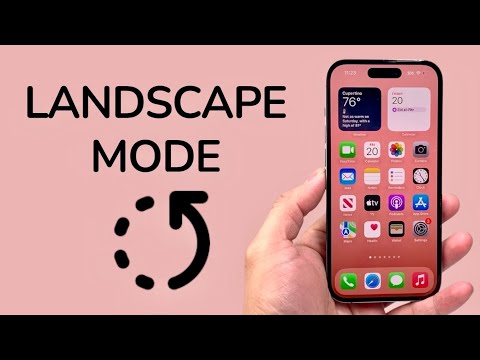
Landscape mode, in simple terms, is when your iPhone's screen rotates horizontally, resembling a wide-screen display. Its primary purpose is to provide an expanded view, making content more immersive and easier to interact with. Imagine watching a cinematic trailer on YouTube, reviewing a detailed spreadsheet, or engaging in a graphically rich game – these experiences are almost universally superior when viewed in landscape. Conversely, portrait mode, the default vertical orientation, is ideal for reading articles, scrolling through social media feeds, and making phone calls, as it maximizes vertical content visibility.
At Smart AI Fix, we recognize that while this functionality seems straightforward, users often encounter scenarios where their iPhone won't rotate as expected, or they simply aren't aware of the quick controls available. This comprehensive guide will not only walk you through the precise steps to toggle landscape mode on and off but will also equip you with expert troubleshooting tips and optimization strategies. By the end, you'll have complete control over your iPhone's screen orientation, ensuring a smoother, more intuitive interaction with your device. Trust Smart AI Fix to provide you with the detailed, actionable insights you need to make the most of your Apple devices.
Prerequisites for Mastering iPhone Screen Orientation
Before you begin adjusting your iPhone's screen orientation settings, ensure you have the following ready. These prerequisites will help you follow the instructions accurately and troubleshoot any potential issues effectively.
- An iPhone Device: This guide applies to all iPhone models capable of running iOS 14 or later, including but not limited to iPhone SE (2nd and 3rd generation), iPhone XR, iPhone XS, iPhone 11, iPhone 12, iPhone 13, iPhone 14, and iPhone 15 series.
- Updated iOS Software: Ensure your iPhone is running the latest stable version of iOS. Outdated software can sometimes lead to unexpected behavior in system functions, including screen rotation. You can check for updates in Settings > General > Software Update.
- Basic Familiarity with the Control Center: The Control Center is the primary hub for managing screen orientation. You should know how to access it on your specific iPhone model (swipe down from the top-right corner for Face ID models, or swipe up from the bottom for Touch ID models).
- Apps Supporting Landscape Mode: Not all applications are designed to support landscape orientation. To properly test and utilize this feature, you'll need an app known to support it, such as Safari, Photos, YouTube, or many gaming applications.
- A Stable Environment: While not strictly necessary, performing these steps in a stable environment ensures that your iPhone's accelerometer and gyroscope sensors can accurately detect orientation changes without external interference.
- Clear Understanding of Physical Orientation: Be aware that for your iPhone to rotate, it must be physically held in a horizontal position when the Portrait Orientation Lock is off.
With these prerequisites in place, you are fully prepared to proceed with our detailed step-by-step guide to controlling landscape mode on your iPhone.
Detailed Step-by-Step Guide: Controlling iPhone Landscape Mode
Achieving fluid screen rotation on your iPhone is primarily managed through the Portrait Orientation Lock feature. This section provides exhaustive instructions for enabling and disabling landscape mode, along with crucial details on what to expect.
Step 1: Understanding Portrait vs. Landscape Orientation
Before adjusting any settings, it's essential to differentiate between the two primary screen orientations:
- Portrait Mode: This is the standard vertical orientation, ideal for browsing web pages, reading documents, and most social media interactions.
- Landscape Mode: This is the horizontal orientation, perfect for media consumption, gaming, and applications that benefit from a wider view.
Your iPhone uses internal sensors (accelerometer and gyroscope) to detect its physical orientation and automatically adjust the screen, provided the Portrait Orientation Lock is disabled.
Step 2: Accessing the Control Center
The Control Center is where you'll find the Portrait Orientation Lock toggle. The method to access it varies slightly depending on your iPhone model:
- For iPhones with Face ID (e.g., iPhone X, 11, 12, 13, 14, 15 series): Swipe your finger downwards from the top-right corner of your screen. This is the corner where the battery, Wi-Fi, and cellular icons are displayed.
- For iPhones with a Home button (e.g., iPhone SE, iPhone 8 and older): Swipe your finger upwards from the bottom edge of your screen.
Upon successful execution, a grid of icons representing various quick settings and controls will appear.
Step 3: Locating the Portrait Orientation Lock Icon
Within the Control Center, look for an icon that depicts a small padlock encircling an arrow. This icon specifically controls the screen rotation behavior. It will typically be located in one of the squares within the Control Center grid. Its appearance changes to indicate its current status:
- When Portrait Orientation Lock is ON: The icon will appear orange or red (depending on your iOS version) with the padlock symbol prominently displayed. This signifies that your iPhone's screen is locked into portrait mode and will not rotate, even if you turn the device horizontally.
- When Portrait Orientation Lock is OFF: The icon will appear grey or white, indicating that the lock is disengaged, and your iPhone's screen is free to rotate between portrait and landscape modes based on its physical orientation.
Step 4: Toggling Landscape Mode On/Off (Disabling/Enabling Portrait Lock)
To enable or disable landscape mode, you simply tap this Portrait Orientation Lock icon:
- To Turn ON Landscape Mode (Disable Portrait Lock): If the icon is orange/red (lock is on), tap it. It will turn grey/white, and a brief notification might appear at the top of your screen stating "Portrait Orientation Lock: Off." This means your iPhone can now rotate into landscape mode when held horizontally.
- To Turn OFF Landscape Mode (Enable Portrait Lock): If the icon is grey/white (lock is off), tap it. It will turn orange/red, and a notification might state "Portrait Orientation Lock: On." This means your iPhone's screen is now locked in portrait mode and will not rotate to landscape.
Step 5: Testing Screen Rotation in Supported Applications
After adjusting the Portrait Orientation Lock, exit the Control Center by tapping outside it or swiping up/down. Then, open an application known to support landscape mode, such as:
- The Photos app: Open any picture.
- Safari: Open a webpage.
- YouTube: Start playing a video.
- Many gaming applications.
With the application open, physically rotate your iPhone ninety degrees (to a horizontal position). If the Portrait Orientation Lock is off, your screen should seamlessly rotate into landscape mode. Rotate it back to a vertical position, and it should return to portrait mode.
If your screen does not rotate as expected after disabling the Portrait Orientation Lock, proceed to the "Pro Tips & Optimization" section for troubleshooting.
Key Features & Comparison: Portrait Orientation Lock
Understanding the nuances of the Portrait Orientation Lock is crucial for an optimized iPhone experience. Here's a detailed comparison of its two states and their implications for your device usage.
| Feature | Portrait Orientation Lock ON | Portrait Orientation Lock OFF |
| Primary Function | Keeps iPhone screen in vertical (portrait) view, preventing automatic rotation to landscape. | Allows iPhone screen to rotate freely between portrait and landscape modes based on physical orientation. |
| Visual Indicator (Control Center) | Icon is typically orange or red with a padlock and circular arrow. | Icon is typically grey or white with a padlock and circular arrow. |
| Ideal Use Cases | Reading articles, browsing social media, making phone calls, texting, using apps exclusively designed for portrait. Prevents accidental rotation while lying down or using the iPhone in unstable positions. | Watching videos, playing games, viewing photos, browsing wide webpages, typing on a broader keyboard, using navigation apps that benefit from wider views. |
| User Experience | Consistent, stable vertical view. Content flow remains predictable without unexpected shifts. | Dynamic and immersive viewing experience. Content automatically adapts to the best fit for the physical orientation. |
| Pros | Consistency: Screen stays put, preventing unintended rotations. Focus: Ideal for text-heavy tasks without visual distractions from rotation. Stability: Useful when using iPhone in bed or situations where device movement might trigger unwanted rotation. |
Flexibility: Adapts content for optimal viewing whether vertical or horizontal. Immersion: Enhances media consumption (videos, games) with wider, more cinematic views. Productivity: Provides more screen real estate for certain tasks like spreadsheets or document editing. |
| Cons | Limited Media View: Videos and games will display in a smaller area with black bars. Restrictive: Cannot utilize wider keyboards or full-screen gaming experiences. Requires Manual Toggle: Must be manually disabled for landscape-optimized content. |
Unintended Rotations: Can be disruptive if the iPhone rotates accidentally during non-landscape tasks. Less Stable View: Some users prefer a fixed orientation for reading or static content. App Dependency: Still reliant on individual apps supporting landscape mode; some apps will remain in portrait regardless. |
Pro Tips & Optimization for iPhone Landscape Mode
While the Portrait Orientation Lock is the primary control, several factors can influence your iPhone's screen rotation. These pro tips from Smart AI Fix will help you optimize your experience and troubleshoot common issues.
- Restart Your iPhone for Glitches: The classic "turn it off and on again" solution often works wonders. If your iPhone isn't rotating despite the Portrait Orientation Lock being off, a simple restart can resolve minor software glitches affecting the accelerometer or gyroscope sensors. To restart, press and hold the side button and either volume button until the power off slider appears, then slide to power off. Wait a few moments, then press and hold the side button again to power on.
- Verify App Compatibility: Remember that not all applications support landscape mode. Some apps are designed exclusively for portrait orientation. If a specific app isn't rotating, try testing with a known landscape-compatible app like YouTube, Safari, or the Photos app. If these rotate correctly, the issue is with the individual application, not your iPhone's system settings.
- Check Display Zoom Settings: On some iPhone models and iOS versions, certain "Display Zoom" settings can interfere with screen rotation, particularly for the Home screen. Navigate to Settings > Display & Brightness > Display Zoom. If you have "Zoomed" enabled, try switching to "Standard" to see if it resolves any rotation issues. You may need to restart your iPhone after changing this setting.
- Accessibility Settings Interference: Specific accessibility features, though beneficial for many users, can sometimes impact screen rotation. For instance, some users report issues when "Zoom" is enabled under Settings > Accessibility > Zoom. Temporarily disabling such features can help diagnose if they are the root cause.
- Ensure Control Center Customization: If you cannot find the Portrait Orientation Lock icon in your Control Center, it might have been removed or rearranged. You can customize your Control Center by going to Settings > Control Center. From there, you can add "Portrait Orientation Lock" to the "Included Controls" list.
- Keep iOS Updated: Apple frequently releases iOS updates that include bug fixes and performance enhancements. Ensure your iPhone's operating system is always up-to-date by checking Settings > General > Software Update. An outdated iOS version can sometimes lead to erratic behavior with system functionalities.
- Physical Damage Assessment: In rare cases, physical damage to your iPhone, such as drops or impacts, can affect the internal sensors (accelerometer and gyroscope) responsible for detecting orientation. If all software troubleshooting fails and the issue is persistent across all apps and after restarts, a hardware issue might be present. In such scenarios, professional Apple service might be required.
- Reset All Settings (Last Resort): If you've exhausted all other troubleshooting steps, you can try resetting all settings on your iPhone. This will revert all your iPhone's settings to their factory defaults without erasing your data. Go to Settings > General > Transfer or Reset iPhone > Reset > Reset All Settings. Note that you will need to reconfigure Wi-Fi passwords, notification preferences, and other personalized settings afterward.
Frequently Asked Questions (FAQ)
Here are detailed answers to some common questions users have about managing landscape mode on their iPhone.
Q1: Why isn't my iPhone rotating to landscape mode even when the Portrait Orientation Lock is off?
There are several reasons why your iPhone might not rotate, even with the Portrait Orientation Lock disabled. First, ensure the specific application you are using actually supports landscape mode. Not all apps are designed for it. Test with a known landscape-friendly app like Safari or YouTube. Second, try restarting your iPhone; this often resolves minor software glitches affecting the orientation sensors (accelerometer and gyroscope). Third, check your "Display Zoom" settings under Settings > Display & Brightness > Display Zoom, as some configurations, particularly "Zoomed," can sometimes restrict rotation on the Home screen and in certain apps. Fourth, examine Accessibility settings like "Zoom" (Settings > Accessibility > Zoom) as these can occasionally interfere. Finally, ensure your iOS is updated, as software updates often include bug fixes for such issues. If all else fails, a hardware issue with your iPhone's sensors could be the cause, requiring professional inspection.
Q2: Can I lock individual apps in landscape or portrait mode?
No, the Portrait Orientation Lock feature on your iPhone is a system-wide setting. When it is active, it locks the entire iPhone interface (including all apps that would normally rotate) into portrait mode. When it is deactivated, your iPhone's screen is free to rotate based on its physical orientation, but this behavior is also system-wide. Apple iOS does not offer a native feature to individually lock specific applications into a particular orientation. The ability for an app to rotate is ultimately determined by the app developer. If an app is designed only for portrait view, it will remain in portrait view regardless of whether the system-wide Portrait Orientation Lock is off.
Q3: Does using landscape mode consume more battery life on my iPhone?
Using landscape mode itself does not inherently consume significantly more battery life than portrait mode. The orientation of the screen is detected by low-power sensors and doesn't demand substantial processing power. However, activities that typically benefit from landscape mode, such as watching videos, playing graphics-intensive games, or browsing complex web pages, are generally more battery-intensive activities. For instance, streaming video uses more power for screen brightness, cellular data/Wi-Fi, and video decoding, regardless of whether it's viewed in portrait or landscape. Therefore, while landscape mode doesn't directly drain the battery, the content and applications you use in landscape mode often do. The impact on battery life comes from the usage pattern, not the screen orientation itself.
Conclusion
Mastering your iPhone's screen orientation is a simple yet powerful way to personalize and optimize your device experience. By understanding the Portrait Orientation Lock within the Control Center, you gain complete command over how your content is displayed, ensuring you always have the best viewing angle for videos, games, articles, and more. From effortless toggling to advanced troubleshooting, this comprehensive guide from Smart AI Fix has equipped you with all the knowledge required to navigate your iPhone's screen orientation with confidence.
At Smart AI Fix, we are committed to empowering you with expert insights and practical solutions for all your Apple technology needs. Our goal is to demystify complex features and provide clear, actionable guidance, ensuring you get the most out of your devices. Continue exploring our extensive library of guides to enhance your digital life further. Trust Smart AI Fix for reliable and authoritative tech assistance, every step of the way.
