
Welcome to Smart AI Fix, your trusted authority for navigating the complexities of modern technology. Few things are as frustrating as when your iPhone refuses to download essential applications, leaving you disconnected from communication, productivity, or entertainment. Whether you're encountering a new app stuck on "waiting," an update that won't complete, or your App Store simply refusing to respond, this issue can bring your digital life to a grinding halt.
![iPhone Apps Not Downloading [SOLVED] (2026)](https://img.youtube.com/vi/EUuje672_uc/hqdefault.jpg)
At Smart AI Fix, we understand the critical role your iPhone plays in your daily life. That's why we've meticulously crafted this ultimate guide to diagnose and resolve every possible scenario preventing your apps from downloading. Our purpose is to provide you with clear, actionable, and expert-backed solutions, transforming your frustration into triumph. By following our comprehensive steps, you'll not only fix your immediate downloading issues but also gain valuable insights into maintaining a healthy and responsive App Store experience. Trust Smart AI Fix to get your iPhone back to full functionality, ensuring you never miss out on the apps that matter most.
Prerequisites: Preparing for Troubleshooting

Before diving into the intricate solutions, a few preliminary checks can often save you time and effort. Ensuring these foundational elements are in place will streamline the troubleshooting process and help pinpoint whether the problem is simple or requires deeper investigation. Gather the following before you begin:
- A Stable Internet Connection: Your iPhone needs a reliable Wi-Fi or cellular data connection to download apps. Ensure you are connected to a strong, stable network.
- Sufficient Storage Space: Apps, especially modern ones, can be quite large. Verify that your iPhone has enough available storage to accommodate new downloads or updates.
- Up-to-Date iOS: Running the latest version of iOS can resolve numerous bugs and compatibility issues that might prevent app downloads.
- Your Apple ID Credentials: You will need your Apple ID and password to sign in and out of the App Store, which is a common troubleshooting step.
- A Charged iPhone: Ensure your device has adequate battery life. Low power mode or critically low battery can sometimes interfere with performance-intensive tasks like app downloads.
- Patience and Focus: Troubleshooting can sometimes be a methodical process. Approach each step calmly and follow the instructions precisely.
- (Optional but Recommended) Recent Backup: While most of these steps are non-destructive, performing a quick backup to iCloud or your computer is always a wise precaution before attempting significant system changes or resets.
Detailed Step-by-Step Guide: Resolving App Download Issues
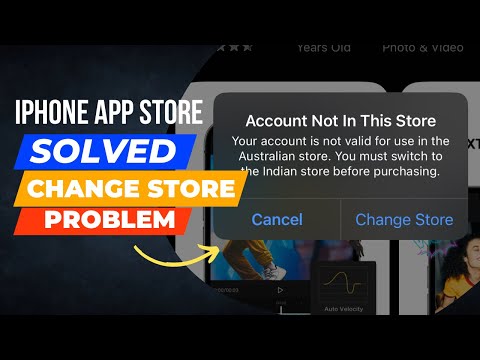
This section provides an exhaustive, step-by-step approach to resolve instances where iPhone apps are not downloading. Follow these solutions in order, testing after each one to see if the issue is resolved.
1. Verify Your Internet Connection
The most common culprit for failed downloads is an unstable or absent internet connection. Your iPhone requires a robust link to Apple's servers to fetch app data.
- Check Wi-Fi:
- Go to Settings > Wi-Fi.
- Ensure Wi-Fi is toggled On and you are connected to a network with a strong signal.
- Try opening a web page in Safari or another browser to confirm internet access.
- If connected but no internet, try turning Wi-Fi off and on again, or restarting your router.
- Check Cellular Data:
- If you're using cellular data, go to Settings > Cellular.
- Ensure Cellular Data is toggled On.
- Scroll down and verify that App Store is enabled for cellular data usage.
- Confirm you have cellular data remaining by checking your carrier's app or website.
2. Check Apple System Status
Sometimes, the issue isn't with your iPhone but with Apple's servers. Outages, though rare, can prevent App Store downloads.
- Visit Apple's official System Status page using a web browser on another device (or if your internet on iPhone works otherwise).
- Look for a green indicator next to "App Store." If it's anything but green, there might be a service disruption, and you'll need to wait for Apple to resolve it.
3. Restart Your iPhone
A simple restart can often clear minor software glitches or temporary memory issues that might be preventing app downloads.
- For iPhones with Face ID (iPhone X and later): Press and hold the side button and either volume button until the power off slider appears. Drag the slider, then wait for your device to turn off. To turn it back on, press and hold the side button until you see the Apple logo.
- For iPhones with a Home button (iPhone 8 and earlier): Press and hold the top (or side) button until the power off slider appears. Drag the slider, then wait for your device to turn off. To turn it back on, press and hold the top (or side) button until you see the Apple logo.
4. Check Available Storage Space
Insufficient storage is a frequent cause of failed downloads. Your iPhone needs room not just for the app itself but also for temporary files during the installation process.
- Go to Settings > General > iPhone Storage.
- Review the storage breakdown. If you are critically low on space, consider deleting old apps, photos, videos, or other files you no longer need.
- Your iPhone typically needs several gigabytes of free space for smooth operation and app downloads.
5. Update iOS to the Latest Version
Outdated iOS versions can contain bugs that interfere with App Store functionality or be incompatible with newer app versions.
- Go to Settings > General > Software Update.
- If an update is available, download and install it. Ensure your iPhone is connected to Wi-Fi and has at least 50% battery or is connected to power.
6. Pause and Resume App Download
If an app is stuck on "waiting" or "loading," a quick pause and resume might kickstart the download.
- On your Home screen, lightly press and hold the app icon that is stuck.
- From the contextual menu, tap Pause Download.
- Wait a few seconds, then lightly press and hold the icon again and tap Resume Download.
7. Cancel and Restart App Download
If pausing doesn't work, canceling the download entirely and restarting it from the App Store can often resolve persistent stalls.
- On your Home screen, lightly press and hold the app icon that is stuck.
- From the contextual menu, tap Cancel Download. Confirm the action.
- Open the App Store, search for the app again, and tap the cloud icon (for previously purchased apps) or GET/price button to initiate a fresh download.
8. Sign Out and Sign In to App Store
Your Apple ID connection to the App Store can sometimes become corrupted or encounter authentication issues. Re-authenticating can clear this up.
- Go to Settings > tap your Apple ID banner at the top.
- Scroll down and tap Media & Purchases.
- Tap Sign Out.
- Restart your iPhone (refer to step 3).
- After restarting, go back to Settings > tap your Apple ID banner > Media & Purchases > Sign In. Enter your Apple ID and password.
- Try downloading the app again.
9. Check Date & Time Settings
Incorrect date and time settings can interfere with secure connections to Apple's servers, which are crucial for App Store operations.
- Go to Settings > General > Date & Time.
- Ensure Set Automatically is toggled On. This will automatically adjust your time based on your network provider.
10. Verify Payment Method
Even for free apps, the App Store sometimes validates your payment method. If there's an issue with your billing information, it can prevent all downloads.
- Go to Settings > tap your Apple ID banner > Media & Purchases > View Account. You may need to authenticate.
- Tap Manage Payments. Review your listed payment methods, ensuring they are valid and up-to-date. Update any expired cards or incorrect billing addresses.
- Alternatively, try adding a new, valid payment method.
11. Disable Content & Privacy Restrictions
If you or someone else has set up content and privacy restrictions on your iPhone, these might be preventing app downloads or purchases.
- Go to Settings > Screen Time > Content & Privacy Restrictions.
- If Content & Privacy Restrictions is toggled On, tap on iTunes & App Store Purchases.
- Ensure that Installing Apps is set to Allow. Also, check In-app Purchases and Automatic Downloads.
- Temporarily turning off Content & Privacy Restrictions entirely and then trying to download can help diagnose if this is the cause. Remember to re-enable them afterwards if desired.
12. Reset Network Settings
Corrupted network settings can cause a myriad of connectivity problems, including issues with App Store access. This reset will erase all Wi-Fi passwords, cellular settings, and VPN configurations, so be prepared to re-enter them.
- Go to Settings > General > Transfer or Reset iPhone > Reset.
- Tap Reset Network Settings. Enter your passcode if prompted.
- After the reset, reconnect to your Wi-Fi network and try downloading an app.
13. Reset All Settings
If network settings reset doesn't work, resetting all settings on your iPhone can sometimes resolve deeper software conflicts without erasing your data. This will revert all settings (like display, privacy, keyboard, etc.) to their factory defaults, but your apps and data remain untouched.
- Go to Settings > General > Transfer or Reset iPhone > Reset.
- Tap Reset All Settings. Enter your passcode if prompted.
- After the reset, check if the App Store is functioning correctly.
14. Contact Apple Support
If you've exhausted all the above troubleshooting steps and your apps still aren't downloading, it's time to reach out to Apple Support. There might be a hardware issue, a specific account-related problem, or a unique software glitch that requires their specialized assistance.
- Visit support.apple.com or use the Apple Support app on another device to get in touch with their experts.
Key Troubleshooting Strategies & Comparison

Understanding the different categories of troubleshooting can help you approach problems more efficiently. Here, we compare common strategies based on their invasiveness and the types of issues they typically resolve.
| Troubleshooting Strategy Category | Primary Function & Examples | Pros | Cons | Best For |
| Basic Checks & Quick Fixes | Verifying internet, restarting iPhone, checking storage, pause/resume download. | Quick, non-invasive, preserves all settings, often resolves minor glitches. | May not address underlying complex issues. | First line of defense for sudden, unexplained download stops. |
| Account & App Store Specific | Signing in/out of Apple ID, checking payment methods, reviewing App Store restrictions. | Targets authentication, billing, or parental control-related blocks directly. | Requires Apple ID credentials, involves navigating personal settings. | Issues specifically related to authentication, purchasing, or content access. |
| System & Network Resets | Resetting network settings, resetting all iPhone settings, updating iOS. | Clears potentially corrupted system files or network configurations without data loss. | Erases Wi-Fi passwords and custom settings (e.g., display, privacy). | Persistent connectivity problems or deeper software conflicts not resolved by basic fixes. |
| External Factors & Verification | Checking Apple System Status, verifying date/time. | Confirms external service availability and system synchronization. | Doesn't directly fix issues with your device, only identifies external causes. | Determining if the problem lies with Apple's services or your device's basic clock settings. |
Pro Tips & Optimization for a Seamless App Store Experience

Beyond fixing immediate download issues, here are some expert insights from Smart AI Fix to optimize your iPhone's app management and prevent future problems.
- Regularly Free Up Storage: Don't wait until you're critically low. Periodically review your iPhone storage (Settings > General > iPhone Storage) and offload unused apps or large media files. Consider using iCloud Photos to optimize device storage.
- Keep iOS Updated: Enable automatic updates (Settings > General > Software Update > Automatic Updates) to ensure your device always runs on the latest, most stable version of iOS, which often includes bug fixes for the App Store.
- Manage Background App Refresh: While not directly related to downloads, excessive background activity can consume resources and slow down your device, potentially impacting download performance. Go to Settings > General > Background App Refresh and disable it for apps you don't need constantly updated.
- Clear App Store Cache (Indirectly): There isn't a direct "clear cache" button for the App Store. However, a popular trick involves rapidly tapping any of the App Store's bottom navigation bar icons (e.g., Today, Games, Apps, Arcade, Search) 10 times consecutively. This action often forces a refresh and clears temporary App Store data.
- Be Mindful of VPNs: While VPNs enhance privacy, they can sometimes interfere with network connections to Apple's servers. If you use a VPN, try temporarily disabling it when downloading apps to see if it resolves the issue.
- Automatic Downloads for Purchases: Enable automatic downloads for apps and app updates in Settings > App Store. This ensures new purchases or updates download seamlessly when connected to Wi-Fi, preventing manual intervention and ensuring your apps are always current.
- Review Wi-Fi Assist: Located in Settings > Cellular, Wi-Fi Assist automatically uses cellular data when Wi-Fi connectivity is poor. While generally helpful, in specific scenarios, if your Wi-Fi is flaky, it might cause download inconsistencies. You can try temporarily toggling it off if you suspect a mixed signal issue.
- Security and Third-Party Sources: Always download apps exclusively from the official Apple App Store. Downloading from unauthorized third-party sources not only bypasses Apple's security protocols but can also lead to system instability, malware, and severe app downloading issues.
Frequently Asked Questions (FAQ)
Q1: Why are my apps stuck on "waiting" or "loading" indefinitely?
A1: Apps stuck on "waiting" or "loading" usually indicate an interruption during the download or installation process. Common causes include an unstable internet connection, insufficient storage space on your iPhone, temporary App Store glitches, or an issue with your Apple ID authentication. Our detailed step-by-step guide addresses all these potential root causes. Begin by checking your internet, then try pausing and resuming the download, followed by checking your iPhone storage and signing out and back into your Apple ID. Often, a simple restart of your iPhone can also clear these temporary states.
Q2: Can a VPN cause app download issues on my iPhone?
A2: Yes, a Virtual Private Network (VPN) can sometimes interfere with app downloads. VPNs reroute your internet traffic through different servers, which can occasionally lead to slower download speeds, connection timeouts, or even geographic restrictions that conflict with the App Store's regional settings. If you're experiencing download problems while using a VPN, a good troubleshooting step is to temporarily disable your VPN and attempt the download again. If the app downloads successfully without the VPN, you've identified the cause, and you might need to adjust your VPN settings or use it selectively for App Store activities.
Q3: What if only *some* specific apps aren't downloading, but others are fine?
A3: If only a few specific apps are failing to download while most others work correctly, it suggests the issue might be more localized. This could be due to an individual app's server being temporarily down, a corrupted download file specific to that app, or a compatibility issue between that particular app and your current iOS version. First, try canceling and restarting the download for that specific app. Ensure your iOS is fully updated. If the problem persists, try searching for the app in the App Store, and if available, check the app's reviews or developer's website for known issues. In rare cases, if it's a previously owned app, try deleting it entirely from your purchase history (if applicable) and re-downloading a fresh copy.
Conclusion

Experiencing issues with iPhone apps not downloading can be a significant disruption, but as this ultimate guide from Smart AI Fix demonstrates, there's almost always a clear path to resolution. By systematically working through the comprehensive troubleshooting steps, from verifying your internet connection and managing storage to resetting network settings and re-authenticating your Apple ID, you empower yourself to conquer these common digital roadblocks.
Remember, maintaining a healthy iPhone ecosystem involves regular checks and proactive optimization, leveraging the pro tips we've shared. Smart AI Fix remains dedicated to providing you with the most reliable, expert-driven solutions for all your technology challenges. Stay connected, stay productive, and trust Smart AI Fix to keep your devices running flawlessly. We're here to ensure your digital experience is always seamless and secure.
