
The transition from mechanical switches to software-defined interfaces is a hallmark of modern mobile engineering. Whether your iPhone's physical Silent Switch is malfunctioning or you are utilizing an iPhone 15 Pro/Pro Max where the Action Button is mapped to another task, bypassing the physical hardware is essential for seamless audio management. Leveraging iOS accessibility features and automation frameworks allows for a more efficient, touch-free experience.

1. Utilizing AssistiveTouch as a Virtual Switch
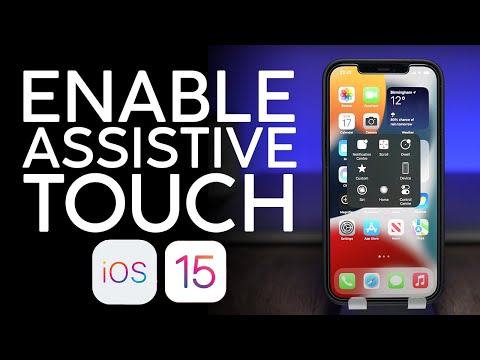
The most robust software alternative to a physical button is AssistiveTouch. This creates a floating on-screen menu that can replicate any hardware function. To enable this, navigate to Settings > Accessibility > Touch > AssistiveTouch and toggle it ON.
Once active, tap the floating menu, select Device, and you will see the Mute or Unmute icon. This software trigger directly communicates with the system's audio controller, effectively overriding the physical position of the legacy silent switch.
2. Control Center Integration (iOS 17 and Later)

For users on the latest iOS iterations, particularly those with devices lacking the traditional slider, Apple has integrated a Silent Mode toggle directly into the Control Center. Swipe down from the top-right corner of your screen to access the Control Center. Look for the Bell Icon. Tapping this icon provides an instantaneous state change for your device’s ringer, providing a haptic response to confirm the transition between silent and ring modes.
3. Back Tap: The Invisible Trigger
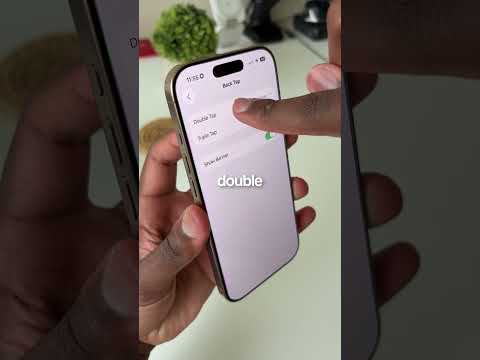
To maximize efficiency, you can map the "Mute" function to the back of your iPhone using the Back Tap feature. This utilizes the internal accelerometer to detect physical taps on the chassis. Navigate to Settings > Accessibility > Touch > Back Tap. You can assign Mute to either a Double Tap or Triple Tap. This creates a virtual "button" out of the entire back surface of the phone, eliminating the need to navigate through menus.
4. Automating Silent Mode with Shortcuts and AI

For a truly "Smart AI Fix" approach, automation removes the need for manual input entirely. Using the Shortcuts app, you can create a "Set Silent Mode" action triggered by specific conditions. For example, you can set an automation to Turn ON Silent Mode when you arrive at your office GPS coordinates or when your "Work" Focus mode is activated. This leverages the device’s contextual awareness to manage audio profiles without user intervention.
AI Implementation Score
The following table evaluates these methods based on their automation potential and technical efficiency:
| Method | Efficiency Rating | AI/Automation Potential | Technical Ease |
|---|---|---|---|
| AssistiveTouch | Medium | Low | High |
| Control Center | High | Low | High |
| Back Tap | Very High | Medium | Medium |
| Shortcuts/Automation | Extreme | High | Low |
By shifting your audio management from hardware-dependent to software-defined, you not only extend the life of your device's physical components but also move toward a more automated, intelligent user experience.
