
Managing the luminosity of an iPhone display involves a complex interplay between ambient light sensors and the iOS power management subsystem. While Apple integrates machine learning algorithms to optimize screen visibility based on environmental conditions, power users and creative professionals often require fixed luminance levels for color accuracy or specific workflow automation. Disabling Auto-Brightness shifts the responsibility of display governance from the system's AI to the user, allowing for a static Nit output regardless of surrounding lux levels.
Navigating the iOS Settings Architecture

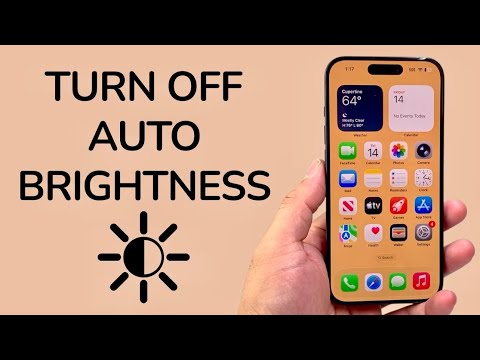
Contrary to intuitive design, the toggle to deactivate Auto-Brightness is not located within the "Display & Brightness" menu. Apple relocated this feature to the Accessibility stack to ensure users understand that overriding automated lighting can impact long-term battery health and display longevity. To execute the manual override, follow these technical steps:
1. Launch the Settings application on your iPhone.
2. Scroll down and interface with the Accessibility module.
3. Within the "Vision" cluster, select Display & Text Size.
4. Navigate to the absolute bottom of the menu.
5. Locate Auto-Brightness and toggle the switch to the OFF position.
The Impact of Manual Calibration on System Efficiency

When Auto-Brightness is active, the iPhone utilizes the A-series Bionic chip to process data from the front-facing sensors, dynamically adjusting the backlight or OLED pixels. By turning this off, you terminate a continuous background process, which can marginally reduce CPU cycles dedicated to sensor polling. However, users must be diligent; keeping the display at 100% brightness manually will consume significantly more milliampere-hours (mAh) than the AI-managed alternative, potentially leading to thermal throttling during high-load tasks.
AI Implementation Score: Auto-Brightness Feature
| Metric | Score (1-10) | Technical Analysis |
|---|---|---|
| Algorithm Precision | 9/10 | High-fidelity sensor response to incremental lux changes. |
| User Autonomy | 4/10 | Settings are intentionally obscured to favor automated control. |
| Power Efficiency | 9.5/10 | AI optimization significantly extends battery life cycles. |
| Ease of Override | 6/10 | Requires deep navigation into the Accessibility sub-menus. |
For those utilizing their iPhone for AI-driven photo editing or automated video grading, deactivating this feature is essential to maintain a "ground truth" visual reference. Once disabled, you can manage your brightness levels via the Control Center by swiping down from the top-right corner, ensuring your hardware output remains consistent with your software requirements.
