
Migrating textual data across the Apple ecosystem has evolved from manual backups to a sophisticated, automated synchronization logic. When moving notes from an old iPhone to a new one, the primary goal is to ensure metadata integrity and attachment parity without manual intervention. This process leverages Apple’s proprietary cloud architecture to maintain a seamless transition.
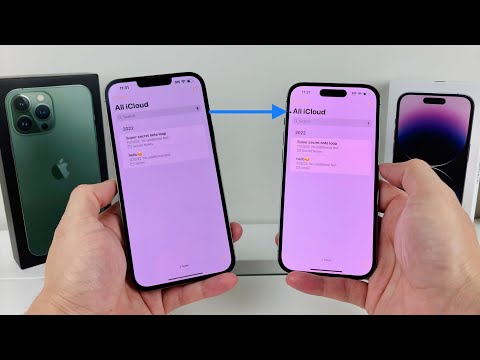
Method 1: Asynchronous iCloud Syncing (The Efficiency Standard)
The most efficient way to transfer notes is through iCloud Syncing. This method does not require a full device restore; instead, it utilizes a real-time database handshake. On your old iPhone, navigate to Settings > [Your Name] > iCloud > Show All and ensure the "Notes" toggle is enabled. This pushes your local SQLite database to the cloud servers.
On the new iPhone, simply sign in with the same Apple ID. The system triggers an automated background fetch. To accelerate this process, ensure the device is connected to a high-bandwidth Wi-Fi network and connected to power. Within minutes, the Notes app will populate with your folders, pinned items, and encrypted entries.
Method 2: Full System State Migration via iCloud Backup
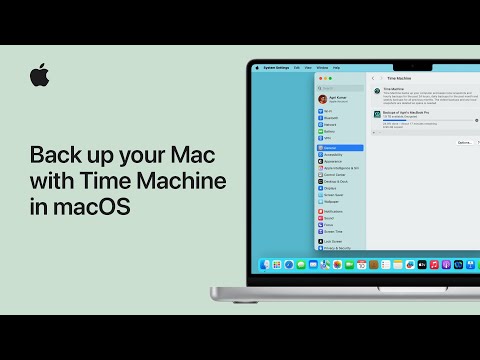
If you are performing a comprehensive device upgrade, iCloud Backup is the preferred software solution. This method captures the entire application state, including local "On My iPhone" notes that may not be synced to the cloud. Go to Settings > [Your Name] > iCloud > iCloud Backup and select "Back Up Now."
During the initial setup of your new iPhone, choose "Restore from iCloud Backup." The iOS automation engine will then pull the latest snapshot of your data. This ensures that not only the text is moved, but also the embedded AI-driven OCR (Optical Character Recognition) data for scanned documents remains intact.
AI Implementation Score: Note Migration Efficiency
| Metric | Score (1-10) | Technical Reason |
|---|---|---|
| Automation Level | 9.5 | Zero-click synchronization once Apple ID is verified. |
| Data Integrity | 10.0 | End-to-end encryption maintains security for locked notes. |
| Sync Latency | 8.5 | Dependent on network throughput and attachment size. |
| AI Logic Utilization | 9.0 | Retains intelligent search indexing and handwriting recognition. |
Advanced Troubleshooting: The "Local Folder" Conflict

A common friction point in software migration occurs when notes are stored in the "On My iPhone" local directory rather than the iCloud partition. To resolve this programmatically, open the Notes app on the old device, select the local notes, and use the "Move All" function to shift them to the iCloud folder. This triggers the immediate synchronization protocol, ensuring the new device registers the data instantly.
By leveraging these cloud-native workflows, users can bypass the obsolete methods of manual exporting, allowing the iOS ecosystem to handle the heavy lifting of data architecture transition.
