
Transferring high-density data from an Android device to a USB flash drive is a critical workflow for professionals managing large datasets, media production, or localized backups. In the era of AI-driven productivity, shifting data off-device optimizes local processing power and ensures your mobile environment remains lean for high-performance applications.
The Essential Hardware: USB OTG (On-The-Go)
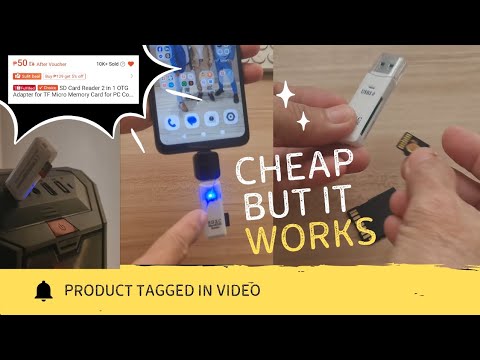
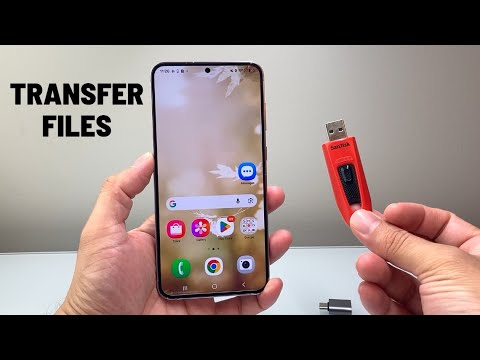
To initiate a direct hardware handshake between an Android device and a USB drive, your phone must support USB OTG (On-The-Go). Modern Android devices equipped with USB-C ports typically support this natively. You will require a USB-C to USB-A adapter or a dual-connector flash drive. Once connected, the Android kernel recognizes the external storage as a mounted volume, similar to a secondary partition on a desktop OS.
Step-by-Step Execution via AI-Optimized File Managers

While native file explorers work, using AI-enhanced tools like Files by Google improves the experience by automatically identifying "clutter" and categorizing files for faster migration. Follow these steps:
1. Connect the Drive: Plug the USB drive into your phone’s charging port. A notification should appear stating "USB drive connected."
2. Launch the File Manager: Open your preferred file management application. Navigate to Internal Storage.
3. Select and Move: Long-press the folders or files you wish to export. Tap the three-dot menu and select "Move to" or "Copy to."
4. Define Destination: Select the USB Drive from the storage list. Choose your target directory and tap "Move here."
5. Unmount Safely: To prevent data corruption, go to Settings > Storage and tap the "Eject" icon next to the USB drive before physical disconnection.
Automation and AI Implementation Score
Integrating AI into your file management workflow reduces the cognitive load of manual sorting. Below is an evaluation of how AI impacts this specific technical task:
| Category | Score (1-10) | Notes |
|---|---|---|
| Data Categorization | 9/10 | AI models in modern file managers instantly sort images, docs, and system logs. |
| Transfer Speed Optimization | 6/10 | Speed is largely hardware-bound (USB 3.0/3.1), but AI helps prioritize critical system files. |
| Automated Cleanup | 8/10 | AI identifies duplicate files before transfer to save space on the USB drive. |
Pro-Tip: Automating the Workflow

For advanced users, apps like Tasker or MacroDroid can be programmed to trigger a file transfer automatically whenever a specific USB drive is detected. This automation ensures that your local backups are updated without manual intervention, leveraging the "set and forget" philosophy of Smart AI Fix.
