
The release of iOS 18 has introduced significant architectural changes to the native Apple Mail app, moving toward an AI-driven categorization system similar to Gmail. While these features aim to improve AI efficiency, many power users find the new multi-tab layout disruptive to their established workflows. If you prefer the streamlined, chronological list of the classic Mail interface, you can revert these changes through the system settings.
AI Implementation Score
Before proceeding with the technical adjustments, evaluate how these changes affect your automation and processing speed:
| Metric | Score (1-10) | Notes |
|---|---|---|
| AI Efficiency | 8/10 | Disabling categories reduces cognitive load but limits auto-sorting. |
| Implementation Ease | 10/10 | Requires no external software; strictly a native toggle. |
| UI Continuity | 9/10 | Restores the legacy 1-column view perfectly. |
| Data Privacy | 10/10 | Local processing remains unaffected by UI shifts. |
Step 1: Disabling the Categorized Inbox
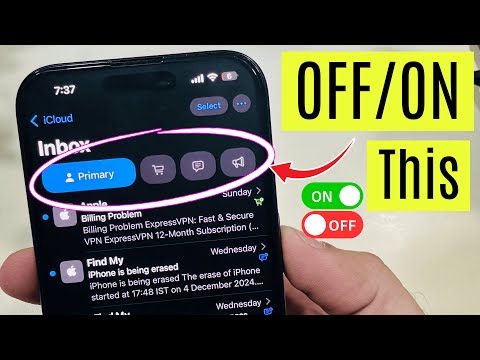
The primary grievance with the iOS 18 Mail update is the Categorization feature, which sorts mail into Primary, Transactions, Updates, and Promotions. To return to the "Old" unified view, follow these steps:
1. Open the Settings app on your iPhone.
2. Scroll down and tap on Apps, then select Mail.
3. Under the "Inbox Display" section, look for Categorization.
4. Toggle the switch for "Show Categories" to OFF.
Once disabled, your Mail app will cease partitioning your emails into separate tabs and will return to a singular, time-stamped feed.
Step 2: Reverting AI-Generated Summaries
iOS 18 utilizes Apple Intelligence to provide two-line summaries in the preview pane instead of the traditional first two lines of the email text. If you find these AI summaries inaccurate or distracting:
1. Navigate to Settings > Mail.
2. Locate the "List Preview" option.
3. Switch from "Summary" (the AI default) back to "2 Lines" or your preferred preview length.
This ensures that the software displays raw data from the header and body rather than an interpreted version generated by the local LLM (Large Language Model).
Step 3: Disabling Smart Threading

The new Mail app often forces "Organize by Thread" in a way that can hide individual messages. To restore the classic behavior where every email stands as its own entry:
1. Go to Settings > Mail.
2. Scroll to the Threading section.
3. Toggle "Organize by Thread" to OFF.
By disabling this, you maximize software transparency, ensuring that no communication is buried within a nested conversation tree.
Optimization for Automation
For users who rely on automation tools (like Shortcuts or Zapier) to process their inbox, the "Old" design is often superior. A flat hierarchy allows for better visual confirmation that automated triggers are firing correctly. By reverting the UI, you are not losing the power of iOS 18; you are simply streamlining the interface to prioritize productivity over decorative AI sorting.
