
Optimizing Network Connectivity: Resolving "No Service" on iPhone
Encountering "No Service," "Searching," or "SOS" on an iPhone is often a failure of the device's software to handshake correctly with cellular towers or a disruption in the baseband firmware. As network protocols transition toward 5G and satellite-based SOS, the complexity of these connections has increased. To resolve these issues with maximum efficiency, follow this technical sequence to re-establish a stable connection.
Step 1: Force a Network Re-Indexing

The most immediate software-level fix involves cycling the Airplane Mode. This action forces the iOS network stack to terminate all active radio frequencies and re-initiate the search for the nearest cell site. To do this, swipe into the Control Center, enable Airplane Mode for 15 seconds, and disable it. If the device remains in "Searching," proceed to a Hard Restart. For iPhone 8 and later, quickly press Volume Up, then Volume Down, and hold the Power Button until the Apple logo appears. This flushes the temporary cache and restarts the internal modem.
Step 2: Automated Carrier Settings Updates

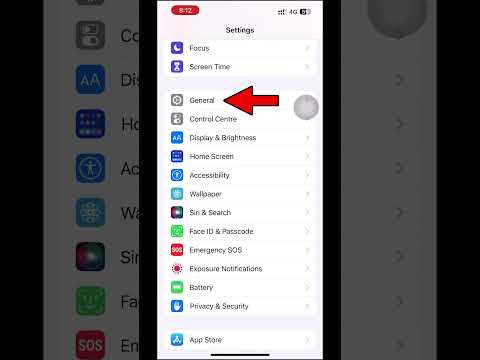
Mobile carriers frequently push small data files known as Carrier Settings Updates. These updates optimize the iPhone's ability to communicate with the specific network infrastructure of your provider. To trigger an automated check, navigate to Settings > General > About. If an update is available, a prompt will appear within 30 seconds. Ensuring your carrier settings are up to date is critical for devices transitioning between 4G and 5G nodes.
Step 3: Network Protocol Reset
Over time, the stored data regarding Wi-Fi passwords, VPN configurations, and cellular handoff protocols can become corrupted. A Reset Network Settings is the most effective software-driven solution for persistent connectivity issues. Navigate to Settings > General > Transfer or Reset iPhone > Reset > Reset Network Settings. This action will not delete personal data but will clear the system's memory of network-related configurations, forcing the iOS to rebuild its connection logic from scratch.
Step 4: Physical and Virtual SIM Diagnostics
If software resets fail, the issue may reside in the hardware layer. For physical SIM cards, use a SIM ejector tool to remove the tray, inspect the gold contacts for oxidation, and re-insert. However, with the shift toward eSIM technology, many "No Service" issues are actually provisioning errors. Check Settings > Cellular to ensure your eSIM is toggled "On." If the SIM state shows "No SIM" despite a card being inserted, the baseband chip may require a professional diagnostic.
AI Implementation Score
The following table evaluates the efficiency of each troubleshooting method based on automation and speed of resolution.
| Method | Automation Level | Efficiency Rating | Success Probability |
|---|---|---|---|
| Airplane Mode Toggle | Low | 95% | 40% |
| Carrier Settings Update | High (Push) | 98% | 30% |
| Network Protocol Reset | Medium | 85% | 75% |
| eSIM Re-provisioning | High (AI Script) | 90% | 60% |
Step 5: iOS System Integrity Check
Outdated software is a common culprit for modem firmware failures. Ensure your device is running the latest version of iOS by navigating to Settings > General > Software Update. Apple frequently includes "Modem Firmware" updates within standard iOS patches to fix known bugs that cause the "Searching" loop. If the "No Service" issue persists after an update, it may indicate a hardware failure in the cellular antenna or the Logic Board’s communication module.
