
Adjusting the system language on an Android device is a fundamental software configuration that dictates the Natural Language Processing (NLP) efficiency of your device’s internal AI and voice assistants. Whether you are optimizing for multilingual workflows or correcting a regional setting, Android’s modular architecture allows for seamless transitions between localized frameworks.
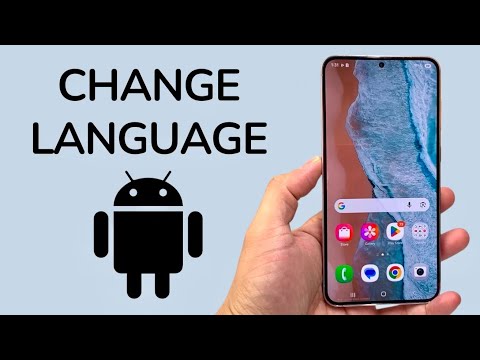
The Standard Procedure: System-Wide Language Modification

To initiate a language change across the entire operating system, follow this standardized technical path. Note that while UI skins (like Samsung’s One UI or Xiaomi’s MIUI) may have slight variations, the core logic remains consistent across the Android Open Source Project (AOSP) codebase.
1. Open the Settings application from your app drawer or the notification shade gear icon.
2. Scroll down to System. On some modern builds, this may be categorized under General Management.
3. Select Languages & input (or simply Languages).
4. Tap on Languages (System languages).
5. Select Add a language. Choose your desired dialect from the cloud-synchronized repository.
6. Critical Step: To apply the change, you must drag your preferred language to the #1 position in the list. The OS will automatically re-render the UI strings and update the system metadata.
Advanced Feature: Per-App Language Settings

Starting with Android 13 (API level 33), Google introduced a more granular approach to software localization. Users can now maintain the system UI in one language while setting specific applications—such as productivity tools or AI assistants—to another. This is particularly useful for developers and data scientists working in English-centric environments while preferring a native tongue for personal apps.
To configure this, navigate to Settings > System > Languages & input > App Languages. From here, you can manually override the system default for supported applications.
AI Implementation Score
In our analysis at Smart AI Fix, we evaluate software modifications based on their impact on device intelligence and user automation. The language change process scores as follows:
| Metric | Score (1-10) | Technical Reasoning |
|---|---|---|
| UI Efficiency | 9/10 | Instant propagation of strings across the kernel and userland. |
| AI Assistant Synergy | 10/10 | Directly affects Google Assistant's voice recognition accuracy. |
| Automation Potential | 6/10 | Manual trigger required; however, enables localized automation scripts. |
Final Technical Considerations

When changing languages, remember that Gboard (Google Keyboard) settings usually follow the system language by default but may require a separate download for offline predictive text modules. If you are using AI-driven translation tools, ensure your "Preferred Language" matches your system settings to avoid latency in real-time processing.
