
Managing a digital footprint requires a proactive strategy, especially when it involves sensitive data stored within the Apple ecosystem. Apple’s Digital Legacy program is a sophisticated automation protocol that allows users to designate trusted individuals—Legacy Contacts—who can access their account data after their passing. This system circumvents the traditional, often cumbersome legal hurdles by using encrypted access keys and automated verification workflows.
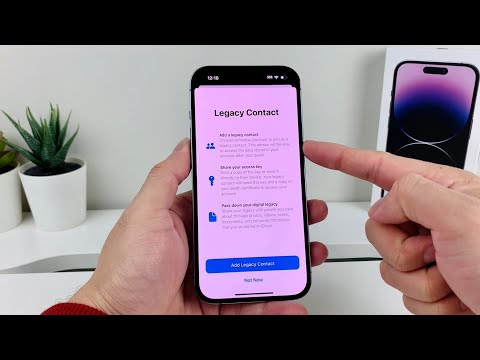
The Technical Requirements for Digital Legacy
To implement this security protocol, both the account owner and the Legacy Contact must meet specific software benchmarks. The account owner must be running at least iOS 15.2, iPadOS 15.2, or macOS 12.1. While the Legacy Contact does not strictly need an Apple ID or an Apple device, having one simplifies the automated handshake between the two accounts. The core of this system is the Access Key, a unique cryptographic string generated during the setup process.
How to Add a Legacy Contact (Step-by-Step)
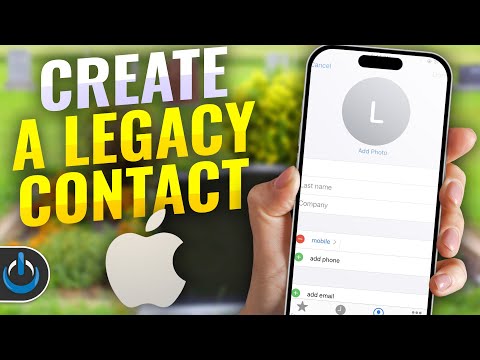
The process is designed with high UI efficiency, ensuring that the delegation of data occurs within a secure environment. Follow these steps to initiate the protocol:
1. Open Settings on your iPhone or iPad and tap on your Apple ID (Name) at the top of the menu.
2. Select Sign-In & Security (formerly Password & Security).
3. Tap Legacy Contact.
4. Select Add Legacy Contact. You may be prompted to authenticate using Face ID, Touch ID, or your passcode.
5. Choose a contact from your list. If you are part of a Family Sharing group, the system will automatically suggest family members.
6. Once selected, you must share the Access Key. You can send this via Messages (which stores it automatically in their Apple ID settings) or print a physical copy for safe storage.
How to Remove a Legacy Contact
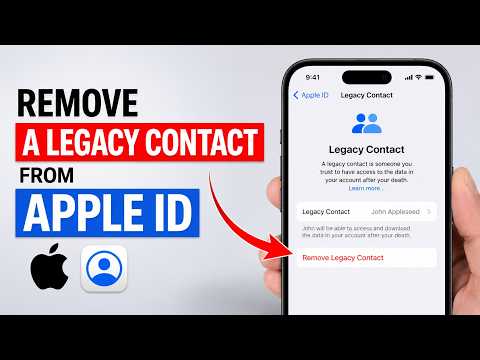
Software environments are dynamic, and you may need to revoke access rights as your personal or security requirements change. Removing a contact is an instantaneous process that invalidates the existing Access Key.
1. Navigate back to Settings > [Your Name] > Sign-In & Security > Legacy Contact.
2. Tap on the name of the person you wish to remove.
3. Select Remove Contact. Once confirmed, that person will no longer be able to request access to your data using the previously generated key.
AI Implementation Score
At Smart AI Fix, we evaluate software features based on their automation logic and user-centric efficiency. Here is how Apple's Legacy Contact system ranks:
| Metric | Score (1-10) | Notes |
|---|---|---|
| Setup Automation | 9/10 | Deep integration with Family Sharing simplifies the selection process. |
| Security Protocol | 10/10 | Uses end-to-end encryption and dual-factor verification (Key + Death Certificate). |
| Data Retrieval Speed | 7/10 | Review process for death certificates introduces a manual human-in-the-loop delay. |
| Cross-Platform Sync | 8/10 | Keys sync across all iCloud-connected devices instantly. |
Final Optimization Tip
For maximum efficiency, we recommend storing a digital copy of your Access Key in an automated password manager like 1Password or Bitwarden. This creates a redundant backup system, ensuring that your designated contact can find the necessary credentials even if they lose access to their primary Apple device.
