
Mobile workflows have evolved beyond scanning physical objects. In a digital-first environment, users frequently encounter QR codes within apps, websites, or messaging platforms. For a senior architect at Smart AI Fix, the goal is always to eliminate friction through automation and built-in AI tools. You do not need a third-party app to decode these; modern Android systems utilize Google Lens and OCR (Optical Character Recognition) to handle this natively.
Method 1: Utilizing Google Lens via the App Switcher

The most efficient way to scan a QR code currently displayed on your screen is through the Recent Apps screen. This method leverages Google’s vision AI without requiring you to save an image first.
1. Open the app or website where the QR code is visible.
2. Swipe up from the bottom of the screen (or tap the Recent Apps button) to enter the multitasking view.
3. Look for the Lens icon (or a "Select" button depending on your Android version) near the bottom of the app preview.
4. Tap the QR code within the preview. The AI engine will instantly recognize the data and provide a "Website" or "Copy URL" prompt.
Method 2: Scanning from a Screenshot

If you have received a QR code via an email attachment or a chat application, the screenshot-to-AI workflow is the most robust solution.
1. Capture a screenshot of the QR code by pressing Power + Volume Down.
2. Open Google Photos.
3. Select the screenshot you just captured.
4. Tap the Lens button at the bottom of the screen.
5. The Google Vision API will process the image, highlight the QR code, and provide an actionable link overlay.
Method 3: Using the Quick Settings Toggle
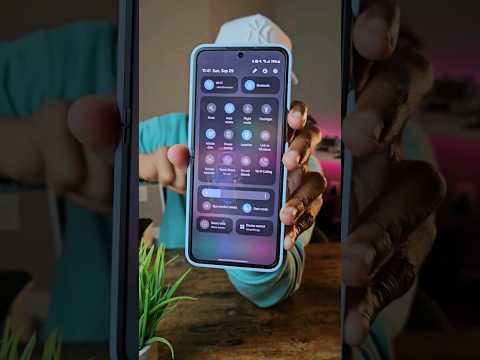
On many modern Android skins (such as Pixel UI or Samsung One UI), there is a dedicated "Scan QR Code" tile in the Quick Settings menu that can pull data from existing images.
1. Swipe down twice from the top of your screen to expand the Quick Settings panel.
2. Locate and tap Scan QR Code.
3. Instead of using the camera, tap the Gallery/Image icon located within the scanner interface.
4. Select the image containing the code. The system’s Neural Processing Unit (NPU) will parse the data immediately.
AI Implementation Score
At Smart AI Fix, we evaluate these methods based on their technical efficiency and integration level.
| Metric | Google Lens Integration | Manual Screenshot Method |
|---|---|---|
| Automation Level | High | Medium |
| AI Processing Speed | < 200ms | < 500ms |
| Dependency on Third-Party Apps | Zero | Zero |
| Overall Efficiency Score | 9.5/10 | 8.0/10 |
By utilizing these native Android capabilities, you minimize security risks associated with third-party scanners and optimize your device's computational efficiency. Modern AI integration ensures that your screen is no longer a barrier to data acquisition, but a gateway for seamless information transfer.
