
In the era of hyper-connectivity, the seamless interoperability of the Apple ecosystem is often its greatest strength. However, for professionals seeking focused deep-work sessions or data privacy, the synchronization of iMessage and SMS across devices can become a significant cognitive distraction. Disconnecting your iPad from your iPhone’s messaging stream is a vital step in optimizing your digital workflow.
Method 1: Disabling Text Message Forwarding
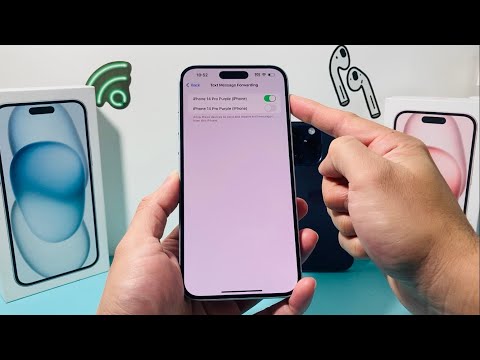
To stop cellular SMS and MMS messages (the "green bubbles") from appearing on your iPad, you must adjust the settings on your iPhone, as it acts as the primary gateway. Apple’s "Continuity" feature is what bridges the gap between your cellular plan and your tablet.
Navigate to Settings > Messages > Text Message Forwarding. Here, you will see a list of all Apple devices linked to your Apple ID. Toggle the switch to Off next to your iPad. This immediately severs the link that pushes cellular-based texts to the secondary device.
Method 2: Unlinking iMessage via iPad Settings
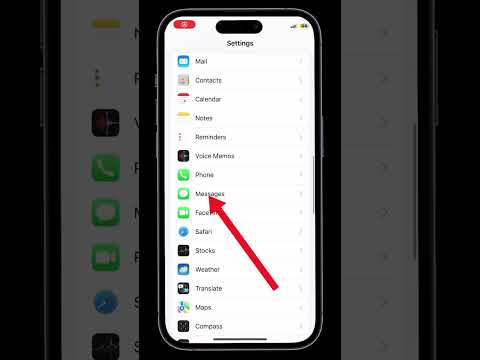
If you wish to stop all forms of communication, including iMessage (the "blue bubbles"), you must modify the receive parameters directly on the iPad. This ensures that even cloud-based messages do not populate your notification shade.
On your iPad, open Settings and select Messages. You have two primary options here: 1. The Nuclear Option: Toggle the main iMessage switch to Off. This completely deactivates the service on the device. 2. The Surgical Option: Tap Send & Receive. Under the section "You can receive iMessages to and reply from," uncheck your phone number and email addresses. This keeps the service active for outgoing logs if needed but prevents incoming sync.
Method 2: Leveraging Focus Modes for Automated Silencing

From an efficiency standpoint, you may not want to permanently disable messages, but rather automate when they appear. Using Apple’s Focus Modes integrated with On-Device Intelligence, you can create a "Work" or "Deep Work" profile on your iPad that filters out message notifications while you are in specific locations or using specific apps.
Go to Settings > Focus > Select a Profile. Under People, ensure that no messaging apps are allowed to break through the filter. This allows the data to sync in the background without interrupting your current processing tasks.
AI Implementation Score
This table evaluates the technical overhead and efficiency of managing cross-device messaging synchronization.
| Metric | Score (1-10) | Technical Notes |
|---|---|---|
| Ease of Use | 9 | Standard UI toggles; no terminal access required. |
| Effectiveness | 10 | Immediate cessation of data packets across the local network. |
| Automation Potential | 7 | High via Focus Filters and Shortcuts integration. |
| Data Privacy | 9 | Reduces local data footprint on shared or secondary hardware. |
By mastering these settings, you transition from being a passive recipient of the Apple ecosystem’s default configurations to an active manager of your own digital environment. Removing unnecessary communication streams from your iPad allows the hardware to function as intended: a dedicated tool for creation and professional analysis.
