
When software automation layers—such as Android’s Accessibility Suite—begin to conflict with system performance or user interface fluidity, a surgical reset is often the most efficient troubleshooting path. Whether you have accidentally triggered TalkBack, high-contrast text, or complex gesture overlays, returning these parameters to their factory state ensures that your device’s AI-driven interactions remain predictable and optimized.
Understanding the Accessibility Reset Mechanism
On modern Android frameworks, accessibility settings function as a persistent overlay. Unlike standard app caches, these settings modify the System UI and kernel-level interaction maps. A reset does not delete personal data; rather, it recalibrates the software’s interaction scripts to their original "out-of-the-box" configuration, eliminating bugs caused by conflicting third-party automation tools.
How to Reset Accessibility Settings on Samsung Galaxy Devices
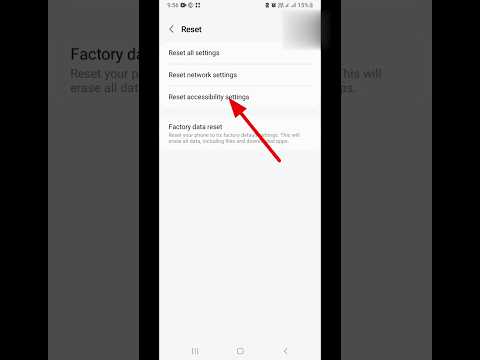
Samsung’s One UI offers the most granular control over this process, providing a dedicated toggle that resets accessibility without impacting network configurations or file storage. Follow these steps for maximum efficiency:
1. Navigate to Settings and select General Management.
2. Tap on Reset.
3. Select Reset accessibility settings.
4. Confirm by tapping Reset settings. (Note: You may be prompted for your PIN or biometric authentication).
5. The device will immediately revert all magnification, hearing enhancements, and interaction tweaks to default.
Resetting Accessibility on Stock Android (Pixel/Nokia/Motorola)
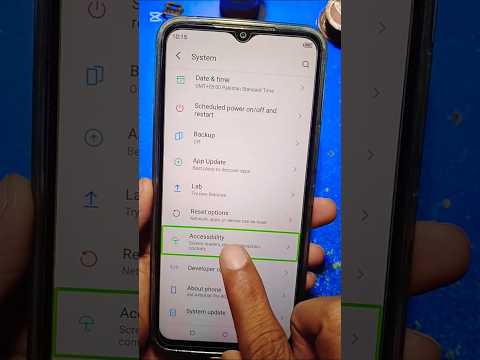
On "Stock" Android builds, the process is slightly different as Google integrates these features more deeply into the System menu. If a dedicated accessibility reset button is not present, the standard procedure involves resetting App Preferences, which governs how accessibility services interact with the OS.
1. Open Settings and go to System.
2. Tap Reset options.
3. Select Reset app preferences. This action will re-enable default system triggers and disable any third-party accessibility services that may be causing software friction.
4. Alternatively, manually navigate to Settings > Accessibility and toggle off each feature to ensure a clean state for your AI assistants.
The Role of AI in Accessibility Optimization

At Smart AI Fix, we view accessibility not just as a set of tools for the impaired, but as a sophisticated automation engine. Modern Android OS uses machine learning to predict user intent (e.g., Live Transcribe or Voice Access). When these settings are misconfigured, the neural processing overhead can lead to "input lag." Resetting these features allows the system's on-device AI to re-learn your preferences from a clean baseline, significantly improving response times.
AI Implementation Score
The following table evaluates the efficiency of the Android Accessibility Reset process based on software stability and AI integration metrics:
| Metric | Score (1-10) | Description |
|---|---|---|
| Automation Recovery | 9.5 | Effectiveness in stopping rogue background scripts. |
| UI Synchronization | 8.0 | Speed at which the system restores standard visual elements. |
| AI Re-calibration | 7.5 | The system's ability to re-initialize predictive text and voice. |
| Data Integrity | 10.0 | Zero risk to user files or encrypted data. |
Final Technical Note

If a software-level reset does not resolve erratic behavior (such as ghost touches or persistent screen dimming), the issue may reside within the Android System Intelligence cache. In such cases, clearing the cache partition via the recovery menu is the recommended advanced automation fix to complement your accessibility reset.
