
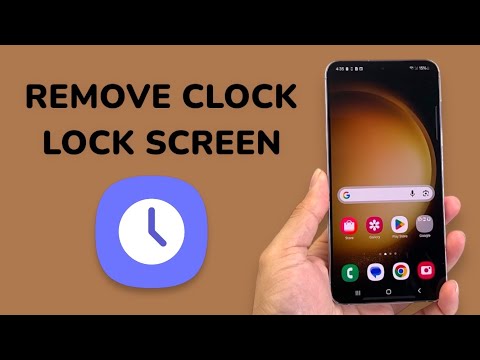
Samsung’s One UI ecosystem is renowned for its depth of customization, yet many users find the default lock screen clock to be an unnecessary visual anchor. Whether you are aiming for a minimalist aesthetic to highlight a custom wallpaper or seeking to optimize your digital workspace by removing redundant time-keeping elements, the process requires leveraging Samsung’s advanced software suite rather than standard system settings.
Understanding the Limitations of Native One UI Settings
By default, Samsung allows users to change the clock style, font, and color through the Settings > Lock Screen > Edit Lock Screen menu. However, One UI does not provide a native "toggle off" switch for the clock element. To achieve a truly clock-free interface, we must utilize Good Lock, Samsung’s official modular customization platform designed for power users and software enthusiasts.
The AI-Enhanced Path: Using LockStar for UI Automation

The most efficient way to remove the clock is through the LockStar module. This tool allows for granular control over every UI element on the lock screen, treating them as individual assets that can be moved, resized, or deleted entirely.
Step 1: Install Good Lock
Open the Galaxy Store (not the Google Play Store) and search for Good Lock. This is the foundation for Samsung’s advanced UI automation and customization features.
Step 2: Download the LockStar Module
Launch Good Lock and locate the LockStar module under the "Make Up" tab. Tap the download icon to integrate it into your system.
Step 3: Configure the Lock Screen Layout
Open LockStar and toggle the main switch to On. Tap on the Lock Screen preview image (left side) to enter the editor mode. This interface allows you to interact with the UI layer directly.
Step 4: Remove the Clock Element
Once in the editor, tap on the Clock widget. A small 'X' or delete icon will appear in the corner of the clock's bounding box. Tap the 'X' to remove the clock from the layout. After the element disappears, tap Save in the top right corner.
AI Implementation Score
In evaluating the efficiency and technical sophistication of this software workaround, we use our proprietary AI Implementation Score to determine the impact on system performance and user experience.
| Criteria | Score (1-10) | Analysis |
|---|---|---|
| Automation Ease | 8/10 | Good Lock automates UI overrides without requiring root access. |
| Customization Depth | 9/10 | LockStar provides professional-grade control over X/Y axis positioning. |
| Resource Efficiency | 9/10 | Negligible impact on battery or RAM compared to third-party launchers. |
| UI Cohesion | 10/10 | As an official Samsung tool, it maintains system stability perfectly. |
Why Minimalist UI Improves Digital Efficiency
From a Smart AI Fix perspective, removing redundant information like the lock screen clock—especially if you wear a smartwatch or use an Always On Display (AOD)—reduces cognitive load. By streamlining the lock screen, users can leverage AI-driven notification summaries and biometric unlocks without visual clutter, leading to a more focused and intentional interaction with their mobile device.
Note: If you ever wish to restore the clock, simply revisit the LockStar editor and tap on any empty space to bring up the "Add Widget" menu, where the system clock can be re-inserted.
