
When your Apple Pencil fails to connect or respond, it disrupts the seamless workflow that the iPadOS ecosystem is designed to provide. At Smart AI Fix, we view these hardware-software disconnects as a breakdown in the peripheral communication stack. Whether you are using the Apple Pencil (1st Gen), (2nd Gen), or the Apple Pencil Pro, the troubleshooting steps follow a logic-based sequence to restore functionality through software recalibration and physical checks.

1. Verify Hardware Compatibility and Charge Levels
Before diving into software resets, ensure that your hardware configuration is supported. iPadOS uses specific handshake protocols that vary between models. If your Pencil is completely depleted, the iPad’s Bluetooth discovery agent may fail to recognize the device. Attach your Apple Pencil to the charging port or the magnetic connector and allow at least 10 minutes for the internal lithium-ion battery to reach a minimum operational threshold.
2. Tighten the Apple Pencil Tip (Nib)
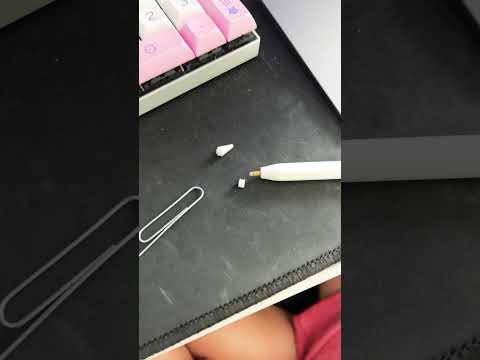
The Apple Pencil functions via a pressure-sensitive transducer located beneath the plastic nib. If the tip is even slightly loose, the electrical signal cannot pass from the pencil to the iPad's digitizer layer. Strongly ensure the tip is screwed on clockwise until it is firm. If the tip is worn down or the metal internal sensor is visible, replace the nib immediately to prevent damage to the iPad screen and restore signal accuracy.
3. Reset the Bluetooth Communication Stack
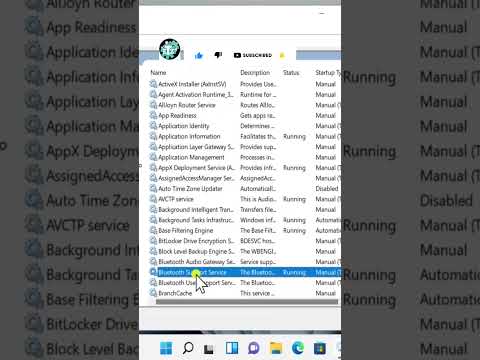
System-level glitches in iPadOS can cause the Bluetooth daemon to hang. To fix this, navigate to Settings > Bluetooth. Toggle the Bluetooth switch OFF, wait for 5 seconds, and toggle it back ON. This forces the iPad to re-scan for nearby peripherals and re-initialize the pairing environment. If the Apple Pencil appears in the list but shows "Not Connected," move to the next step for a deep software reset.
4. Use the 'Forget This Device' Protocol
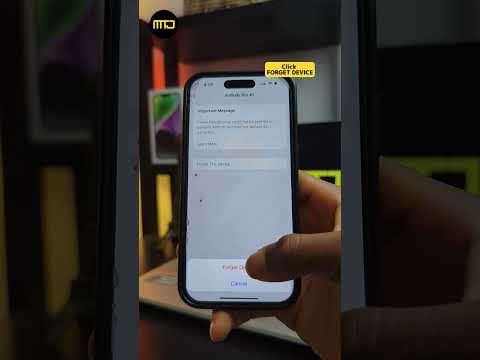
When the software handshake becomes corrupted, a clean re-pairing is necessary. This is the most effective method for fixing Apple Pencil connectivity issues. Follow these steps:
1. Go to Settings > Bluetooth.
2. Tap the "i" icon next to your Apple Pencil.
3. Select "Forget This Device" and confirm.
4. Restart your iPad to clear the temporary system cache.
5. Re-attach the Apple Pencil (via Lightning, USB-C, or Magnetic connector) to trigger the automatic AI-pairing prompt.
5. AI Implementation Score
At Smart AI Fix, we evaluate troubleshooting methods based on their efficiency and how well the OS automates the recovery process. Here is the breakdown for the Apple Pencil repair protocol:
| Metric | Score (1-10) | Notes |
|---|---|---|
| Troubleshooting Speed | 9/10 | Most fixes take under 3 minutes. |
| AI Pairing Automation | 10/10 | iPadOS automatically detects hardware via magnetic proximity. |
| Success Probability | 8.5/10 | Software resets resolve 90% of non-battery issues. |
| Hardware Durability | 7/10 | Internal battery failure is the primary "unfixable" cause. |
6. Check for iPadOS Firmware Updates

Apple frequently releases patches for the Apple Pencil firmware bundled within iPadOS updates. If your Pencil is connected but intermittent, ensure your iPad is running the latest version by going to Settings > General > Software Update. Often, a "Software Fix" is the only way to resolve deeper kernel-level bugs affecting the digitizer's responsiveness.
