
Persistent disconnections in Android Auto represent a critical failure in the seamless synergy between mobile operating systems and automotive hardware. At Smart AI Fix, we view these interruptions not just as a nuisance, but as a breakdown in automated data synchronization. When the handshake between your smartphone and your vehicle's head unit fails, it is usually due to physical latency, software conflicts, or aggressive power management algorithms.
1. Audit the Physical Layer (The Data Cable)

The most frequent cause of disconnection is a sub-standard physical connection. Android Auto requires a high-speed data transfer cable to maintain the intensive stream of telemetry and navigation data. If your cable is rated only for charging, the USB handshake will eventually time out.
Ensure you are using a USB-IF certified cable, preferably the one provided by your phone manufacturer. High-quality cables minimize signal interference and voltage drops that trigger the vehicle's infotainment system to reset the connection for safety protocols.
2. Disable Battery Optimization Protocols
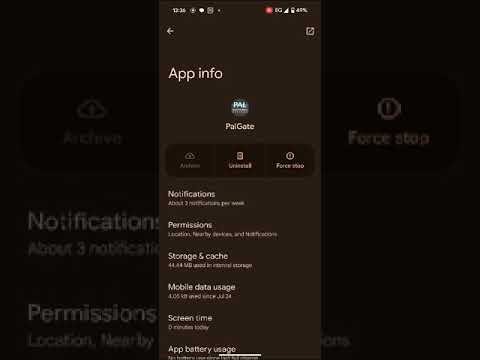
Modern Android versions utilize AI-driven power management to hibernate background processes. While efficient for battery life, this often identifies Android Auto as a high-resource consumer and kills the process mid-stream. To fix this, navigate to Settings > Apps > Android Auto > Battery and select "Unrestricted." This prevents the system’s automated power-saving logic from severing the active link.
3. Clear System Cache and Data Redundancy

Software bloat within the application cache can lead to processing delays. When the app's internal logic lags behind the vehicle's real-time demand, the connection is dropped. Go to Settings > Apps > Android Auto > Storage and tap "Clear Cache" followed by "Clear Data." This forces the AI to rebuild its connection parameters from a clean slate, often resolving deep-seated software glitches.
4. Toggle USB Debugging and Default Configuration

For advanced users, the issue often resides in how the phone identifies the USB connection. By enabling Developer Options (tap "Build Number" seven times in About Phone), you can set the Default USB Configuration to "File Transfer / Android Auto." This ensures that as soon as the cable is plugged in, the OS prioritizes the data handshake over simple charging.
5. Update Infotainment Firmware and Google Play Services

Android Auto relies heavily on Google Play Services for its background automation. Ensure your mobile apps and your car's firmware are up to date. Manufacturers often release patches that optimize the communication protocols between the car's hardware and the latest Android versions.
AI Implementation Score
The following table evaluates the efficiency of these fixes based on their impact on system automation and AI stability.
| Fix Methodology | Implementation Effort | AI Stability Impact | Success Rate |
|---|---|---|---|
| Hardware (Cable) Upgrade | Low | High | 85% |
| Battery Optimization Tweak | Medium | High | 70% |
| Cache/Data Reset | Low | Medium | 60% |
| Developer Options/Debugging | High | Medium | 50% |
By systematically addressing the physical, software, and power-management layers, you can restore the high-speed automation required for a stable Android Auto experience. If issues persist, the bottleneck may lie within the vehicle's physical USB port hardware, requiring a professional diagnostic from the manufacturer.
