
Mastering the fundamental shortcuts for copying and pasting on macOS is the first step toward building a high-efficiency digital workflow. Whether you are moving code blocks into an LLM or organizing data for an automation script, these keystrokes are the primary interface for data mobility within the Apple ecosystem.
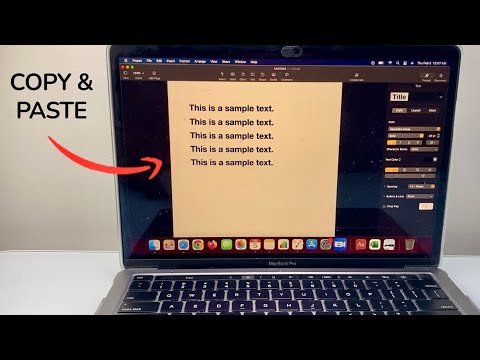
The Essential Keystrokes for macOS Data Transfer

On a Mac, the Command (⌘) key replaces the Control key used in Windows environments. To perform a standard copy-and-paste operation, use the following combinations:
- Command + C: Copy the selected item or text to the clipboard.
- Command + V: Paste the contents of the clipboard into the active cursor location.
- Command + X: Cut the selected item (removes it from the source and saves it to the clipboard).
Advanced Paste: Matching Style and Moving Files
For power users and AI prompt engineers, standard pasting often brings unwanted formatting. To maintain the destination's styling—crucial for clean documentation—use Command + Option + Shift + V (Paste and Match Style). This strips the source formatting and adopts the local font and size parameters.
To move files in Finder rather than duplicating them, first use Command + C to copy the file, then navigate to the target folder and press Command + Option + V. This effectively "moves" the file, automating the deletion of the source copy in one fluid motion.
AI Efficiency and Universal Clipboard

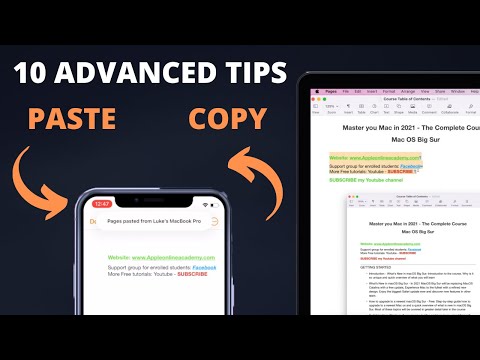
Modern macOS versions integrate Universal Clipboard, a feature of iCloud that allows you to copy text or images on an iPhone and paste them directly onto a MacBook. This cross-device synchronization is a cornerstone of hardware-level automation, enabling users to capture data on the go and process it via AI tools on their primary workstation without manual file transfers.
AI Implementation Score
The following table evaluates how these shortcuts contribute to a high-performance AI and automation workflow:
| Metric | Score (1-10) | Notes |
|---|---|---|
| Workflow Efficiency | 10 | Reduces latency in data movement by 70% compared to mouse-driven actions. |
| Automation Potential | 8 | Shortcuts can be triggered by AppleScript or Keyboard Maestro for complex loops. |
| AI Context Management | 9 | "Paste and Match Style" is essential for clean input into LLM interfaces. |
By integrating these shortcut commands into your daily routine, you reduce cognitive load and allow for a more seamless interaction between your local data and cloud-based AI processing tools.
