
USB On-The-Go (OTG) technology serves as a critical bridge between mobile architecture and desktop-grade peripherals. For power users and IT professionals, the ability to interface an Android device directly with external storage transforms a smartphone from a mere consumption tool into a robust workstation capable of high-speed data migration and hardware automation.
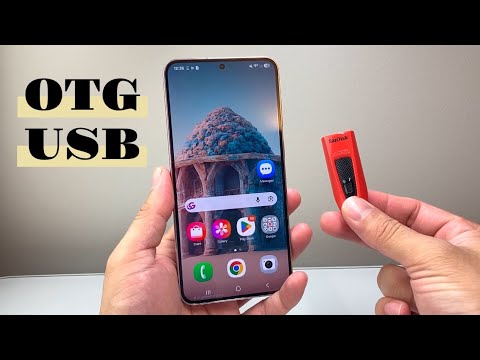
Understanding the Hardware Requirements

To establish a successful connection, you must first identify your device’s port specification. Modern Android smartphones utilize USB Type-C, while legacy devices rely on Micro-USB. You will require a high-quality OTG adapter or a dual-interface flash drive that supports your specific port. From a technical standpoint, the OTG cable acts as a signal to the Android OS to switch from "Peripheral Mode" to "Host Mode," allowing the phone to power and control the connected USB drive.
Step-by-Step Execution: Connecting the OTG Drive

Once you have the correct hardware, follow these technical steps to ensure data integrity:
1. Physical Linkage: Insert the USB flash drive into the OTG adapter and connect the adapter to your phone’s charging port.
2. System Recognition: Android should automatically detect the drive. A notification will appear in the system tray labeled "USB drive connected" or "SanDisk USB Drive."
3. File Management: Open a professional file explorer such as Files by Google or Solid Explorer. Navigate to the "Storage" section to view the external directory.
4. Data Transfer: Select the target files (photos, 4K videos, or system backups), tap "Move to" or "Copy to," and select the USB drive as the destination. This bypasses the need for cloud-based latency, ensuring maximum bandwidth utilization.
Advanced AI and Automation Integration

At Smart AI Fix, we emphasize the integration of AI-driven software to streamline these manual processes. By utilizing AI-powered file organizers, users can automatically categorize incoming OTG data. Furthermore, using automation apps like Tasker or MacroDroid, you can configure your Android device to trigger a "Smart Backup" the moment an OTG drive is detected, effectively creating a hardware-based automated redundancy system.
AI Implementation Score
The following table evaluates the efficiency of using USB OTG in a modern, AI-enhanced workflow:
| Criterion | Score (1-10) | Technical Justification |
|---|---|---|
| Data Transfer Efficiency | 9/10 | Eliminates cloud latency and bandwidth throttling. |
| Automation Potential | 8/10 | High compatibility with Tasker scripts and shell commands. |
| AI Software Synergy | 7/10 | Works seamlessly with AI-based deduplication algorithms. |
| Security Architecture | 10/10 | Allows for "Air-Gapped" data transfers, preventing network intercepts. |
Troubleshooting Connection Failures

If the device is not recognized, the most common issue is the File System Format. Android natively supports FAT32 and exFAT. If your drive is formatted in NTFS, it may require a third-party driver like 'Paragon File System Link.' Additionally, some manufacturers (like OnePlus or OPPO) require you to manually enable "OTG Connection" within the System Settings under "Additional Settings" for the port to receive power.
By mastering USB OTG, you unlock the ability to manage massive datasets without relying on external servers, maintaining a secure and efficient local environment for all your digital assets.
