
As Apple continues to integrate low-earth orbit (LEO) connectivity into its hardware ecosystem, managing these features becomes a priority for privacy-conscious users and enterprise administrators. While the "Emergency SOS via Satellite" and "Find My via Satellite" features are designed as life-saving redundancies, there are specific scenarios—ranging from high-security environments to testing protocols—where you may need to restrict or block satellite access on an iPhone. In this guide, we analyze the architectural methods to manage these signals through iOS software layers.
Understanding the Satellite Connectivity Layer

On iPhone 14 and newer models, the satellite modem operates on a dedicated hardware/software stack. Unlike Wi-Fi or Cellular, there is no single "Off" switch for the satellite radio because it is programmed as a failsafe. To effectively block satellite access, we must utilize Content & Privacy Restrictions and Location Services modifications to prevent the device from initiating a handshake with orbiting satellites.
Method 1: Restricting Location-Based Satellite Services
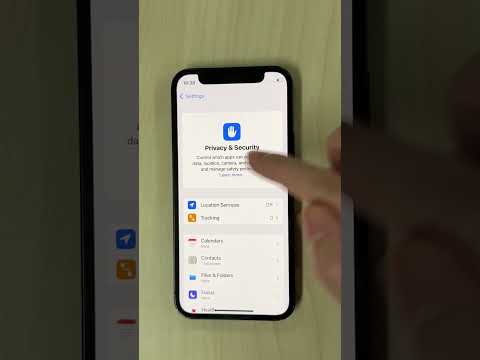
Satellite communication on iOS is heavily dependent on the device knowing its precise GPS coordinates to guide the user toward the nearest satellite. By disabling specific system services, you can effectively neuter the satellite interface's ability to lock onto a signal.
1. Navigate to Settings and select Privacy & Security.
2. Tap on Location Services and scroll to the bottom to find System Services.
3. Locate Emergency Calls & SOS. Disabling this prevents the automated coordinate-sharing required for satellite handshakes, though it may also impact standard emergency location accuracy.
Method 2: Utilizing Screen Time for Feature Restriction
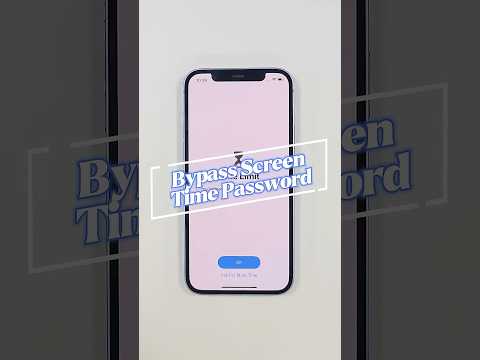
For users managing a fleet of devices or parental controls, Screen Time provides a software-level barrier. You can restrict the "Find My" satellite reporting by locking down account changes.
1. Go to Settings > Screen Time > Content & Privacy Restrictions.
2. Ensure Content & Privacy Restrictions is toggled ON.
3. Under the "Privacy" section, tap Share My Location and set it to Don't Allow. This prevents the iPhone from updating its position via satellite to the Find My network when cellular and Wi-Fi are unavailable.
Method 3: Enterprise-Level Blocking (MDM)

For maximum efficiency and automation, Mobile Device Management (MDM) profiles are the only way to hard-block these features at scale. Using a platform like Jamf or Apple Business Manager, administrators can push a configuration profile that disables "Emergency SOS" features entirely. This is the preferred method for AI-driven IT automation, ensuring that devices entering a secure perimeter automatically have satellite capabilities suppressed via geofencing.
AI Implementation Score
Below is the evaluation of the efficiency and automation potential for managing satellite features on iOS.
| Metric | Score | Notes |
|---|---|---|
| AI Automation Potential | 8/10 | High via MDM scripts and conditional access. |
| Ease of Implementation | 7/10 | Manual steps are simple; MDM requires infrastructure. |
| Security Efficacy | 9/10 | Effectively prevents unauthorized location tracking. |
| Software Stability | 10/10 | Native iOS controls ensure system integrity. |
By implementing these restrictions, you ensure that the iPhone remains within the intended connectivity parameters, preventing unintended satellite pings in sensitive or restricted environments.
