
Mastering Your Mobile Workflow: Seamless Email Integration on iOS
Integrating multiple email accounts into a centralized interface is a prerequisite for any high-efficiency mobile workflow. The native iOS Mail app remains a powerful tool for professionals, offering deep system integration, Siri-driven automation, and advanced security protocols. Whether you are adding a primary iCloud account or a secondary Google or Outlook workstation, the setup process is streamlined to prioritize user data integrity.
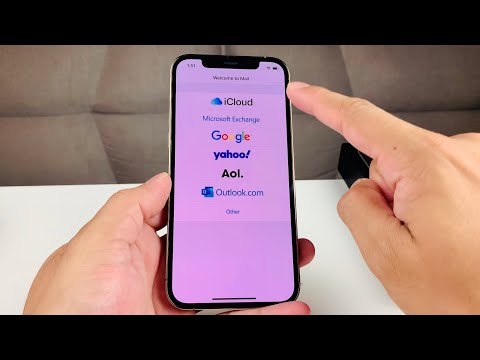
To begin the setup, ensure your device is connected to a secure network. Follow these precise steps to add a new account:
- Navigate to the Settings app on your iPhone.
- Scroll down and tap on Mail.
- Select Accounts, then tap Add Account.
- Select your email provider from the list (e.g., iCloud, Microsoft Exchange, Google, Yahoo).
- Enter your email address and password. If prompted, complete the Two-Factor Authentication (2FA) for enhanced security.
- Toggle the switches for the data you wish to sync (Mail, Contacts, Calendars, and Notes) and tap Save.
Advanced Configuration: Manual IMAP/SMTP Setup
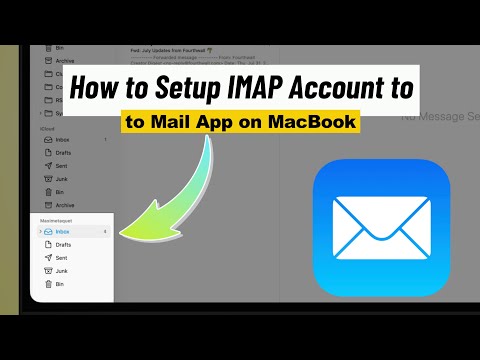
For custom domains or private servers that do not appear in the default list, a manual configuration is required. This is common for enterprise-level automation where specific port settings are necessary for encrypted communication.
Tap Other at the bottom of the provider list, then select Add Mail Account. You will be required to enter the Incoming Mail Server (IMAP) and Outgoing Mail Server (SMTP) hostnames provided by your IT administrator. Using SSL (Secure Sockets Layer) is mandatory for maintaining a secure handshake between your iPhone and the server, preventing man-in-the-middle attacks.
Leveraging AI and Automation in the Mail App

Once your accounts are active, the iOS ecosystem utilizes machine learning to enhance your productivity. Features such as Smart Mailboxes automatically aggregate "Unread" or "Flagged" emails across all synced accounts, reducing the time spent toggling between profiles. Furthermore, Siri Suggestions can analyze your incoming mail to automatically suggest Calendar events or Reminders, effectively turning your inbox into an automated project management assistant.
AI Implementation Score
The following table evaluates the efficiency and automation capabilities of the iOS Mail app integration:
| Feature Metric | Score (1-10) | Technical Insight |
|---|---|---|
| Setup Efficiency | 9.5 | OAuth 2.0 integration minimizes manual entry for major providers. |
| Automation Potential | 8.0 | Deep integration with Siri Shortcuts and Calendar automation. |
| Security Protocols | 9.0 | Hardware-level encryption and private relay support (iCloud+). |
| AI Content Sorting | 7.5 | On-device machine learning for VIP and smart filtering. |
By centralizing your digital communication through the iPhone Mail app, you enable a more cohesive data environment. This allows for faster response times and a significantly reduced cognitive load, as AI-driven categorization handles the organizational heavy lifting.
