
The Science of iOS Thermal Management
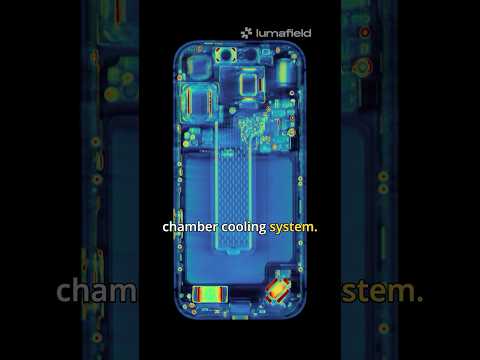
When your device displays the alert, "Temperature: iPhone needs to cool down before you can use it," it is triggering a hard-coded safety protocol within the iOS kernel. This is not merely a software glitch; it is a defensive mechanism designed to protect the Lithium-ion battery and the A-series System on Chip (SoC) from permanent thermal degradation. Modern iPhones utilize sophisticated thermal sensors to monitor internal heat levels, and once the threshold (typically around 45°C or 113°F) is exceeded, the system halts all non-essential processes to prevent hardware failure.
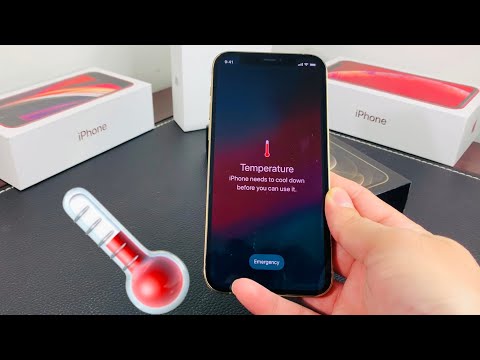
Immediate Triage: How to Stabilize Core Temperature

If you see the warning screen, your priority is to reduce the ambient heat and the computational load. First, remove any protective case, as these often act as thermal insulators. Move the device to a cooler environment, but avoid drastic measures like placing it in a refrigerator; rapid temperature shifts can cause internal condensation, leading to liquid damage. Power down the device immediately to stop all electrical current flowing through the logic board, allowing the passive cooling system to dissipate heat more effectively.
Software-Level Optimization and AI Efficiency
Overheating is frequently caused by high-intensity background processes or "runaway" apps. AI-driven features, such as On-Device Machine Learning for photo indexing or Siri suggestions, can spike CPU usage. To mitigate this, navigate to Settings > General > Background App Refresh and disable it for non-essential applications. Additionally, high-brightness settings and 5G connectivity are significant heat generators. Switching to 4G/LTE in areas with poor signal can significantly reduce the power draw and thermal output of the cellular modem.
Automating Thermal Safety with iOS Shortcuts
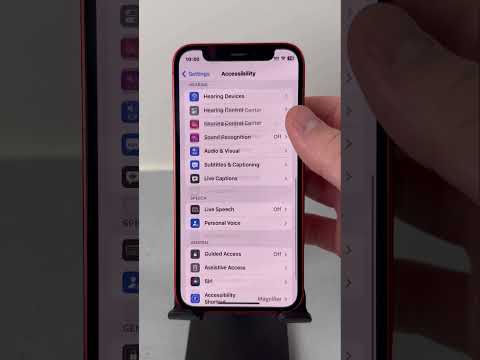
To prevent reaching the critical thermal threshold, you can use iOS Shortcuts and Automation to create a "Cool Down" macro. By setting up a trigger for when the iPhone is connected to a fast charger or when specific high-demand apps (like AR tools or high-end games) are opened, you can automate the following: enable Low Power Mode, reduce brightness to 30%, and turn off ProMotion (if applicable). This proactive approach uses software logic to manage hardware strain before the internal sensors force a total shutdown.
AI Implementation Score
The following table evaluates the efficiency of various fixes based on their impact on long-term device health and ease of implementation via automation.
| Fix Strategy | Difficulty | AI/Automation Potential | Efficiency Score |
|---|---|---|---|
| Physical Cooling | Low | N/A | 95% |
| Background Refresh Triage | Medium | Low | 70% |
| Shortcuts Automation | High | High | 85% |
| Network Throttling (LTE/4G) | Low | Medium | 60% |
By understanding the thermal dynamics of your iPhone, you can maximize its lifespan. Always ensure your software is updated to the latest iOS version, as Apple frequently releases firmware optimizations that improve how the SoC handles thermal loads during intensive AI processing tasks.
