
Powering on an Android device is more than just a tactile interaction; it is the initialization of a complex software ecosystem. For users integrated into the Smart AI Fix philosophy, understanding the various hardware and software triggers to boot a device is essential for maintaining a high-efficiency workflow.
1. The Primary Hardware Interface

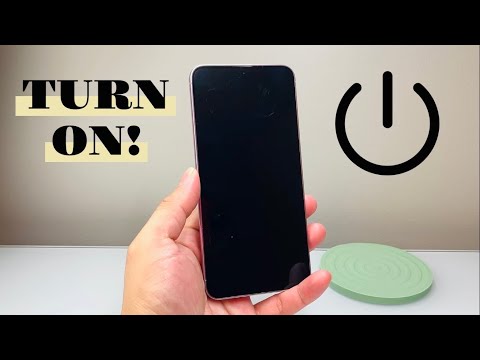
The standard method involves the physical Power Button. To initiate the boot sequence, press and hold the button for 3 to 5 seconds. You will typically feel a haptic vibration, followed by the manufacturer’s logo. This process triggers the Kernel to load the Android OS into the system’s RAM. If the device fails to respond, ensure the battery has at least a 5% charge, as the power management integrated circuit (PMIC) requires a baseline voltage to execute the boot command.
2. Automated Power Scheduling

In the realm of AI efficiency, manually turning on a phone is often redundant. Most modern Android distributions include a "Scheduled Power On/Off" feature. By navigating to Settings > System > Scheduled Power On & Off, users can automate the device's wake-up time. This is particularly useful for optimizing battery health and ensuring the system cache is cleared via a daily reboot cycle, automated by the system’s internal clock without human intervention.
3. Booting via ADB (Android Debug Bridge)
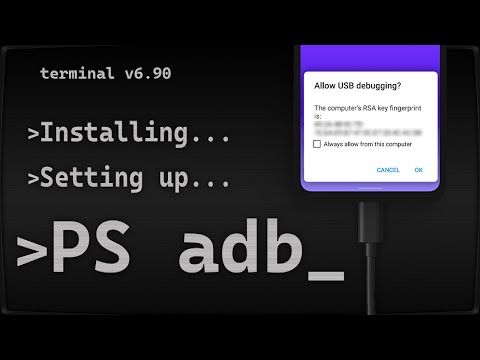
For developers and automation enthusiasts, a phone can be powered on or rebooted using a workstation. If the device is in Fastboot Mode or connected via USB with USB Debugging enabled, you can use the following command in your terminal:
adb reboot
This method leverages software commands to bypass physical button limitations, a core strategy in automated tech troubleshooting.
4. The "Force Restart" Protocol

If an Android device is unresponsive, a standard press may not suffice. A Hard Reboot is required. This is achieved by holding the Power Button and Volume Down simultaneously for 15 seconds. This cuts power to the logic board momentarily and forces the software to re-initialize, bypassing stuck processes or UI freezes.
AI Implementation Score
The following table evaluates the efficiency of different "Power On" methods based on AI-driven automation standards:
| Method | AI Utility | Efficiency Rating |
|---|---|---|
| Manual Power Button | Low | 4/10 |
| Scheduled Booting | High | 9/10 |
| ADB Command Line | Medium | 7/10 |
| Charger-Triggered Boot | Low | 5/10 |
Summary of Software Initialization
Once the screen illuminates, the Android Runtime (ART) begins pre-compiling applications to ensure the AI-driven features of your smartphone are ready for immediate use. For maximum productivity, always ensure your device firmware is updated to the latest version to optimize these boot sequences.
