
When an iPhone begins to exhibit latency, it is rarely a hardware failure and more often a result of resource contention within the iOS ecosystem. As a Senior Tech Blogger at Smart AI Fix, I view these devices not just as hardware, but as complex nodes where AI-driven background tasks and system processes must be perfectly synchronized. If your iPhone is sluggish, the goal is to optimize the Neural Engine and clear software bottlenecks.
1. Optimize the On-Device Machine Learning Indexing

iOS relies heavily on the Apple Neural Engine (ANE) for tasks like photo recognition, Siri suggestions, and Spotlight indexing. When these processes hang, the UI feels laggy. To fix this, navigate to Settings > Siri & Search. Toggle off "Suggestions while Searching" and "Suggestions on Home Screen" for apps you rarely use. This reduces the background computational overhead required for the AI to predict your next move, instantly freeing up CPU cycles.
2. Deploy Automated Storage Offloading

A saturated NAND flash drive significantly degrades read/write speeds, leading to system-wide stutters. Instead of manual deletion, leverage the AI-driven storage management feature. Go to Settings > General > iPhone Storage and enable Offload Unused Apps. This automation removes the app binary while preserving user data, ensuring the system always has at least 10-15% free space required for swap file management.
3. Throttle Background Activity and Transparency

Visual effects like "Transparency" and "Motion" require constant GPU calculations. For older models, this creates a performance bottleneck. Navigate to Settings > Accessibility > Display & Text Size and toggle on Reduce Transparency. Additionally, go to Settings > General > Background App Refresh and set it to Wi-Fi or Off. This prevents non-essential third-party scripts from executing while the app is in a suspended state.
4. Reset System Cache via Force Restart
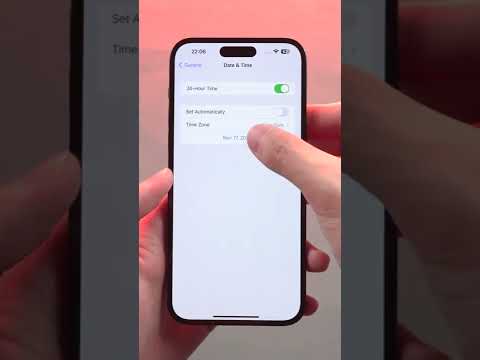
Standard power-downs do not always clear the temporary kernel cache. A force restart triggers a hardware-level reset of the RAM and clears stagnant temporary files. For iPhones with Face ID, quickly press and release Volume Up, then Volume Down, and hold the Side Button until the Apple logo appears. This "cold boot" re-initializes the system's process scheduler.
AI Implementation Score
To help you prioritize these technical fixes, here is our Smart AI Fix Efficiency Rating for each method:
| Optimization Method | Performance Impact | AI Automation Level |
|---|---|---|
| Siri Indexing Reduction | High | Manual |
| App Offloading | Medium | High (Automated) |
| Background Refresh Toggle | High | Low |
| RAM/Cache Reset | Immediate | N/A (System Level) |
5. Update to the Latest Stable iOS Build

While some fear updates slow down devices, Apple frequently patches WebKit vulnerabilities and optimizes the Darwin Kernel in minor releases. Ensure your device is running the latest version by going to Settings > General > Software Update. Modern updates include refined power management algorithms that prevent the CPU from "throttling" due to chemical aging of the battery.
