
In the era of rapid digital transformation, securing sensitive data on mobile devices is no longer optional. For users leveraging the iPhone as a central hub for personal intelligence and professional drafting, the Apple Notes app offers a robust, encrypted environment. Securing these entries involves utilizing the device's Secure Enclave and biometric authentication to ensure that even if the device is unlocked, specific sensitive information remains inaccessible to unauthorized parties.
The Technical Framework of iPhone Note Encryption

Apple employs End-to-End Encryption (E2EE) for locked notes. When you lock a note, iPhone uses a unique key derived from your device passcode or a custom password to encrypt the data. This ensures that even Apple cannot view the contents of your locked notes if they are synced via iCloud. The integration of FaceID and TouchID allows for seamless decryption via the Neural Engine, balancing high-level security with modern AI-driven convenience.
Step-by-Step: How to Lock a Note
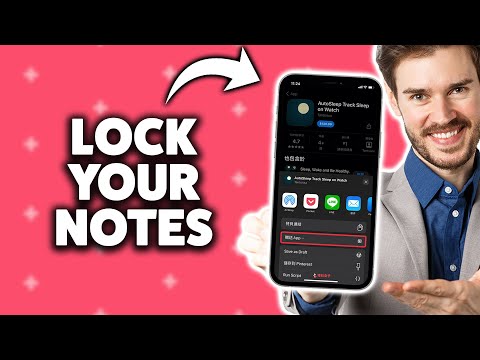
To initiate the locking process, follow these technical steps:
- Open the Notes app and select the specific entry you wish to protect.
- Tap the More button (represented by three dots in a circle) located at the top right of the screen.
- Select the Lock icon from the menu.
- If this is your first time locking a note, you will be prompted to choose between using your iPhone Passcode or creating a Custom Password. For maximum efficiency, we recommend using the iPhone Passcode to enable FaceID/TouchID synchronization.
- Once authenticated, a padlock icon will appear next to the note title. Tap the Lock icon at the top of the note to finalize the "Closed" state.
Managing Biometric Access and Automation
From a software efficiency standpoint, utilizing the device passcode is the superior method. It allows the iOS ecosystem to manage your keys within the hardware-level security module. If you change your device passcode, the notes automatically update their access requirements. However, if you choose a custom password and forget it, Apple cannot assist in recovery, emphasizing the "Zero-Knowledge" privacy model.
AI Implementation Score
The following table evaluates the efficiency and technological integration of the "Lock Note" feature within the iOS ecosystem:
| Metric | Score | Analysis |
|---|---|---|
| Ease of Use | 95% | Native integration allows for two-tap execution. |
| Security Architecture | 98% | Uses AES-256 encryption and Secure Enclave processing. |
| AI Efficiency | 85% | FaceID/TouchID utilizes the Neural Engine for instant decryption. |
| Automation Potential | 30% | Locking/Unlocking cannot be automated via Shortcuts for security reasons. |
Final Optimization Tips
To ensure your secured notes remain accessible across the Apple ecosystem (including Mac and iPad), ensure that Keychain is enabled in your iCloud settings. This allows the Secure Enclave on various devices to communicate the decryption status safely. For those looking to automate their workflows, remember that while Siri can create notes, it cannot unlock them—this is a deliberate "Privacy by Design" friction point intended to prevent unauthorized voice-access to your most sensitive data.
