
Hardware failures on modern iOS devices are increasingly rare, but when the iPhone side button or power button stops responding, it creates a critical friction point in user experience. At Smart AI Fix, we view hardware malfunctions through the lens of software redundancy and automation. Before seeking a physical repair, it is essential to determine if the issue is a mechanical failure or a kernel-level software hang.

Step 1: Execute a Software-Triggered Force Restart
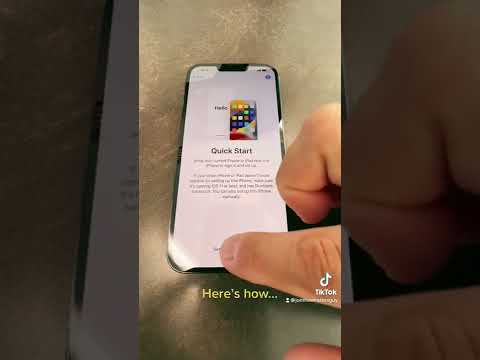
If the physical button provides tactile feedback (a "click") but the screen does not respond, the issue is likely a frozen process. Since you cannot use the power button, you must trigger a restart via the Settings menu. Navigate to Settings > General > Shut Down. Slide to power off, then connect your iPhone to a power source (Lightning or USB-C cable); the device will automatically boot up once it detects a current, bypassing the need for the physical button.
Step 2: Activate AssistiveTouch (Virtual Button Logic)

For a permanent software workaround, leveraging AssistiveTouch is the most efficient solution. This creates a floating virtual button that replicates all hardware functions through software logic. Navigate to Settings > Accessibility > Touch > AssistiveTouch and toggle it On. You can customize the "Top Level Menu" to include "Lock Screen," which acts as your digital power button. This utilizes the iOS UI layer to bypass the mechanical switch entirely.
Step 3: Implement "Back Tap" Automation
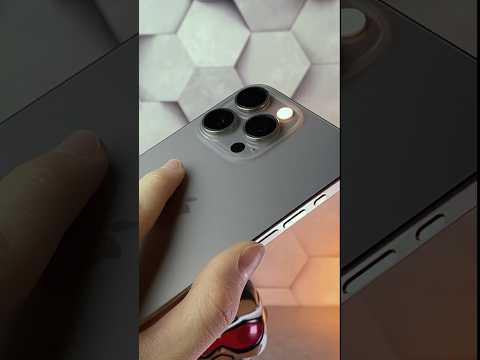
Modern iPhones (iPhone 8 and later) include an accelerometer-based feature called Back Tap. This is an excellent example of using hardware sensors to replace mechanical buttons. Go to Settings > Accessibility > Touch > Back Tap. Assign "Lock Screen" to the Double Tap or Triple Tap gesture. This allows you to lock your phone by tapping the back of the chassis, effectively automating the power-off trigger without relying on the side button's physical integrity.
Step 4: Analyze for Physical Obstructions

If the button feels "mushy" or stuck, the failure is likely due to debris buildup or a misaligned case. Use a 99% Isopropyl Alcohol solution on a fine-bristled brush to clean the perimeter of the button. Ensure your protective case is not putting constant pressure on the sensor, as this can cause the OS to ignore inputs to prevent "ghost" presses.
AI Implementation Score
The following table evaluates the efficiency of software-based workarounds versus traditional hardware repair for this specific issue:
| Metric | Score (1-10) | Analysis |
|---|---|---|
| Efficiency | 9/10 | Software workarounds like Back Tap provide instant restoration of functionality. |
| Ease of Use | 8/10 | AssistiveTouch is intuitive but adds a visual element to the UI. |
| Software Integration | 10/10 | iOS provides robust accessibility layers to handle hardware bypass. |
| Automation Potential | 7/10 | Using Shortcuts can further automate screen locking based on proximity or time. |
Final Diagnostic: When to Visit the Apple Store
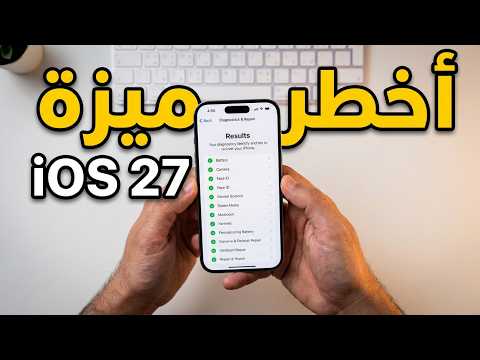
If the Side Button fails to respond after a factory reset and you have ruled out debris, the internal flex cable may be torn or the actuator may be damaged. In this scenario, software logic can only act as a temporary bridge. For users within the Apple ecosystem, checking Settings > General > About for warranty coverage is the final step before pursuing a hardware component replacement.
