
Mastering Network Security: Modifying Your WiFi Credentials via Android
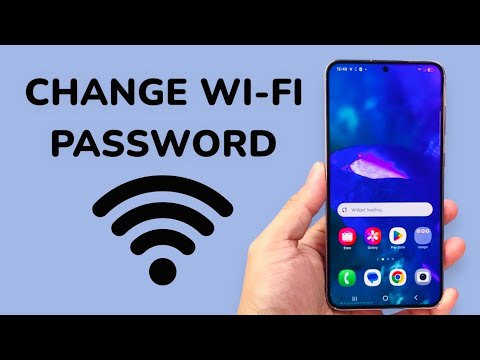
Updating your network security protocols directly from an Android device is no longer a task relegated to desktop workstations. In the modern ecosystem of Smart AI Fix, we prioritize the seamless integration of mobile hardware and network infrastructure. Whether you are using a stock Android interface or a Samsung One UI environment, the process relies on accessing the gateway layer of your local area network (LAN).
Step 1: Identifying the Gateway IP Address

Before you can change your password, you must identify the Gateway IP Address of your router. Android makes this efficient through the system settings. Navigate to Settings > Network & Internet > Internet (or Connections > Wi-Fi on Samsung). Tap the Gear Icon next to your active network. Scroll to the "Advanced" or "View More" section and locate the Gateway entry. This numerical string (typically 192.168.0.1 or 192.168.1.1) is the portal to your router’s firmware.
Step 2: Accessing the Router Firmware Interface

Open a high-performance browser like Google Chrome on your Android device and input the Gateway IP into the address bar. You will be prompted for administrative credentials. If these have not been automated via a password manager, they are usually found on a physical label on the router. Once logged in, the AI-driven interface of modern routers will typically categorize password settings under Wireless, Security, or WLAN Settings.
Step 3: Updating Security Protocols
Locate the field labeled SSID Password or Pre-Shared Key (PSK). To ensure maximum security and future-proof your network against brute-force automation, select WPA3-SAE if your hardware supports it; otherwise, stick with WPA2-AES. Input your new, high-entropy password. Once you hit Save or Apply, your Android device will automatically disconnect as the router refreshes its security tokens.
AI and Automation Efficiency

For users looking to optimize this workflow, utilizing Android’s QR Code sharing feature is essential. After changing the password, you can generate a secure QR code in your WiFi settings. This allows other devices to join the network without manual entry, reducing human error and enhancing the automation potential of your smart home environment.
AI Implementation Score
The following table evaluates the efficiency and technological integration of changing WiFi passwords via mobile software.
| Metric | Score (1-10) | Notes |
|---|---|---|
| Complexity | 4/10 | Straightforward for users familiar with Gateway IPs. |
| Automation Potential | 8/10 | High when integrated with Google/Samsung Cloud sync. |
| Security Impact | 9/10 | Critical for preventing unauthorized network intrusion. |
| AI Efficiency | 7/10 | Modern routers use AI to optimize channel selection post-restart. |
By managing your network directly from your Android or Samsung device, you maintain a high level of operational agility. Always remember to update your saved credentials in any connected smart automation hubs to prevent service interruptions.
