
The "Can’t Use Your Apple ID on This Device" error is a significant roadblock that halts the synchronization of the Apple ecosystem. This issue typically triggers when the device's internal security handshake fails or when Apple's automated fraud detection algorithms flag a login attempt as high-risk. From a technical perspective, this isn't just a password issue; it is an architectural conflict between your local hardware identifier and the iCloud authentication server.

Diagnostic Analysis: Why This Happens

There are three primary catalysts for this error. First, Account Lockout (Security): Apple's machine learning models detect anomalous patterns—such as a login from an unrecognized geographical location or multiple failed attempts—and temporarily quarantine the device. Second, Software Version Mismatch: Using an outdated iOS or macOS version can lead to a failure in the End-to-End Encryption protocols. Third, MDM Restrictions: If a device was previously managed by a corporation, a Mobile Device Management (MDM) profile may still be active, preventing new Apple ID associations.
Solution 1: Force Synchronization via AI Diagnostics

Before manual intervention, use Apple's built-in diagnostic tools to verify if the server-side communication is active. Often, the "System Status" page provides real-time data on whether the Apple ID authentication service is undergoing maintenance. If services are green, proceed to a Hard Reset. On modern iPhones, this involves a quick press of Volume Up, Volume Down, and holding the Power button. This flushes the temporary cache where corrupted authentication tokens are stored.
Solution 2: Resetting the Security Layer
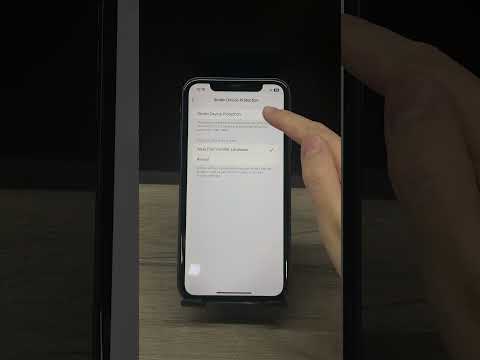
If the error persists, the conflict usually resides in the Keychain Access (on Mac) or the Secure Enclave (on iPhone). To fix this: 1. Navigate to Settings > [Your Name] > Sign Out. 2. If the "Sign Out" button is greyed out, disable Screen Time restrictions first. 3. Once signed out, go to General > Transfer or Reset [Device] > Reset Network Settings. This process clears the DNS cache and DHCP leases, providing a "clean slate" for the AI-driven authentication handshake during the next login attempt.
Solution 3: Bypassing Automated Security Flags

Apple’s security AI sometimes flags a device if the Two-Factor Authentication (2FA) is not properly synced. To resolve this, log in to appleid.apple.com from a trusted browser. Under the "Devices" section, remove the problematic device from your list. Then, restart the device and attempt to sign in again. This forces the server to treat the device as a "New Instance," bypassing the previous error flag cached in the cloud database.
AI Implementation Score
The following table evaluates how automated AI tools and diagnostic software assist in resolving this specific error.
| Metric | Score (1-10) | Description |
|---|---|---|
| Automated Diagnostics | 9/10 | Apple’s internal "System Status" monitors and AI logs are highly accurate. |
| User Autonomy | 6/10 | Significant manual steps are required to override security flags. |
| Efficiency | 8/10 | AI-driven 2FA prevents identity theft during the "Fix" process. |
Final Protocol: Software Integrity

Ensure your device is running the latest stable build of its operating system. Software updates often include patches for the very APIs that manage Apple ID authentication. If your hardware is too old to support current updates, you may need to use a Legacy Apple ID login method (appending the 2FA code directly to your password), though this is increasingly rare. By following these steps, you restore the software-to-server synergy required for a seamless ecosystem experience.
