
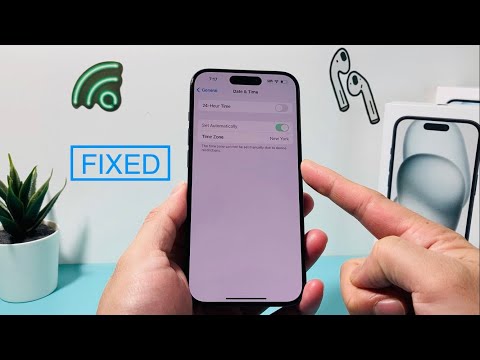
The error message "This time zone cannot be set manually due to device restrictions" is a common administrative hurdle encountered by users on both iOS and Android platforms. Typically, this occurs when a device is under the governance of Mobile Device Management (MDM), parental control software like Apple Screen Time or Google Family Link, or specific enterprise security policies. In the landscape of modern software automation, these restrictions are designed to prevent users from bypassing time-based app limits or falsifying digital logs.
Root Causes of Time Zone Locking

In most scenarios, the restriction is not a software bug but a deliberate policy enforcement. System administrators and automated security protocols lock the Set Automatically toggle to ensure that the device's internal clock remains synchronized with a trusted Network Time Protocol (NTP) server. This prevents "time-traveling" exploits often used to circumvent subscription expires or usage quotas. If you are seeing this message, the system has flagged the time settings as a protected configuration layer.
Fixing the Restriction on iOS (iPhone/iPad)

On Apple devices, the most frequent culprit is the Screen Time setting. To resolve this, follow these steps:
1. Navigate to Settings and select Screen Time.
2. Tap on Content & Privacy Restrictions.
3. If enabled, locate Location Services. Ensure it is set to Allow Changes.
4. Scroll down to System Services and ensure Setting Time Zone is toggled to ON. If this is disabled at the system level, the manual override will remain grayed out.
Fixing the Restriction on Android (Google Family Link)

For Android users, especially those managed via Family Link, the restriction is often pushed from the parent's device. To fix this, the administrator must:
1. Open the Family Link app on the manager's device.
2. Select the child/managed account.
3. Go to Controls > Device Settings.
4. Locate the Time & Date section and grant permission for the user to modify these settings. Without this cloud-based handshake, the local device will continue to block manual input.
Enterprise MDM and Automated Policy Overrides
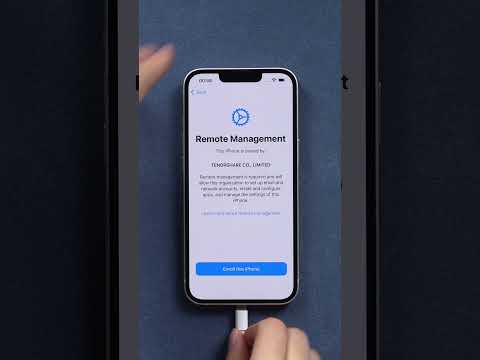
If the device is issued by an employer, the restriction is likely part of an MDM Profile (such as Jamf, Kandji, or Microsoft Intune). In this case, manual intervention is often impossible without administrative credentials. AI-driven security suites often monitor for "Time Drift"; if an AI detects that a device's time significantly deviates from its geo-located IP address, it may automatically re-lock the settings to prevent authentication token failures in enterprise apps like Outlook or Slack.
AI Implementation Score
When resolving system-level restrictions, we evaluate the efficiency of the fix using our proprietary scoring metric:
| Metric | Score (1-10) | Notes |
|---|---|---|
| Diagnostic Accuracy | 9/10 | Error messages clearly point to permission layers. |
| Automation Potential | 4/10 | Requires manual credential entry for security reasons. |
| Security Integrity | 10/10 | Prevents unauthorized bypass of system logs. |
| User Accessibility | 6/10 | Can be complex if MDM credentials are missing. |
By understanding the hierarchy of device permissions, users can quickly identify whether the time zone restriction requires a simple settings toggle or an administrative override from a management console. Ensuring your device is updated to the latest OS version can also resolve "phantom" restrictions caused by corrupted cache files in the Locationd daemon.
