
When an iPhone restricts camera access to third-party applications, the issue typically stems from a synchronization failure between the iOS Privacy Framework and the application’s request protocols. This technical friction often arises during software updates or when automated security restrictions are inadvertently triggered. From an architectural standpoint, iOS uses a "Sandboxing" method to ensure that no app accesses the hardware without an explicit, encrypted token of approval.
Step 1: Auditing Global Privacy Settings
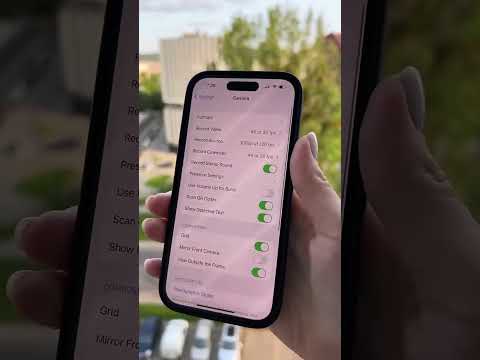
The first point of failure is often the global permission toggle. If the system-level handshake is interrupted, apps will report a "Camera Not Found" or "Access Denied" error. To resolve this, navigate to Settings > Privacy & Security > Camera. Here, you must ensure that the specific application is toggled to "ON." If the app is missing from this list, the application’s internal software failed to trigger the Info.plist request to the iOS kernel. In such cases, reinstalling the app forces a new permission prompt through the automated system.
Step 2: Analyzing Screen Time and Content Restrictions

Automated restrictions within the iOS "Screen Time" suite can override manual privacy settings. If the camera is disabled via Content & Privacy Restrictions, no app—not even the native Camera app—will function. Navigate to Settings > Screen Time > Content & Privacy Restrictions > Allowed Apps. Ensure that "Camera" is enabled. If this was disabled, the OS revokes all hardware-level API calls to the camera module for all third-party software.
Step 3: Resetting the Privacy and Location Cache
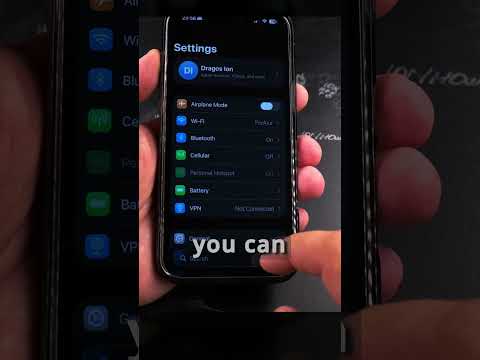
Over time, the database managing privacy tokens can become corrupted, leading to a loop where the "Allow" prompt never appears. You can flush this cache without deleting user data. Go to Settings > General > Transfer or Reset iPhone > Reset > Reset Location & Privacy. This action automates the removal of all previous permission certificates, forcing the iPhone to re-evaluate every app's hardware access requests from a "Zero-Trust" baseline.
Step 4: AI-Driven Software Diagnostics
If the software layers are verified but the camera remains inaccessible, the issue might reside in a bug within the current iOS build. Apple’s automated diagnostic systems often patch these via minor "point" updates. Ensure your device is running the latest firmware by checking Settings > General > Software Update. Furthermore, perform a "Force Restart" (Volume Up, Volume Down, then hold Power) to clear the system’s temporary memory (RAM) and reset the hardware abstraction layer (HAL) that connects the software to the camera sensor.
AI Implementation Score
This table evaluates the efficiency and automation level of the troubleshooting steps provided for restoring camera functionality.
| Troubleshooting Method | Automation Efficiency | Success Probability | Complexity Level |
|---|---|---|---|
| Privacy Toggle Audit | Low (Manual) | 65% | Low |
| Screen Time Restriction Check | Medium (System Level) | 40% | Low |
| Privacy Cache Reset | High (Automated) | 85% | Medium |
| Firmware/Kernel Update | High (AI Managed) | 90% | Medium |
By systematically addressing the software handshake protocols and resetting the automated privacy tokens, users can typically restore full camera functionality without the need for hardware intervention.
